The TFT Unlock Tool is designed for unlocking Android devices, including bypassing FRP lock, removing screen locks, and flashing firmware. It helps technicians and users who need to regain access to their locked devices quickly. However, a common issue encountered during its use is the "No Internet Connection" error. This problem prevents the tool from connecting to its servers, which is essential for verifying licenses and downloading necessary files to complete the unlocking process smoothly.
Causes of No Internet Connection Error
Several reasons can lead to the TFT Unlock Tool No Internet Connection issue:
- Sometimes the internet connection is detected but weak or unstable, causing failures when the tool tries to communicate with servers.
- The security software or firewall blocks TFT from accessing the internet.
- The use of VPNs or proxy servers redirects traffic, causing the tool to lose connection with its servers.
- Older versions of the TFT Unlock tool may not connect properly due to incompatibility with current server protocols.
- TFT's servers are temporarily offline for maintenance or due to outages, resulting in connection errors.
- Expired or invalid licenses may result in connection rejection, interpreted as no internet.
- Issues like corrupt DNS cache, misconfigured network adapters, or wrong system time affect connectivity.
Related Article: TFT Unlock Tool - Review, Download, and Step Guide
How to Fix TFT Unlock Tool No Internet Connection
The following lists 9 fixes to the issue "TFT Unlock Tool No Internet Connection on Windows 7/8/10/11."
Check Internet Connection
TFT Unlock Tool relies on internet access to verify licenses, communicate with servers, and download essential files during the Android phone unlocking process. If your internet connection is unstable or too slow, the tool may display a "No Internet Connection" error.
To troubleshoot this issue: Test your network speed using online tools like Speedtest.net. If the speed is low or intermittent, consider restarting your router or switching to a different network.
Check Date & Time Settings
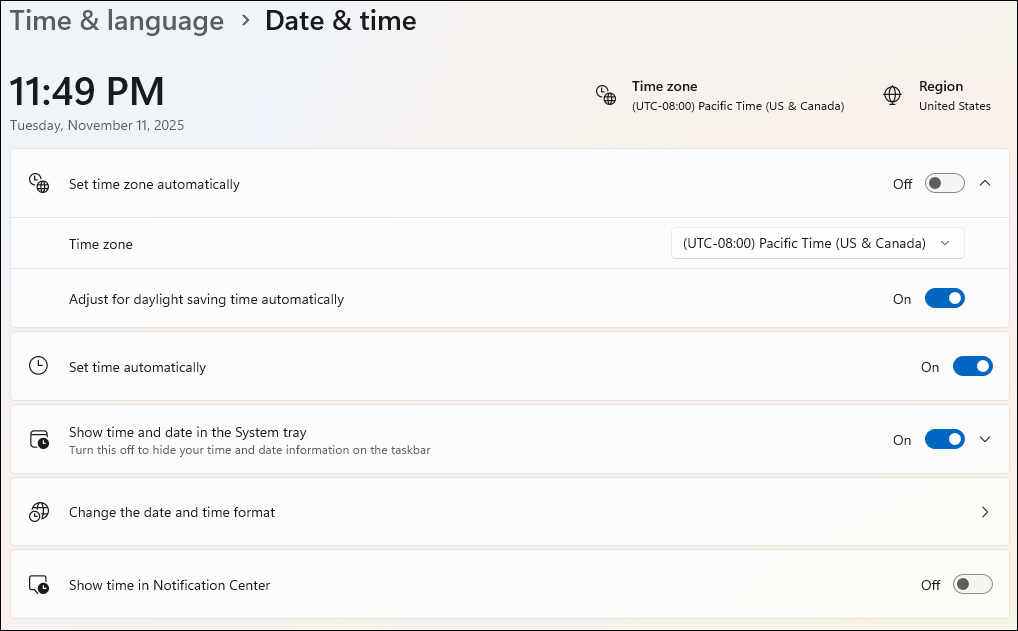
If your system's date and time are set to a date or time significantly different from the current time, the server may reject the connection attempt as invalid or insecure.
To resolve this issue, verify your system clock settings. On Windows, you can find these settings under Settings > Time & Language > Date & Time. Turn on "Set time automatically" and "Set time zone automatically." Then, restart the TFT Unlock Tool after correcting the date and time settings.
![windows-date-time.png]()
Run the Tool as Administrator
Administrator rights allow the tool to access critical system resources and network settings that may otherwise be restricted by your operating system's security policies.
To run the TFT Unlock Tool as an administrator:
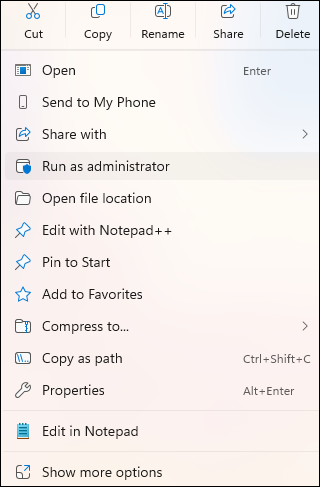
- Right-click on the TFT Unlock Tool shortcut or executable file.
- Select "Run as Administrator" from the context menu.
- If prompted by User Account Control (UAC), click "Yes" to grant permission.
- The tool will now launch with full access rights, improving its ability to connect to the internet and operate smoothly.
![run-as-administrator.png]()
Disable Firewall and Antivirus Temporarily
Turn off antivirus providers temporarily and turn them back on when you finish using TFT Unlock Tool to bypass FRP or screen locks.
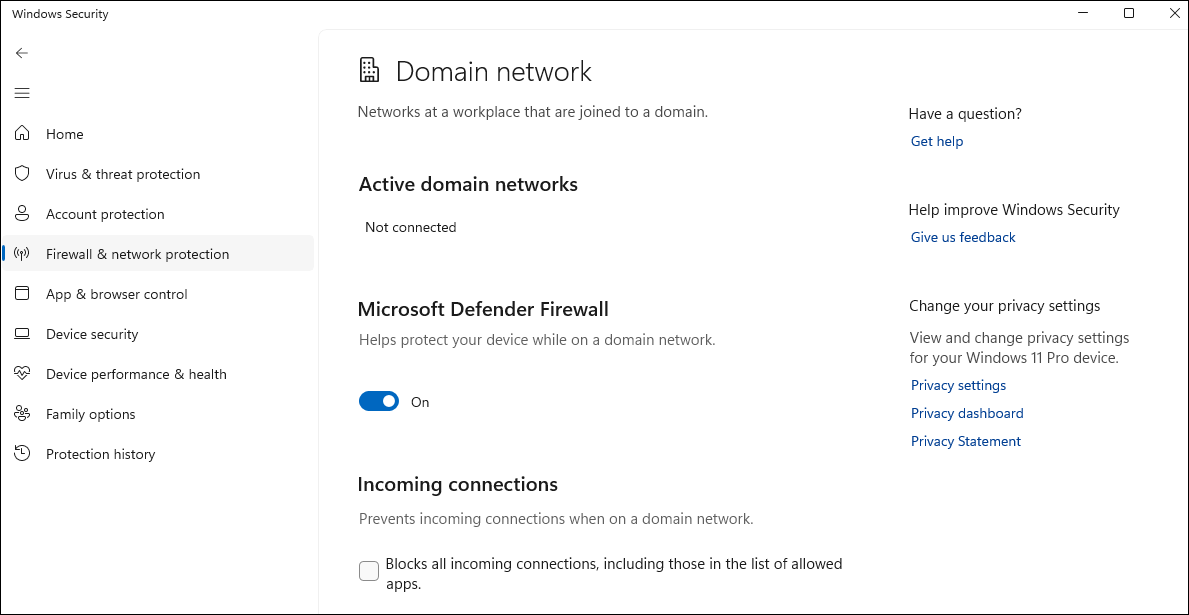
Disable Windows Firewall:
- Go to Settings > Privacy & Security.
- Select Firewall & Network Protection.
- Turn off the firewall for both private and public networks.
- Click OK and restart the TFT Unlock Tool.
![windows-firewall-network-protection.png]()
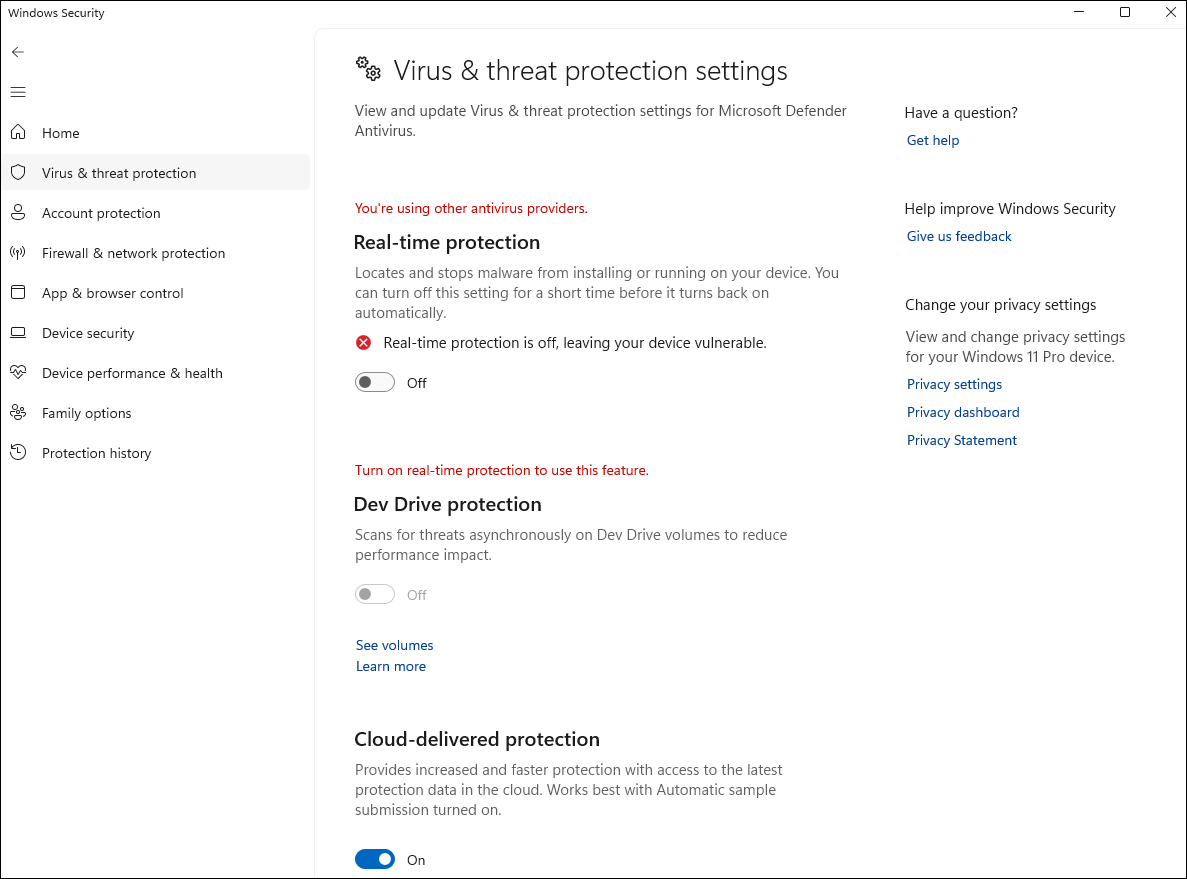
Disable Antivirus (Windows Security):
- Go to Settings > Privacy & Security.
- Click on Virus & Threat Protection> Manage Settings.
- Turn off "Real-time protection" temporarily.
![windows-virus-threat-protection-settings.png]()
Note: After unlocking, remember to turn on your antivirus or firewall to protect your Windows computer.
Disable VPN and Proxy Services
If a VPN or proxy is active, the tool may not be able to establish a direct link, as its traffic could be blocked, slowed down, or flagged as suspicious. Therefore, you need to disconnect from any active VPN client before launching the TFT Unlock Tool.
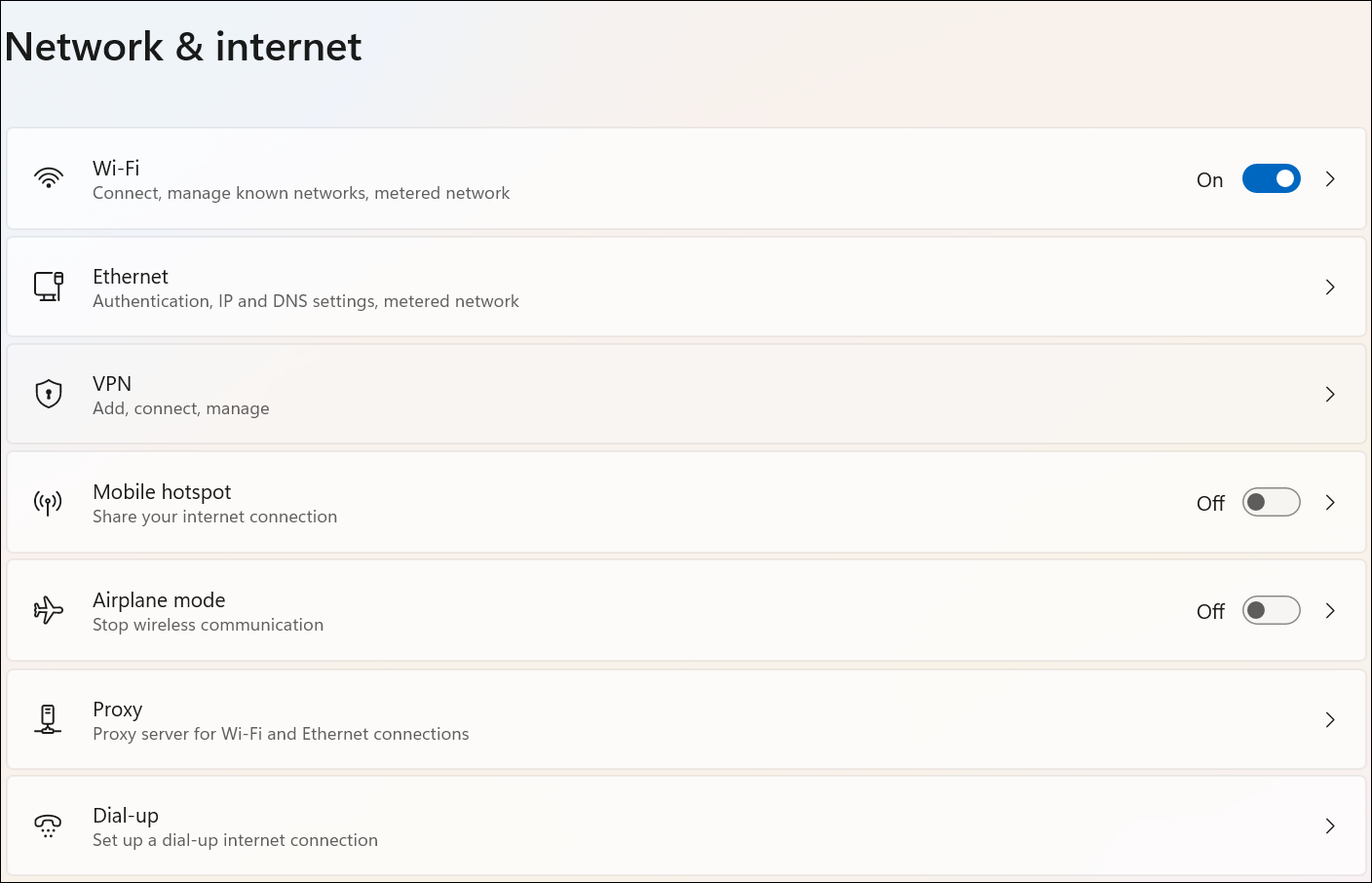
On Windows 11, go to Settings > Network & Internet > Proxy. Turn off any manually set proxy options. After disabling these services, restart the tool and check if the connection works.
![windows-network-internet.png]()
Update the TFT Unlock Tool
Using the latest version of the tool is critical to avoid connectivity issues. Developers update the software frequently to fix bugs and improve the server communication protocols. To update the tool:
- Uninstall the previous version before
- Visit the trusted website to download the latest version.
- Follow the installation instructions carefully and restart your computer if required.
- After updating, launch the tool and verify if the internet connection issue is resolved.
Reset Network Settings
Resetting your network settings can clear misconfigurations, corrupted cache, or conflicting network profiles that may cause the TFT Unlock Tool to fail connecting to the internet or its servers.
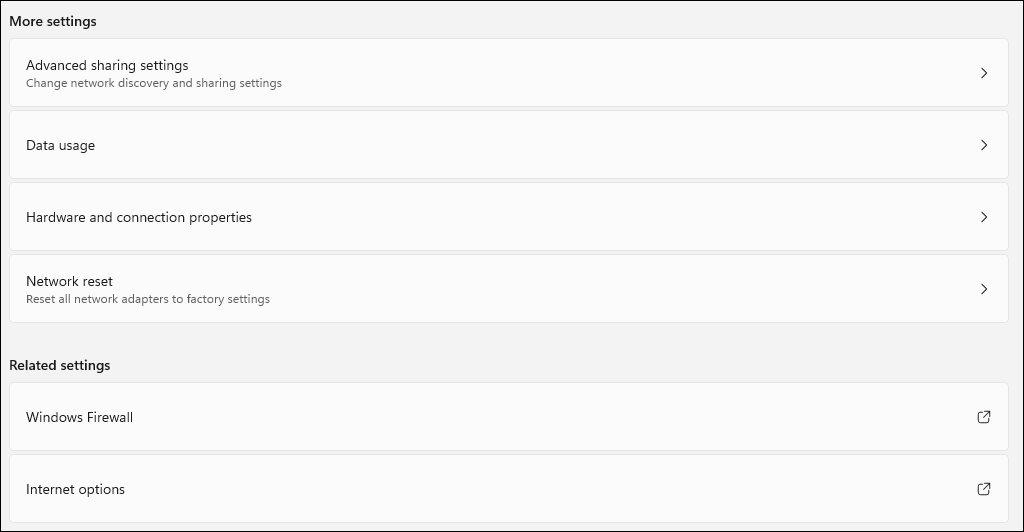
On Windows, open Settings> Network & Internet > Advanced network settings > Network Reset > Reset Now. Then, your system will reboot, and network adapters will be reinstalled automatically.
![windows-network-reset.png]()
Check for Server Downtime
Visit the official TFT Unlock Tool website or their official social media channels for any announcements about server outages or maintenance schedules. You can also check user forums or community groups where other users might report server downtime issues. If confirmed, the only solution is to wait for the servers to be restored.
Flush DNS Cache
Flushing the DNS cache forces your system to obtain fresh DNS information, which can clear corrupted or outdated entries that may have been blocking the tool's connection to the internet.
- Press Windows Key + R to open the Run dialog box.
- Type cmd and press Enter to open the Command Prompt.
- In the Command Prompt window, type the following command and press Enter: ipconfig /flushdns
- You should see a confirmation message saying: "Successfully flushed the DNS Resolver Cache."
- Close the Command Prompt and restart the TFT Unlock Tool to verify if the internet connection issue has been resolved.
Reinstall the Tool
Using the latest version of the tool is critical to avoid connectivity issues. Developers update the software frequently to fix bugs and improve the server communication protocols.
- Go to Control Panel > Programs > Uninstall a program (or Settings > Apps on Windows 10/11).
- Locate the TFT Unlock Tool in the list, select it, and click Uninstall.
- Visit the official TFT Unlock Tool website or a trusted source to download the most recent version.
- The download is usually a ZIP or RAR file. Right-click it and select Extract All. Run the extracted installer.
- Follow the installation wizard, accept license agreements, and enter the setup password.
- After installation, restart your computer if required. Check if the internet connection issue is resolved.
Tips and Precautions When Using TFT Unlock Tool
Here are some important notes to consider when using the TFT Unlock Tool for Android phone unlocking.
- Only use unlocking tools on your own devices or the device you have explicit permission to unlock.
- Download the TFT Unlock Tool only from trusted official sources to avoid malware risks.
- Always back up your data before starting the unlocking process.
- Avoid pirated or cracked versions of the tool, as they pose high risks of malware infection, device damage, and legal issues.
- Verify the tool supports your device model and firmware version to avoid unsuccessful unlocking attempts.
Alternative to TFT Unlock Tool When Issue Persists
When the TFT Unlock Tool No Internet Connection issue still exists, you can use an alternative to bypass FRP locks and remove various screen locks on Android devices. EaseUS MobiUnlock for Android is such an alternative that supports a wide range of Android devices and removes passwords, PINs, patterns, and Google FRP.
It outcompetes the TFT Unlock Tool for its technical support and software safety. Unlike the TFT Unlock Tool, EaseUS MobiUnlock for Android has an official website where you can download the software without ads or malicious malware. Moreover, it offers a 24/7 support service, allowing you to reach the technical team regardless of the problems you encounter.
For beginners, EaseUS MobiUnlock for Android is more acceptable and easier to use. No additional setup process is required. After installing the software from the official website by clicking the download button, it provides a step-by-step guide for users to access their locked Android phones or tablets.
From the perspective of supported devices, it works well on the majority of popular Android brands, such as Samsung, Motorola, LG, Xiaomi, Huawei, and many more. Whether it is the newer Android 15 or older versions like Android 10 or 9, it unlocks the FRP lock or screen lock successfully.
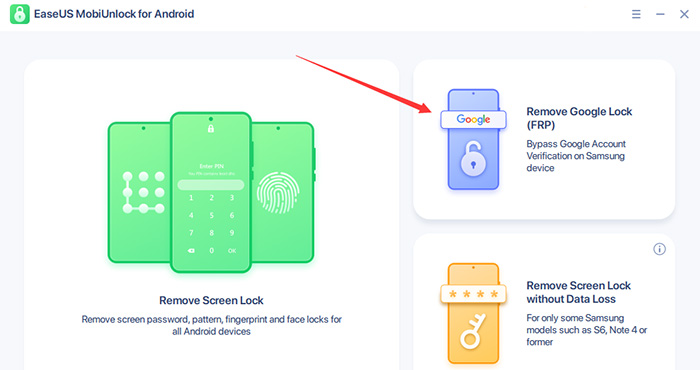
Step 1. Launch EaseUS MobiUnlock for Android on Windows, select Remove Google Lock (FRP).
![easeus mobiunlock homepage]()
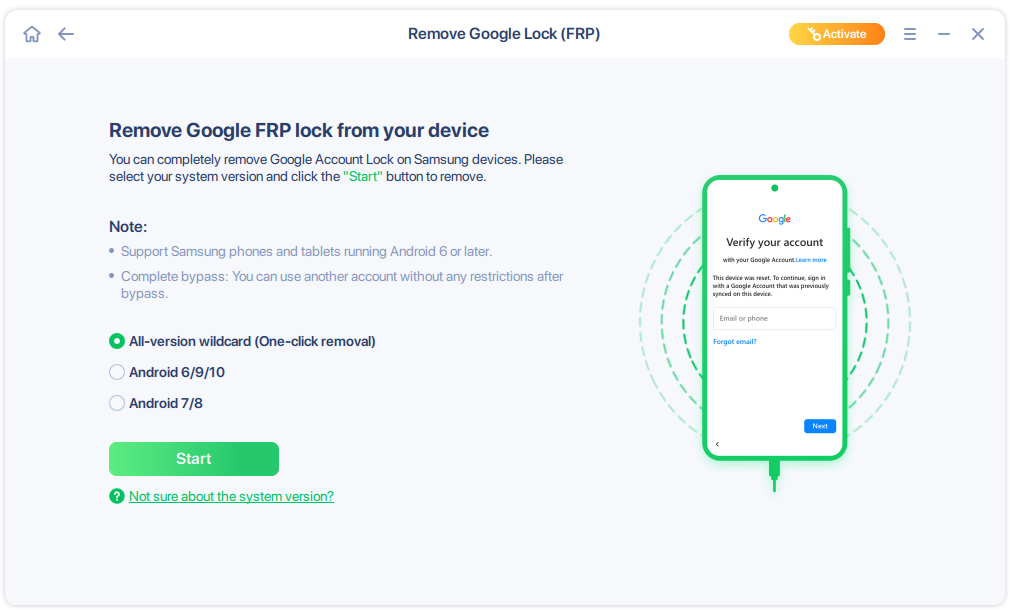
Step 2. Connect your Android device via USB and click Start and follow the on-screen instructions.
![select Sart to bypass FRP now]()
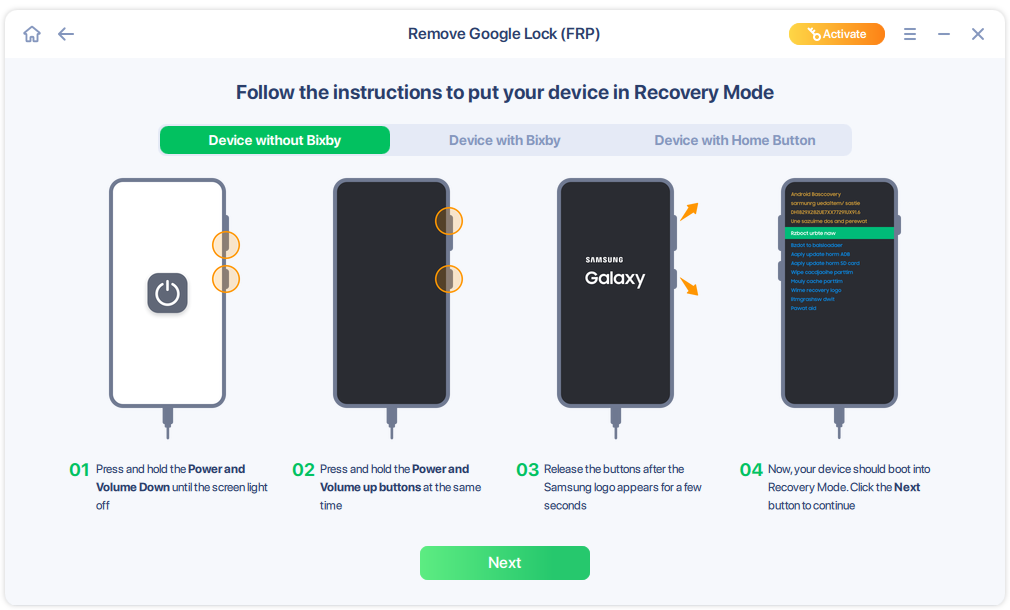
Step 3. Put your Android into Recovery Mode as prompt and wait 3–5 minutes for the FRP lock to be removed, then reboot.
![enter the recovery mode]()
Conclusion
Users may occasionally encounter the No Internet Connection error due to network, software, or system settings issues. Following the guide above, such as checking the internet connection, running the tool as an administrator, temporarily disabling firewalls and VPNs, resetting network settings, and ensuring the tool is fully updated, can effectively resolve most connectivity problems.
If you continue to experience the issue, consider alternatives like EaseUS MobiUnlock for Android, which can provide a reliable and user-friendly unlocking process with a high success rate.
Ultimately, careful attention to software updates, system configurations, and proper use precautions will maximize success and safety when using the TFT Unlock Tool or any Android unlocking software.
FAQs
Is TFT Unlock Tool free to use?
The tool offers both free and paid versions. Some unlocking features may require a license or paid activation for full functionality.
Which devices are supported by TFT Unlock Tool?
It supports a wide range of Android smartphones such as Samsung, Xiaomi, Huawei, Oppo, Vivo, Infinix, Tecno, and more.
Is it safe to use TFT Unlock Tool?
When downloaded from trusted sources and used according to guidelines, it is generally safe. Avoid cracked or pirated versions to prevent malware risks.
What are the system requirements for running TFT Unlock Tool?
It generally requires a Windows PC with administrator rights, a stable internet, and USB connectivity for Android devices.




 NEW
NEW HOT
HOT
