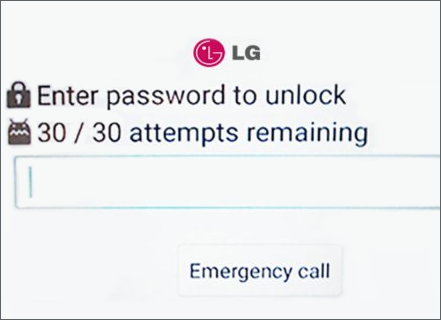
Seeing the message "Enter Password to Unlock (30/30 attempts remaining)" on your Android phone can be alarming. Many LG phone users encounter this problem when they forget their password, buy a second-hand device that is still locked, or accidentally trigger the lock after children or family members enter the wrong code.
This guide will explain what the "Enter password to unlock 30/30 attempts remaining" message really means, and walk you through different proven methods to fix it by using built-in tools like Find My Device, performing a reset, or turning to a professional unlock solution.
Quick Preview of Fixes:
⚠️ Tip: Always back up your important data before attempting any unlock. Factory reset or some tools may erase all information on your phone.
What Does "Enter Password to Unlock 30/30 Attempts Remaining" Mean?
The message "Enter password to unlock 30/30 attempts remaining" is an Android's built-in security feature designed to protect against brute-force password guessing. It appears when your device has reached the maximum number of allowed password, PIN, or pattern attempts.
![Enter Password to Unlock 30/30 Attempts Remaining screenshot]()
This can happen if you forget your PIN or password, enter the wrong code repeatedly, often by children or use a second-hand phone where the previous owner's credentials are still active. This issue is most commonly reported on LG devices, especially older models running Android 7–9.
How to Fix the LG 30/30 Attempts Remaining Message?
If your Android device shows "Enter Password to Unlock (30/30 attempts remaining)", don't panic. There are several ways to regain access depending on your device brand, account status, and technical comfort. Here are the most effective solutions step by step.
Method 1. Unlock via Google Account (FRP Unlock)
When you link your Android device to a Google account, you can often unlock it without losing data. This method leverages the Factory Reset Protection (FRP) system to unlock Android forogt PIN, which verifies device ownership through your Google credentials. It's the simplest and safest way to regain access if you remember your account information.
Pros
- Usually preserves all your data.
- No additional software needed.
Cons
- Requires internet connection.
- Only works if you remember your Google account credentials.
Steps:
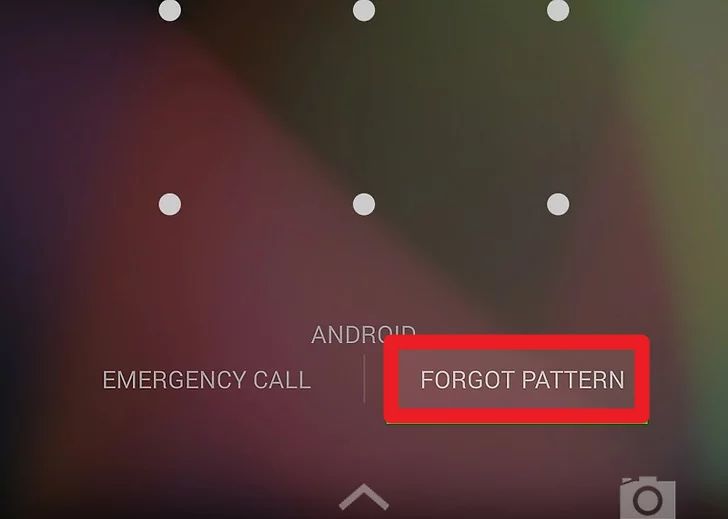
Step 1. On the lock screen, tap Forgot pattern/password? or look for the Google sign-in prompt.
Step 2. Enter your Google account username and password associated with the device.
Step 3. Follow the on-screen verification steps.
Step 4. Once verified, your device will unlock, and you can reset your lock screen password.
![tap forgot pattern]()
Method 2: Use LG Bridge (LG Official Tool)
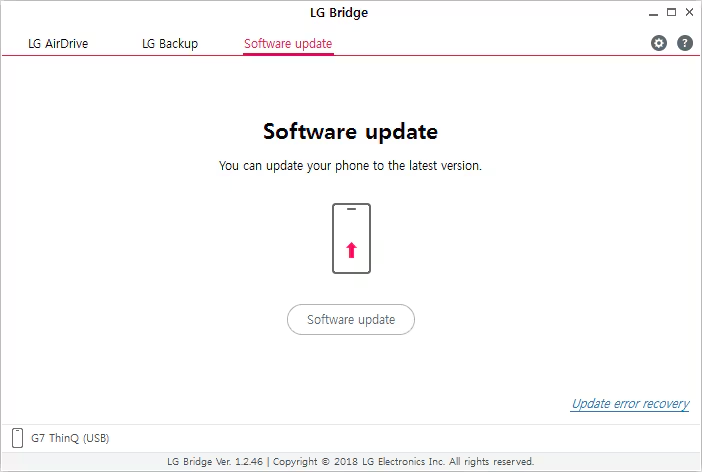
LG Bridge is LG's official PC software for backup and updates. It does not include a direct password removal feature, but some LG users report that the Software Update function can reinstall the system and factory reset Android without password. This process may indirectly remove the lock screen, but it works inconsistently and usually results in data loss. Note that, in many cases, the phone cannot be recognized if USB debugging was not enabled before the lock, making this method less reliable.
Pros
- Official LG tool, safe to use if your device is detected.
- Compatible with most LG G-series and V-series phones.
Cons
- Does not guarantee to unlock the device.
- Often requires USB debugging to have been enabled before the lock.
- Usually results in a factory reset, which erases all data.
Steps:
Step 1. Download and install LG Bridge on your Windows or Mac computer.
Step 2. Connect your LG phone to the PC with a USB cable.
Step 3. Open LG Bridge and go to Software Update.
Step 4. If your phone is recognized, follow the prompts to update or restore the system.
Step 5. Once complete, the device will reboot, and the lock screen may be cleared.
![LG Bridge screenshot]()
To avoid permanent loss of photos, contacts, or app data, it's strongly recommended to use Google Backup or back up Andrpid to PC before proceeding.
Method 3: Unlock via EaseUS MobiUnlock for Android
EaseUS MobiUnlock for Android is a third-party Android unlock tool designed to help users unlock Android without password quickly and safely. It's suitable for various brands, including LG, Samsung, Xiaomi, and Pixel. This method is perfect if you cannot use a Google account or LG Bridge and want a guided, step-by-step solution.
Pros
- Capable of unlocking password, PIN, pattern, fingerprint, and face lock
- Supports 99% Android brands and versions.
- May preserve data depending on device model.
Cons
- Some devices may still require a factory reset if advanced security is triggered.
Steps:
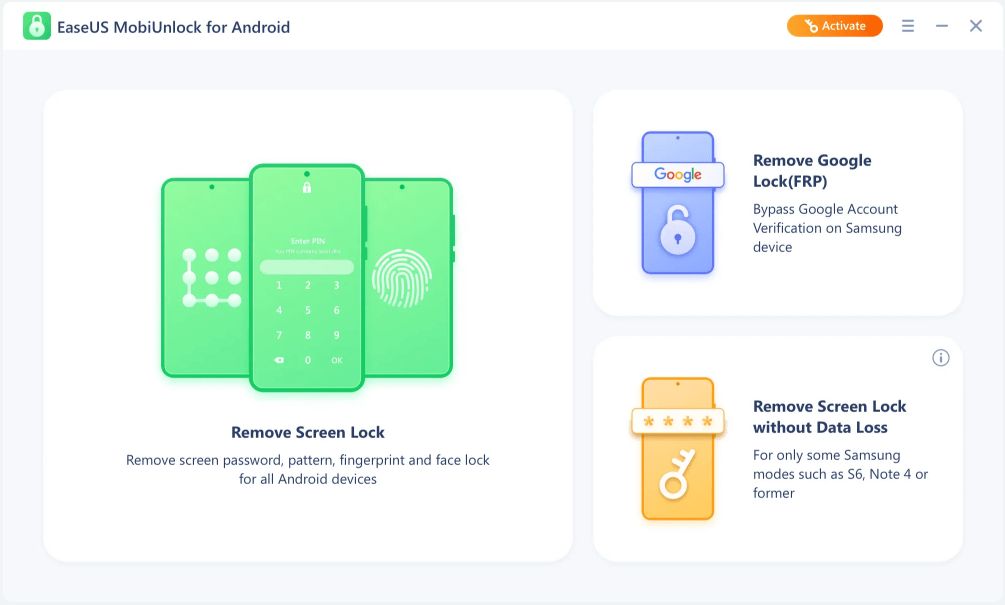
Step 1. Launch EaseUS MobiUnlock. To unlock phone when you forgot the password, choose "Remove Screen Lock."
![Launch Phone Unlocker]()
Step 2. Connect your Android device via USB and enable USB debugging if prompted.
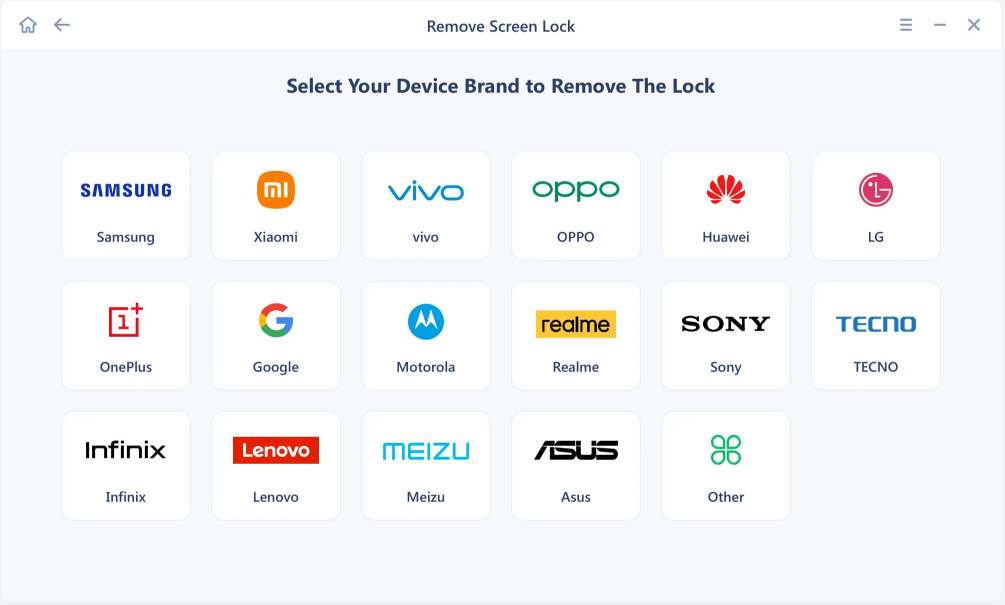
Step 3. Select your phone brand, e.g., LG in the first row.
![Choose phone brand]()
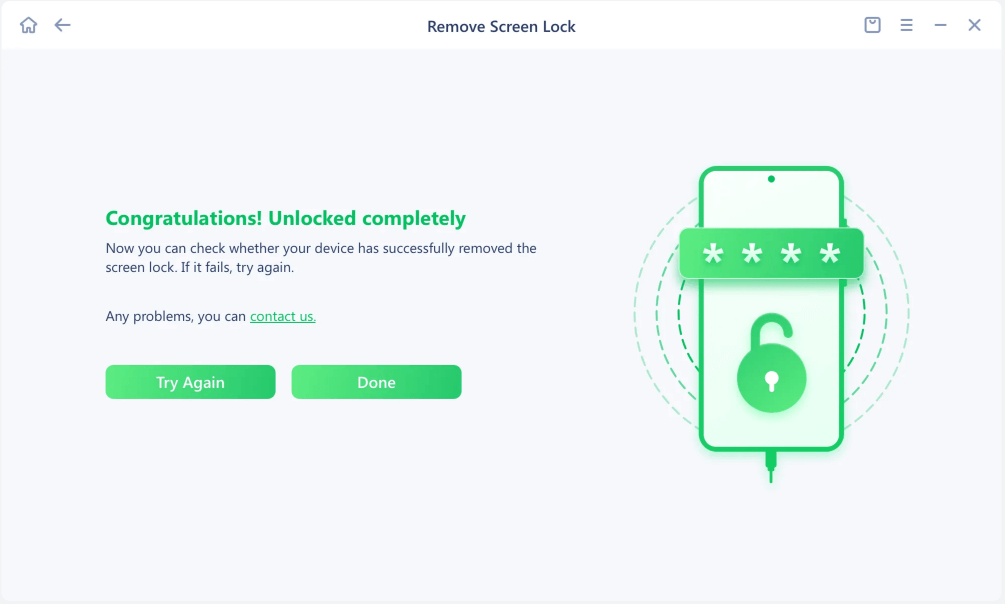
Step 4. Follow the on-screen prompts to enter device info and initiate unlocking.
![Unlock complete]()
Step 5. Wait for the process to complete; your device will restart without a lock screen.
Method 4: Perform Manual Factory Reset (Hardware Keys)
When all other methods fail, a manual factory reset is the universal solution. This method uses the phone's built-in recovery mode to completely wipe the device and remove the lock screen password. It works for almost all Android devices including LG, making it a reliable last resort.
Pros
- Guaranteed to unlock your device.
- Does not require account login or internet connection.
Cons
- Will erase all data.
- May trigger Google FRP (you'll need the original Google account to reactivate).
Steps:
Step 1. Power off your Android phone.
Step 2. Press and hold Volume Down + Power (or Volume Up + Power depending on device) until the LG logo appears.
Step 3. Release and then immediately press both buttons again to enter Recovery Mode.
Step 4. Navigate to Factory data reset / Wipe data using the volume buttons.
Step 5. Confirm the reset and wait for the device to restart.
![perform a factory reset on LG manually]()
Method 5: Use Google's Find My Device
Find My Device, also known as Android Device Manager, is a Google service that allows you to locate, lock, or erase your LG phone remotely. For devices connected to a Google account and internet, it provides a convenient way to reset the device and remove the lock screen password.
Pros
- Can unlock the device remotely without physical access.
- Useful if the phone is lost or inaccessible.
Cons
- Data will be erased.
- Requires internet connection and Google account login.
Steps:
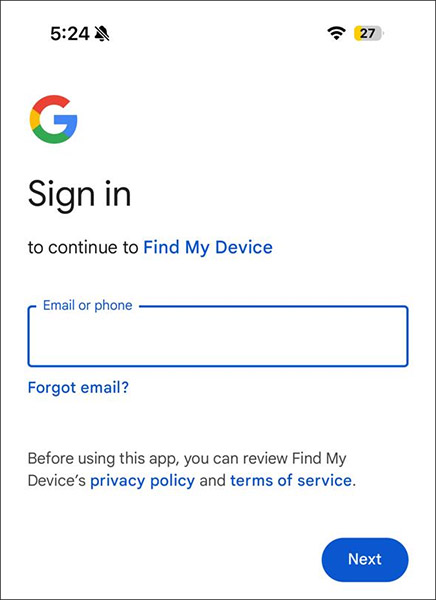
Step 1. On another device, visit Google Find My Device and log in with your Google account.
Step 2. Select your locked device from the list.
Step 3. Choose Erase Device to reset the phone remotely.
Step 4. After the process, your device will be unlocked, but all data will be erased.
![sign into FInd My Device]()
Troubleshooting: Common Issues and Fixes
Even if you follow the unlocking steps carefully, you may still encounter problems along the way. Here are the most frequent issues users report when fixing the "Enter Password to Unlock 30/30 Attempts Remaining" error, along with practical solutions.
1. LG Bridge won't recognize your phone
Sometimes LG Bridge fails to detect the device or shows a driver error. To fix this, make sure you install the latest LG USB drivers from LG's official website. Try switching to a different USB port or cable, and avoid using third-party hubs. If the issue persists, restarting both the phone and PC usually helps.
2. Google account verification fails
If you choose the Google Account method but cannot pass verification, double-check your login credentials and ensure that two-step verification is turned off temporarily. If you forgot your Google password, you can reset it directly via the Google Account Recovery page
. Remember that the device must be online for the login to work.
3. Cannot enter recovery mode for factory reset
Different Android brands and models use different key combinations to enter recovery mode. For example, LG devices often require holding Power + Volume Down, while Samsung might use Power + Volume Up + Home. If the phone just restarts instead of entering recovery, release the Power button briefly when the logo appears, then press it again while holding the Volume key. Checking your device's exact combination on the official support page is the safest approach.
4. EaseUS MobiUnlock shows connection or driver errors
If the software cannot detect your device, confirm that USB debugging and OEM unlocking (if available) are enabled in Developer Options. Install or update the required drivers and make sure no other phone management tools are running in the background. Trying another USB cable or port can also solve the problem.
By addressing these common pitfalls, you can greatly increase the chances of unlocking your phone successfully and avoid unnecessary frustration.
FAQ
1. Does LG Bridge unlock my phone without data loss?
No. LG Bridge is primarily a backup and update tool. While it can reinstall the system and reset the device, it usually performs a factory reset, which erases all data unless you already have a backup.
2. What happens if you use all 30 attempts?
The 30/30 counter means you are at the maximum limit of attempts; if all are used up, the phone will usually lock down further or require account verification.
3. Why does the 30/30 Attempts Remaining message appear?
- Forgotten password or PIN – You simply can't recall the correct unlock code.
- Repeated wrong inputs by children or others – Common in households where devices are shared or accessed by kids.
- Second-hand or used phones – A previous owner's credentials are still active.
- System bugs after updates – In some cases, users report seeing the counter even when entering the correct password.
4. Why the message often happens on LG phones?
From user reports and search patterns, the "30/30 attempts remaining" issue most frequently appears on LG devices. LG phones tend to display this counter more explicitly than other brands. For example:
- LG Android 7–9 (older models) – Show the 30/30 counter directly on the lock screen.
- LG's custom firmware – Implements stricter password attempt tracking, which explains why LG users search for this error more often than Samsung or Xiaomi users.
- Brand-specific lock behavior – While Samsung ties failed attempts to its Find My Mobile ecosystem and Google Pixel relies on standard Android FRP, LG's system tends to rely on this numeric attempt counter as the warning stage.
Final Thought
Seeing "Enter password to unlock 30/30 attempts remaining" on your LG Stylo or Android phone can be alarming, but it doesn't mean your device is permanently locked. You have several recovery paths: using your Google account, trying LG Bridge, turning to a professional tool like EaseUS MobiUnlock for Android, or performing a factory reset.
With the right approach, you can safely unlock your device and regain access without unnecessary stress.





 NEW
NEW HOT
HOT
