What Is DNX Fastboot Mode?
DNX Fastboot Mode, which stands for Download and Execute Fastboot Mode, is a special boot mode primarily found on Intel-powered Android tablets and phones. Think of it as a waiting stage where your device pauses to receive commands from a computer when it can't start up normally.
Unlike the standard Fastboot mode on many Android phones, DNX Fastboot Mode is specific to devices with Intel processors, such as certain tablets from Huawei, Lenovo, or Asus. While standard Fastboot allows you to unlock the bootloader or flash updates, DNX Mode is more focused on low-level tasks, such as fixing firmware or recovering the system when issues arise.
In short, DNX Fastboot Mode is essential for technicians and advanced users working with Intel-based Android devices who need to perform tasks such as firmware flashing, unbricking, or restoring key system components that are not accessible through conventional fastboot or recovery modes.
Bonus Info: Compared to Recovery Mode
Recovery Mode is a method for resetting your phone/tablet or installing updates. DNX Fastboot Mode, on the other hand, operates at a deeper technical level, helping to repair or flash the device's firmware, particularly when standard recovery options aren't working.
How to Recognize DNX Fastboot Mode
Here are some common ways to tell whether your phone is in DNX Fastboot Mode:
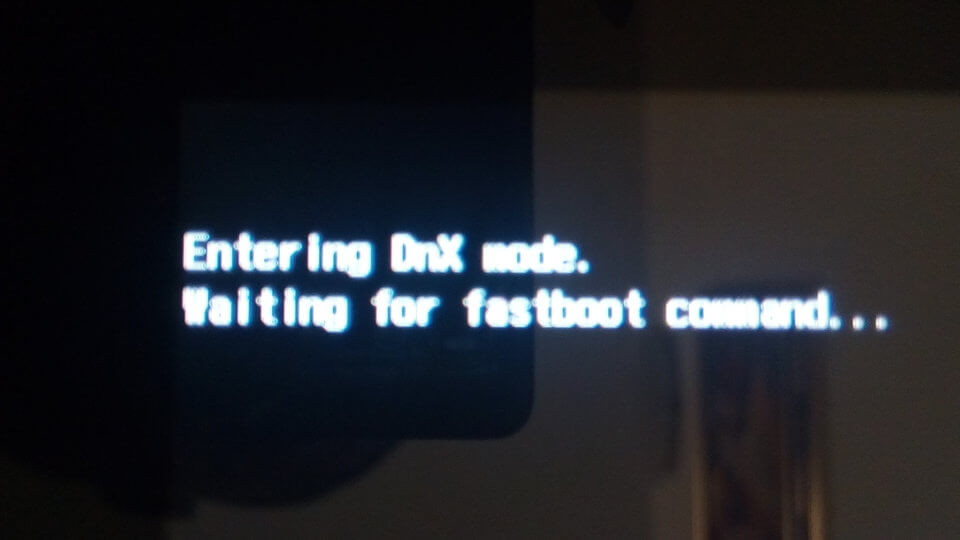
Look for the DNX Screen Message
The device display will show a clear message such as "DNX FASTBOOT MODE… waiting for fastboot command." This is the most direct sign you are in DNX mode.
![entering-dnx-mode.png]()
Check Android Boot Behavior
The device will fail to boot into the Android OS or enter normal Recovery Mode, instead repeatedly showing the DNX screen upon startup or reboot attempts.
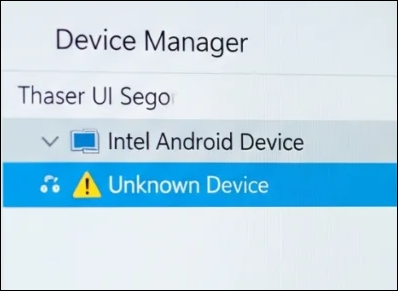
Inspect Windows Device Manager
- Connect the device to your PC via USB using a known good cable.
- Open Device Manager on Windows and look under "Other devices."
- The device may appear as an "Unknown device" or with a yellow warning sign due to missing DNX-specific drivers, indicating DNX mode.
![unknown-device-yellow-warning-sign.png]()
Force a Power Cycle
- If your Android tablet or phone is stuck on the DNX screen and won't respond, hold the Power button for 20-30 seconds until it powers off.
- On restart, if DNX mode reappears, this confirms the issue.
Why Does DNX Fastboot Mode Appear?
DNX Fastboot Mode appears mainly due to issues in the communication between your device's hardware and software. Here are the key detailed reasons why you see "Entering DNX mode. Waiting for fastboot command..." screen:
- Pressing certain key combos during startup, like holding Volume Down and Power, can put the device into DNX mode. Sometimes, stuck or faulty volume buttons cause this unintentionally.
- If a firmware update or flashing is interrupted or corrupted, the device may default to "DNX mode waiting for recovery commands."
- When critical bootloader or system partitions are damaged or missing, the phone can't boot normally and falls back to DNX as a safe recovery state.
- Faulty USB cables, missing drivers, or incompatibility with USB 3.0 ports or PC drivers can prevent proper connection with flashing tools, leaving the device stuck in DNX mode.
- Missing or improper ADB/Fastboot drivers on the PC, defective USB ports, or software driver conflicts obstruct communication between the device and computer, causing DNX mode to persist.
- Some smartphone brands, such as Huawei, Lenovo, Asus, or Chuwi, have unique firmware behaviors that may trigger DNX mode more easily, especially when official firmware versions are mismatched or corrupted.
How to Enter and Exit DNX Mode
To enter DNX Fastboot Mode on Intel-based Android devices:
Step 1. Power off your device completely.
Step 2. Press and hold the Volume Down button and the Power button simultaneously.
Step 3. Keep holding both buttons until the screen shows a message like "DNX FASTBOOT MODE… waiting for fastboot command."
Step 4. Release the buttons once the DNX screen appears.
To exit DNX Fastboot Mode and return to normal device operation:
Step 1. Press and hold the Power button for about 20 to 30 seconds.
Step 2. Wait until the screen goes black, then release the button.
Step 3. The device should reboot normally into the Android operating system if the system is intact.
If the device is stuck and does not reboot, it may require firmware flashing or repair using specific Intel flashing tools.
Fix Entering DNX Mode Waiting for Fastboot Command
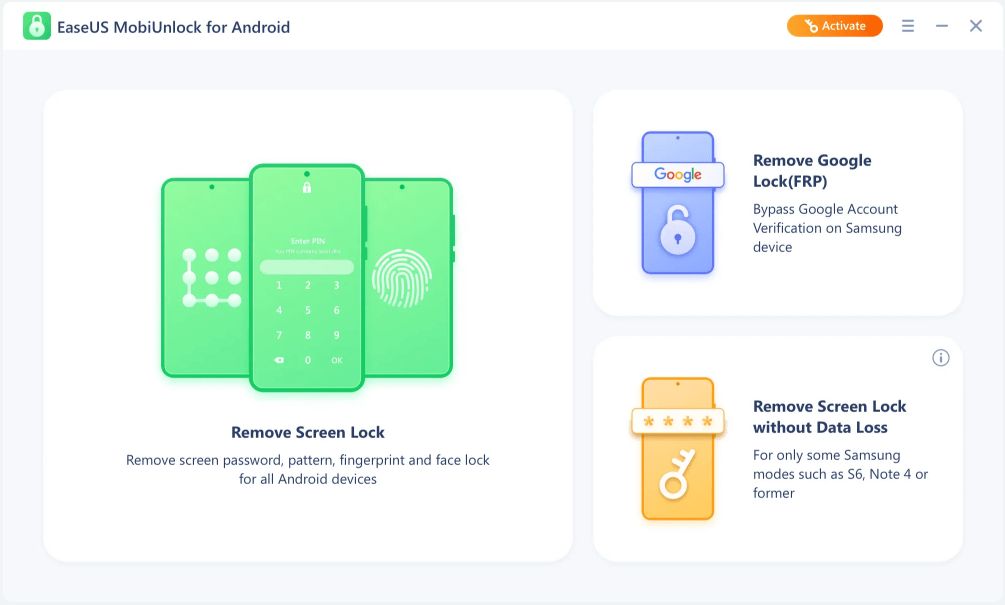
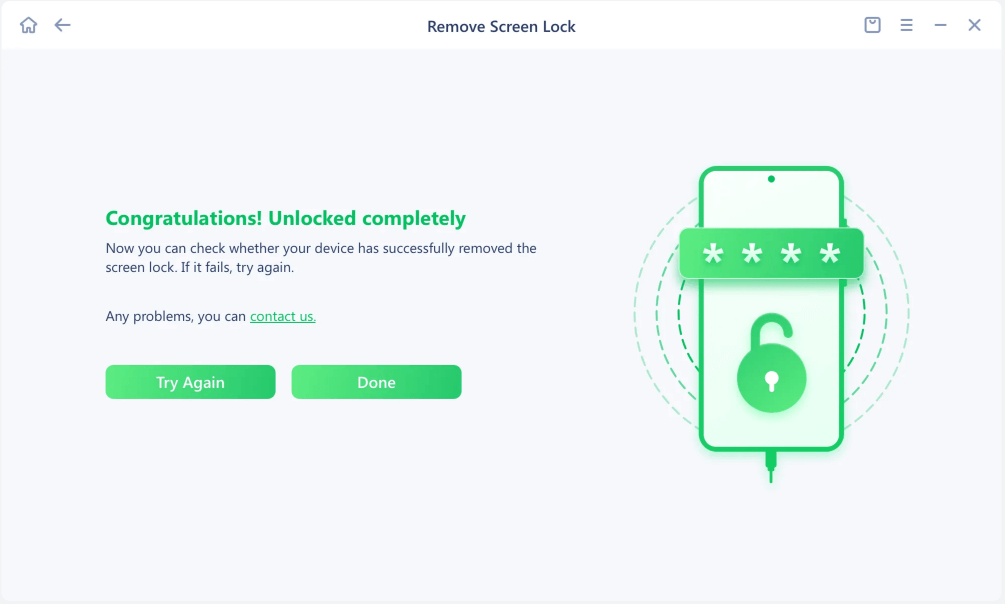
If your Android phone or tablet is stuck on the screen showing "Entering DNX Mode... Waiting for fastboot command," tools like EaseUS MobiUnlock for Android can simplify fixing DNX mode with user-friendly interfaces for both beginners and advanced users. It supports unlocking and resetting without complex commands.
Step 1. Launch EaseUS MobiUnlock for Android. To unlock phone without password, PIN, or Pattern Lock, choose Remove Screen Lock.
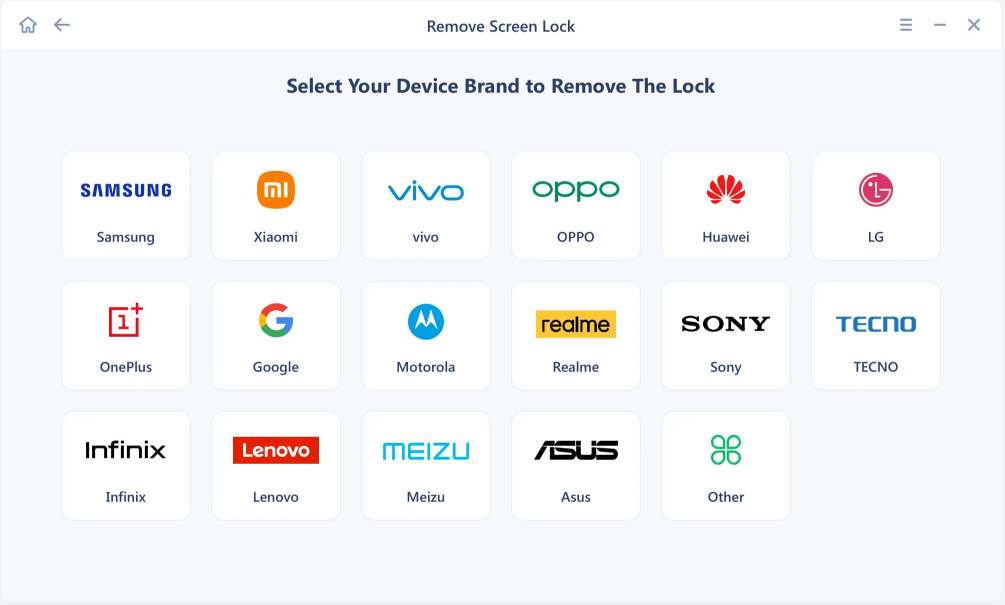
Step 2. EaseUS MobiUnlock supports a wide range of Android phone. Choose your phone brand from the interface. Since the unlocking procedure varies according to the brand, just follow the onscreen instructions to unlock the Android phone.
Step 3. After following the step-by-step guide, you can unlock Android phone without password, PIN, or patter lock successfully.
Other Fixes for Being Stuck on DNX Fastboot Mode
There are other fixes if your Android device, such as Nextbook or Acer tablets, is stuck in DNX Fastboot Mode.
Force Restart
Press and hold the Power button for 20-30 seconds until the screen goes dark. Then try rebooting the device normally.
Check USB Connection and Drivers
Connect the device to a PC with a quality USB cable. Ensure the correct ADB/Fastboot and Intel-specific drivers are installed. Change USB ports if needed and avoid USB 3.0 ports if possible.
Use Firmware Flashing Tools
Use Intel's Platform Flash Tool (XSTK) or OEM flashing software with the correct firmware for your device. This step will repair corrupt system files that cause the DNX lock.
When to Seek Professional Help
If flashing tools don't work or you're unsure, consult a professional technician or authorized service center to avoid device damage.
This combination of forced reboot, driver checks, and flashing firmware will generally recover devices stuck in DNX mode, restoring them to normal operation.
Safety, Precautions, Legal Considerations
Because DNX mode facilitates flashing essential firmware components, any mistakes or interruptions during the flashing process can lead to serious issues like data loss, device bricking, or unstable system behavior. Here are the key safety considerations:
- Improper flashing (wrong firmware, interrupted flashing, or corrupt files) can permanently damage the device, making it unusable.
- Flashing often results in the complete erasure of user data and settings, so prior backups are crucial.
- Unauthorized or careless flashing can void warranties and may introduce security vulnerabilities or malware if unofficial firmware is used.
- DNX mode flashing is advanced and requires correct drivers, tools, and procedures; non-technical users risk errors without guidance.
- Only flash devices you own or have permission to repair, respecting laws and manufacturer policies.
Overall, users must proceed with caution, use verified firmware and software tools, such as Intel's Platform Flash Tool or trusted unlock tools, and follow safe and ethical practices to avoid permanent damage or legal issues.
Conclusion
DNX Fastboot Mode is a critical recovery and firmware flashing state found primarily on Intel-based Android devices. While encountering DNX mode might seem alarming, it offers a vital pathway to repair devices when normal boot or recovery options fail. Understanding how to recognize, enter, and exit DNX mode, alongside practical troubleshooting steps, empowers users to address firmware and system issues effectively.
However, because DNX mode involves low-level flashing, safety and ethical considerations are of paramount importance. Users must proceed carefully to avoid data loss, device damage, or voiding their warranty.
FAQs
Which devices use DNX Mode?
DNX Mode is mostly found on Intel-powered tablets and 2-in-1 devices from brands like Huawei, Lenovo, Asus, Chuwi, and ZTE.
Why does my device enter DNX Mode?
Common reasons include interrupted firmware flashing, corrupted system files, faulty USB drivers or cable issues, or hardware button faults.
Will fixing DNX Mode erase my data?
Some fixes, like rebooting, won't, but flashing firmware or using unlocking tools usually erase all data. Always back up data if possible.
Can I unlock the bootloader from DNX Mode?
No, DNX Mode does not support unlocking the bootloader. Use standard Fastboot Mode for that.
How to reboot into DNX mode using the fastboot command?
Command: adb reboot dnx (if supported by the device).
Can DNX mode accept fastboot commands directly?
Yes, DNX mode waits for fastboot commands via PC connection to flash firmware or partitions.






 NEW
NEW HOT
HOT
