This passage is for information only. You can only use the GSM ADB Bypass FRP Tool or any FRP bypass software on your own devices or those for which you have explicit authorization to unlock. Removing protection locks on your devices carries risks, including potential data loss, warranty voiding, and exposure to security vulnerabilities. It is crucial to back up all your important data beforehand and proceed with caution.
What Is the GSM Flasher ADB Bypass FRP Tool?
GSM Flasher ADB Bypass FRP Tool is a free Windows software that can remove Google's Factory Reset Protection and certain screen locks from Android devices by sending Android Debug Bridge (ADB) commands from a PC to the phone. It is mainly used when a device is stuck on the Google account verification screen after a factory reset, and you have forgotten the original account credentials.
Main Functions:
- FRP/Google verification removal and ADB lock bypass when USB debugging is accessible.
- Screen lock removal (PIN, pattern, password), bootloader unlocking, and stock firmware flashing.
- Clear ADB-related or reactivation locks on Android devices.
- Detect connected device, read model and Android version once ADB is authorized.
Compatibility:
GSM Flasher ADB Bypass FRP Tool primarily supports Android versions from 5.1 up to Android 12, with the highest reliability on older releases like Android 7 Nougat through 11. Success rates drop significantly on Android 13 and later due to enhanced FRP security patches that block many ADB-based bypass methods used by the tool.
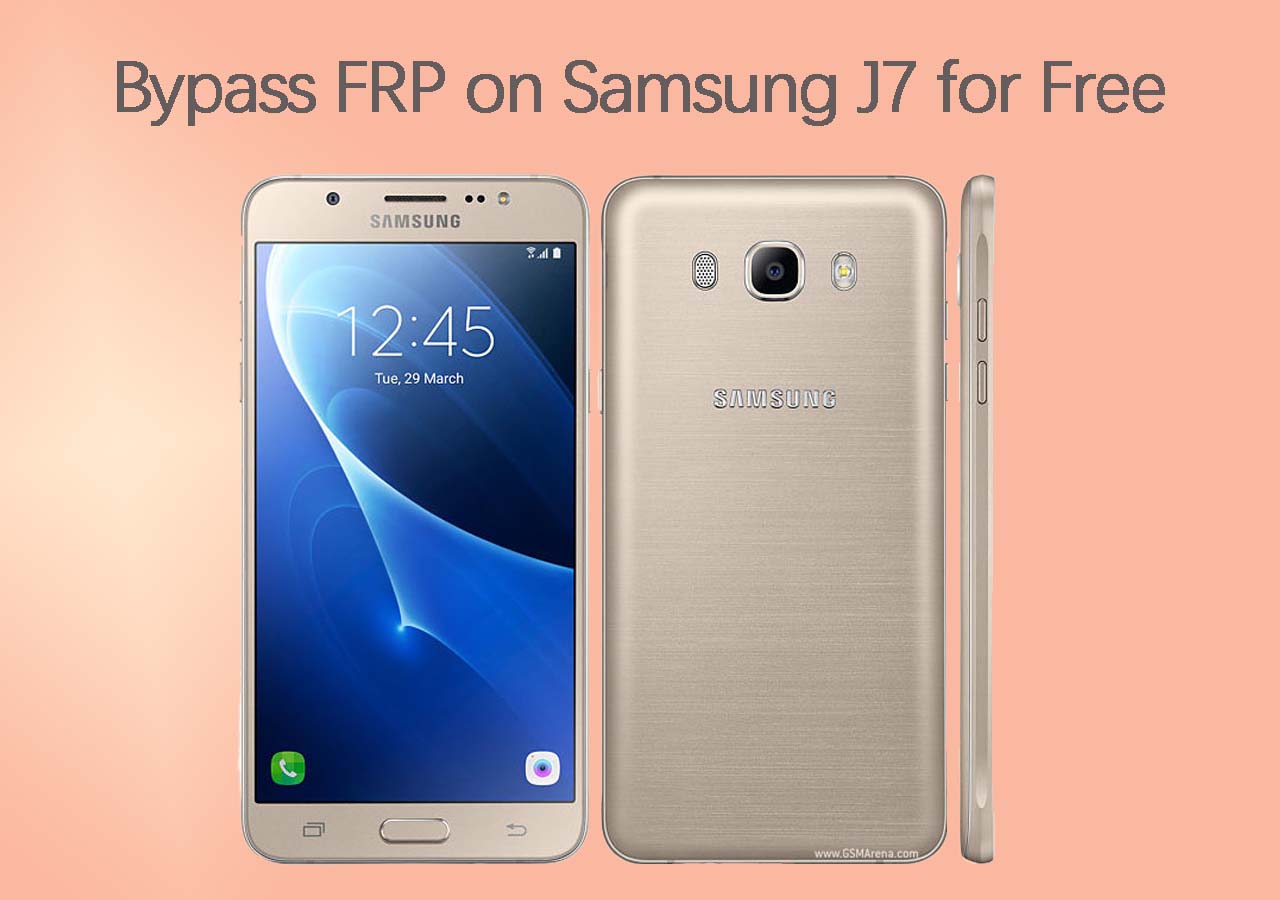
- Samsung: A3, A5, A7, A9, A10, A20, A30, A40, J1, J2, J5, J7, J7 Prime, M10, M20, M30, M40, Core 2.
- Motorola (Moto): G3, E, G4 Play, E4 Plus, M, G5S Plus, G Turbo, Turbo.
- LG: Aristo, Stylo 2/3, K10, K20, K20 Plus, G4, G5, G6, G20.
- ZTE: Sonata 3, Z982, Z835, Blade, Z833, N9560, Zmax Pro, Z831, Z981.
- Lenovo: Z2 Plus, Vibe K5, A2010, K5 Vibe, A6600, A1000.
- Others: Intex Aqua series, LYF Jio phones, Huawei, HTC, Xiaomi, OnePlus, Pixel, Vivo, Oppo.
How to Use GSM Flasher ADB Bypass FRP Tool
Before learning how to use ADB commands to bypass FRP lock, you should set up your PC and make some preparations to ensure smooth operation:
- Install ADB drivers from a trusted source. Without proper drivers, the PC cannot recognize the device in ADB mode, leading to errors like "device offline" or failed commands during the bypass process.
- Use a reliable USB data cable for a stable connection, and a stable internet connection for essential software downloads.
- Enable USB debugging on the device. It is the key prerequisite for ADB-based FRP bypass tools like GSM Flasher, as it allows the PC to authorize and send commands directly to the device.
Free Download GSM Flasher and Remove FRP:
Step 1. Download GSM Flasher ADB Bypass FRP Tool on your Windows computer, and extract the ZIP file.
Step 2. Run the tool's .exe file as administrator from the extracted folder.
Step 3. Power on the FRP-locked device and connect it to the PC via USB. Then, the GSM Flasher will detect the device and show the model/Android version as "Online."
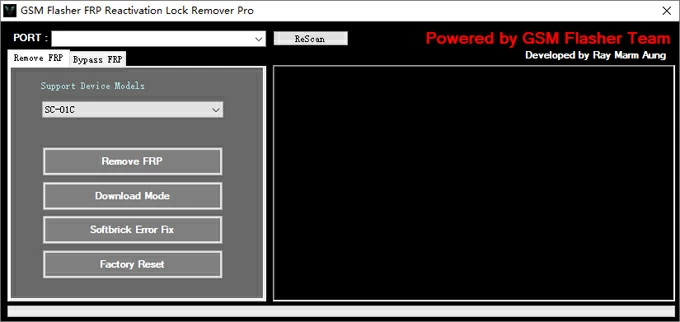
Step 4. Click the Remove FRP button to initiate the FRP lock bypass process.
![gsm-flasher.png]()
Step 5. Wait without disconnecting as commands execute. Once removed successfully, your device will reboot to the setup wizard without Google verification.
| Pros |
Cons |
- Free to download and use without registration or subscription.
- Lightweight interface supporting multiple brands.
- No rooting or flashing required, just an ADB connection.
|
- Fails if USB debugging is not enabled before lockout.
- Ineffective on newer Android versions due to patches.
- Windows only, no Mac/Linux compatibility.
|
Common Errors You May Encounter: Possible Causes & Fixes
Device Offline/No Device Found
Outdated ADB Platform-Tools: An older version of the ADB executable on your computer might not be compatible with the security protocols of newer Android versions.
- Fix: Update your Android SDK platform-tools to the latest version. Ensure that your system's PATH variable points to the correct, updated ADB executable location.
Missing or Incorrect Drivers: Windows requires specific, often manufacturer-provided, USB drivers to communicate correctly with your specific phone model (e.g., Samsung USB drivers). Generic drivers often don't work.
- Fix: Install the correct OEM (Original Equipment Manufacturer) USB drivers for your device and ensure the device is visible in your computer's Device Manager.
Faulty Cable/Port: A physically damaged USB cable or a broken USB port on the PC can prevent the initial handshake.
- Fix: Swap out the USB cable and try a different USB port on your computer.
Device Unauthorized
Missing RSA Key Acceptance: This is the primary reason. When you connect your phone to a new PC with USB debugging enabled, a pop-up appears on the phone asking you to "Allow USB debugging?" You must tap Allow and usually check the box for "Always allow from this computer".
- Fix: If you can interact with the screen, revoke all existing USB debugging authorizations in the Developer Options menu on the phone's settings, then unplug and replug the device to prompt the pop-up again and accept it.
Security Patches (FRP context): As discussed previously, on modern devices locked by FRP, you often cannot access the screen to authorize the connection in the first place, making this error unavoidable for the ADB bypass method.
Failed (remote: Command not allowed)
Locked Bootloader: Most Android devices ship with a locked bootloader. Commands like fastboot flash (for flashing custom recovery or system images) are specifically disabled until the user manually unlocks the bootloader, which usually wipes the device and often requires internet connectivity and access to developer settings.
- Fix: The only solution is to formally unlock the bootloader if the device manufacturer allows it and you are willing to factory reset the phone. This error usually signals the end of the line for unauthorised bypass attempts.
Best Alternative for GSM Flasher to Bypass FRP on Samsung
While GSM Flasher ADB Bypass FRP Tool provides a free option for FRP bypass on older Android devices, EaseUS MobiUnlock for Android is a more reliable alternative without technical prerequisites like pre-enabled USB debugging.
EaseUS MobiUnlock removes screen locks (PIN, pattern, password, fingerprint, face) and Google FRP on Android phones running Android 6-15. It supports multiple brands like Samsung, Huawei, LG, Xiaomi, Moto, and more. It bypasses FRP on Samsung devices often in under 30 minutes with one click, while offering 24/7 support and a 30-day money-back guarantee.
| Aspect |
GSM Flasher |
EaseUS MobiUnlock |
| Cost |
Free |
Paid (free trial available) |
| Ease of Use |
Requires ADB setup |
One-click, no debugging needed |
| Android Support |
Up to Android 12 |
Android 6-15 |
| Brands |
Multi-brand (older models) |
FRP: Samsung; Screen Locks: 99% Android brands |
| Risks |
Antivirus flags, malware |
Official, secure downloads |
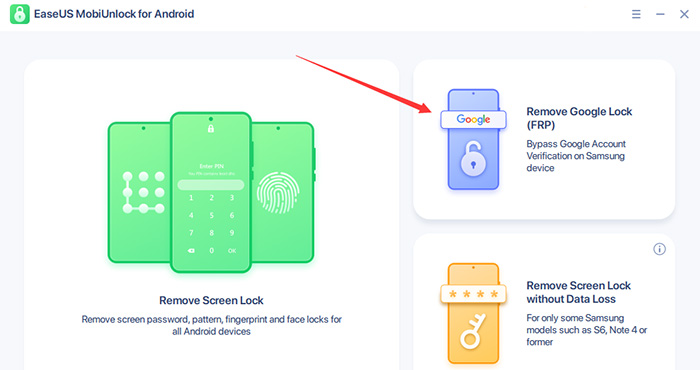
Step 1. Launch EaseUS MobiUnlock for Android on Windows, select Remove Google Lock (FRP).
![easeus mobiunlock homepage]()
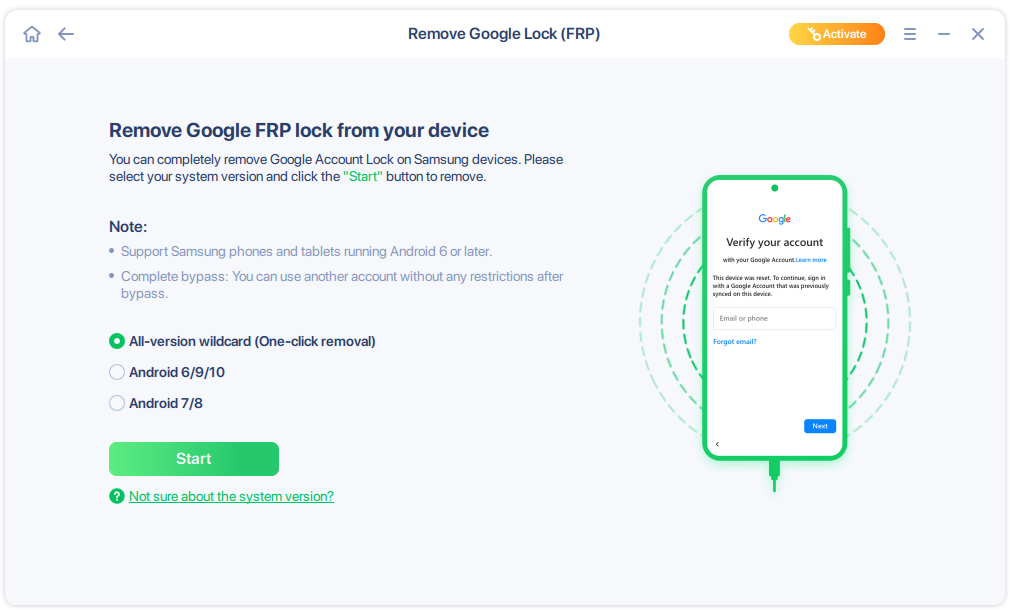
Step 2. Connect your Android device via USB and click Start and follow the on-screen instructions.
![select Sart to bypass FRP now]()
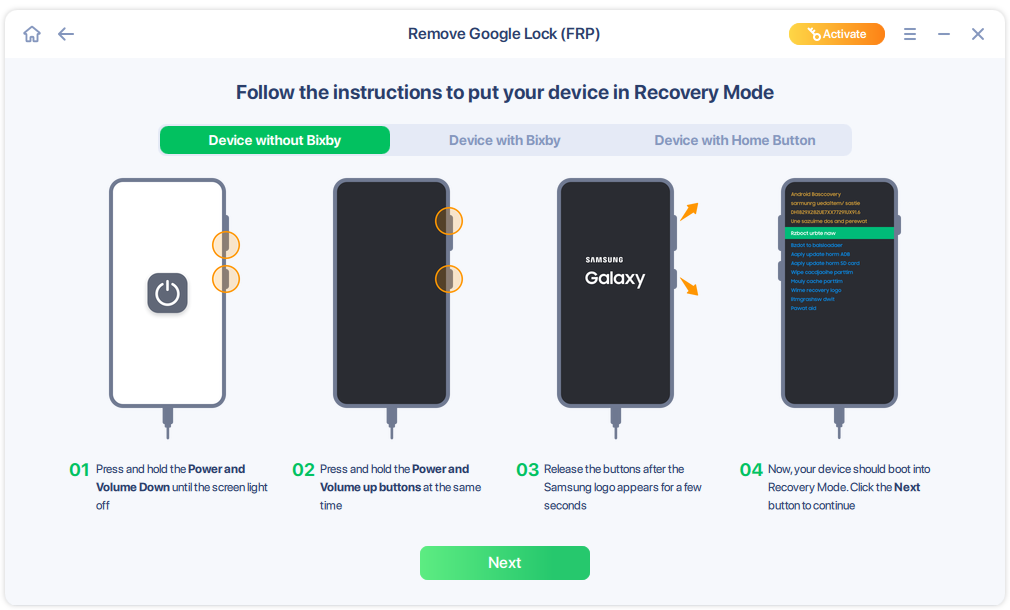
Step 3. Put your Android into Recovery Mode as prompt and wait 3–5 minutes for the FRP lock to be removed, then reboot.
![enter the recovery mode]()
Conclusion
GSM Flasher ADB Bypass FRP Tool serves as an accessible, free option for technicians bypassing FRP on older Android devices (5.1-12) across brands like Samsung and Motorola, provided USB debugging was enabled beforehand and ADB drivers are installed.
For broader reliability, especially on Android 13+ or without prior debugging, professional alternatives like EaseUS MobiUnlock offer one-click FRP removal on Samsung up to Android 15, minimising technical hurdles at a cost.
FAQs
Is GSM Flasher ADB FRP Bypass Tool safe?
It is safe when you download it from trusted sources; thus, scan the downloaded files first. Also, disable the antivirus temporarily during use to avoid false positives.
What if the tool shows "device offline"?
Reinstall ADB drivers, try a different USB cable/port, reboot PC/device, or confirm USB debugging is active.
Does using GSM Flasher erase device data?
Generally, it bypasses FRP without wiping data, but some procedures or failed attempts can cause data loss. Backups are recommended.
Is GSM Flasher compatible with Windows 11?
Yes, it supports Windows 7, 8, 10, and Windows 11 systems, but run as administrator and disable antivirus to avoid conflicts.
Are there legal concerns about using this tool?
Yes, only use it on devices you own or have explicit permission to service to avoid legal or ethical issues.





 NEW
NEW HOT
HOT
