🚨 Disclaimer: This article is intended for legitimate device owners only. It explains FRP (Factory Reset Protection) issues on Samsung J7 and legal ways to regain access. Do not use this information on devices you do not own.
Quick Answer: Best FRP Bypass Tools for Samsung J7
For bypassing FRP on Samsung J7, these four tools offer different advantages and device support:
🔹EaseUS MobiUnlock for Android: Best all-rounder with wide support for Samsung models running Android 5 to 16. It offers a simple, one-click PC solution with fast, reliable bypass and official support.
🔹Easy Samsung FRP Tool: A free, lightweight Windows utility focused on Samsung devices with Android 5 to 9, including many older J7 versions.
🔹SamFw FRP Tool: Supports broad Samsung models and Android versions with both free and paid unlock options. Free for older security patches; paid service required for newer patched devices.
🔹Easy Flashing Bypass 8.0 APK: A free, no-PC method working on Android 8.0+ devices, including Samsung J7 models with compatible firmware.
Overview of All FRP Bypass Tools for Samsung J7 Free
| Tool🔍 |
Type💻 |
Android📱 |
Free/Paid🪙 |
Best for🎇 |
| EaseUS MobiUnlock |
Windows/Mac app |
Android 5-16 |
Free Trial |
Users who want a polished, supported tool and higher success rate |
| Easy Samsung FRP Tool |
Windows app |
Android 5-9 |
100% Free |
Quick Samsung-targeted operations and older models |
| SamFw FRP Tool |
Windows app |
Android 5-14 |
Free & Paid (depend on models) |
Advanced users who can run ADB/command-line helpers |
| Easy Flashing Bypass |
Android APK |
Android 5-8 |
100% Free |
An APK tool but Odin may be used later on PC |
✍️Before You Begin:
- Confirm ownership. Only perform FRP bypass on devices you legally own or have explicit permission to repair. Bypassing FRP on a device you do not own may be illegal.
- Backup (if possible). FRP workflows often require a factory reset or flashing that erases user data. If you can access the device data before starting, back it up.
- Charge the phone. Ensure the Samsung J7 has at least a 50% battery to avoid failures mid-process.
- Know your model and build. Note the exact model number (e.g., SM-J700F, SM-J730G) and Android build. Using incorrect firmware or files may brick the phone.
- Understand the risks. Methods that modify firmware or use Odin carry higher risk (bootloops, bricking). If unsure, seek professional repair service.
Bypass FRP on Samsung J7 with EaseUS MobiUnlock (One-Click Solution)
EaseUS MobiUnlock is an effective desktop solution designed to remove various types of device locks, including FRP, with a user-friendly interface and guided workflow. It targets users who want a reliable, supported experience and are willing to use a paid license for consistent results.
![use EaseUS MobiUnlock for Android to unlock FRP on Samsung]()
Key Features
- Works Without Google Account Credentials: Allows users to bypass FRP even if they forgot their previous account details or bought a second-hand locked phone.
- Supports All Samsung & Android Versions: Wide compatibility with Samsung devices running Android 5 to Android 16, covering all Galaxy models including J series, S series, A series, and more.
- One-Click Solution: User-friendly interface allows anyone to remove Google account (FRP) lock in just three simple steps—connect, select FRP unlock, and start bypass.
- No Technical Skill Required: Designed for beginners and non-tech users; clear instructions and automated guidance for every step of the process.
- Quick & Efficient Bypass: It generally takes 5~10 minutes to remove FRP lock with 100% high success rate.
- Trial Available with Refund Guarantee: Users can test the tool before committing, and there's a 30-day money-back guarantee for paid users.
🚨 Important: EaseUS MobiUnlock for Android is intended solely for lawful uses — such as restoring access to devices you legally own or servicing devices with explicit written authorization from the owner. Do NOT attempt to use this tool on stolen or unauthorized devices.
How to Use EaseUS MobiUnlock to Bypass FRP on Samsung Phone or Tablet
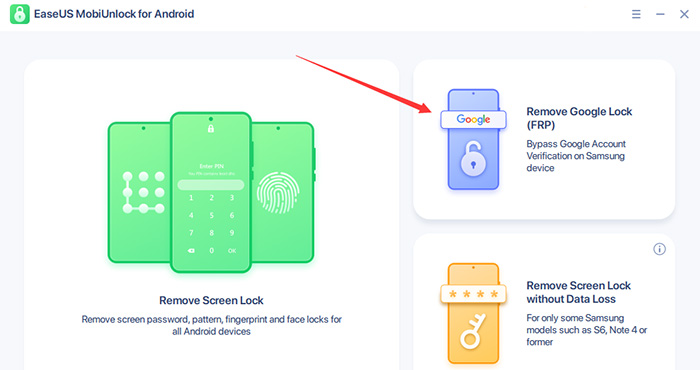
Step 1. Launch EaseUS MobiUnlock for Android on Windows, select Remove Google Lock (FRP).
![easeus mobiunlock homepage]()
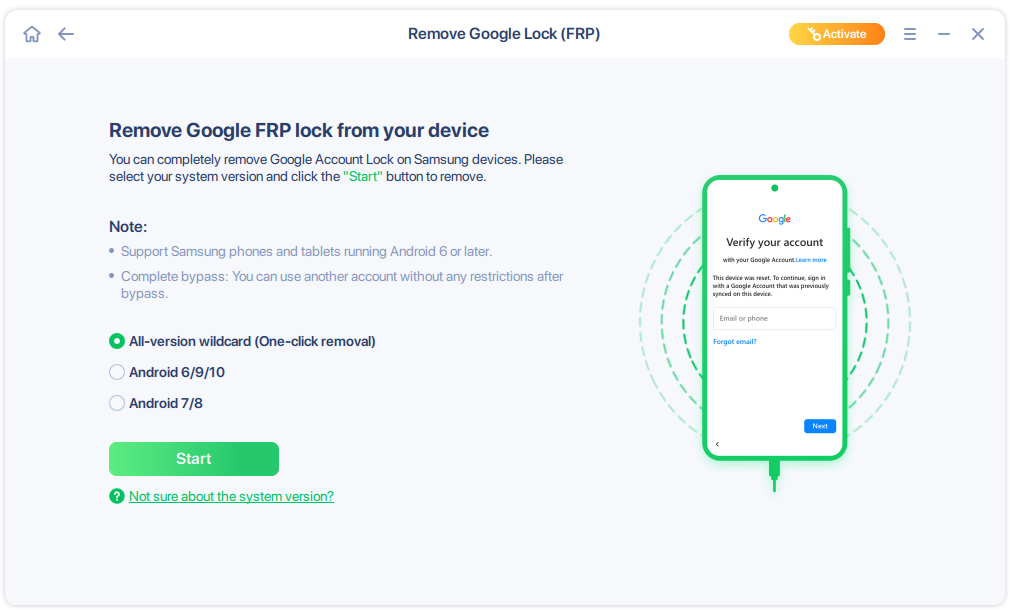
Step 2. Connect your Android device via USB and click Start and follow the on-screen instructions.
![select Sart to bypass FRP now]()
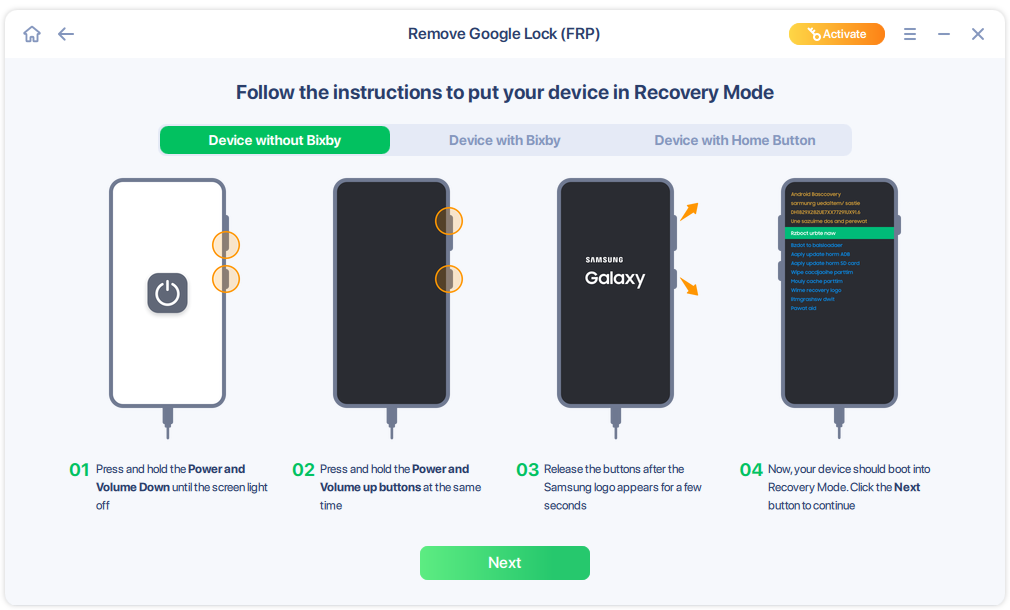
Step 3. Put your Android into Recovery Mode as prompt and wait 3–5 minutes for the FRP lock to be removed, then reboot.
![enter the recovery mode]()
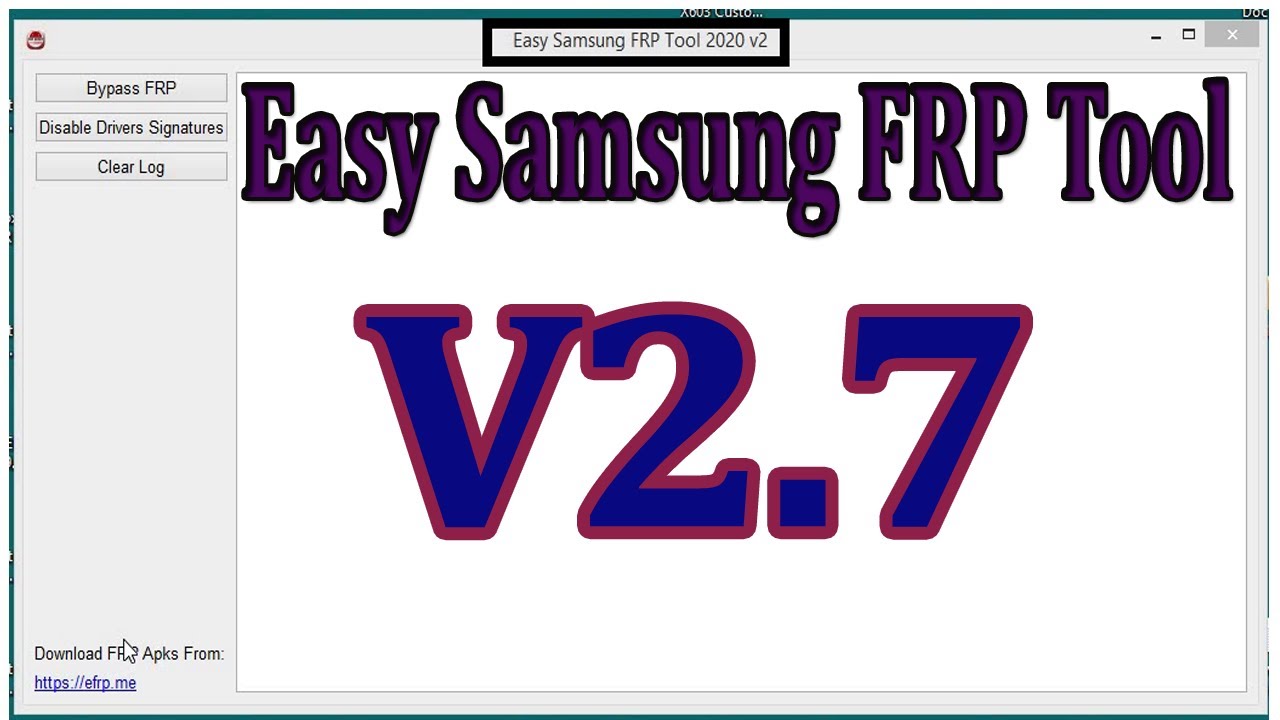
Bypass FRP on Samsung J7 via Easy Samsung FRP Tool (100% Free)
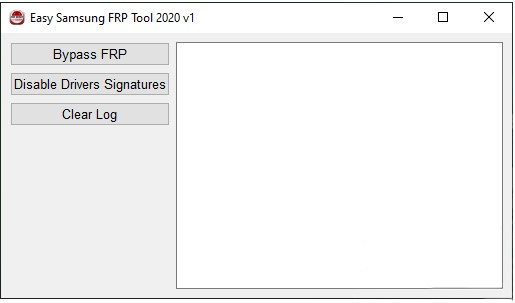
Easy Samsung FRP Tool is a smaller, Samsung-focused utility commonly circulated among repair communities. It concentrates on Samsung-specific procedures and can be useful for targeted models or older firmware where mainstream tools struggle.
![easy samsung frp tool homepage]()
Key Features
-
Free to Download and Use: Completely free Windows tool for Samsung devices, focused on community accessibility.
-
Device Compatibility: Supports Samsung phones and tablets running Android 5 to 9, particularly older Galaxy models, which includes various Samsung J7 versions.
- No Technical Skills Required: Designed for beginners; just follow clear on-screen instructions.
🚨 Easy Samsung FRP Tool is intended for legitimate device owners or authorized technicians only. Do not use it on devices you do not own. The tool is community-developed and unmaintained, so it's best for older devices or where modern tools are unavailable.
How to Use Easy Samsung FRP Tool Step by Step:
Download the tool and required support files, install Samsung USB drivers, connect the phone (often in Download Mode or normal mode depending on the routine), choose the model or routine inside the tool, and execute the FRP bypass command. The tool performs device-level operations and then prompts for reboot/verification.
Samsung USB drivers Download Link: Samsung Android USB Driver for Windows v1.9.0.0
Easy Samsung FRP Tool v2.7 Download: Easy Samsung FRP Tools V2.7 2021
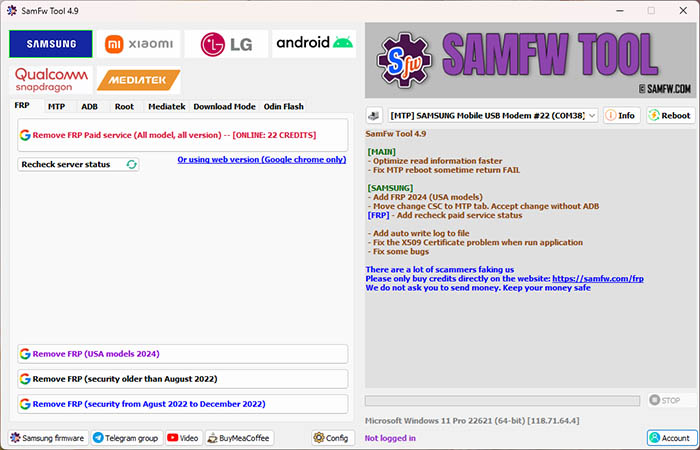
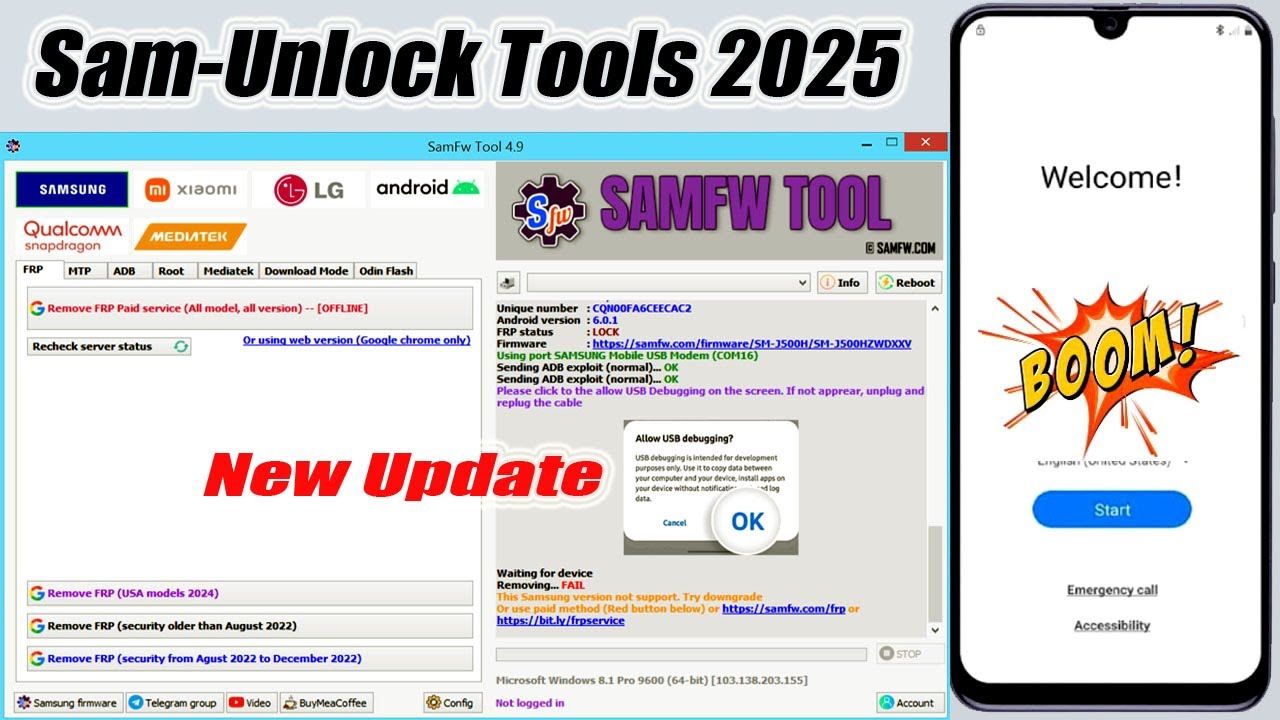
Unlock FRP from Samsung J7 with SamFw FRP Tool (Free for Security before 2023)
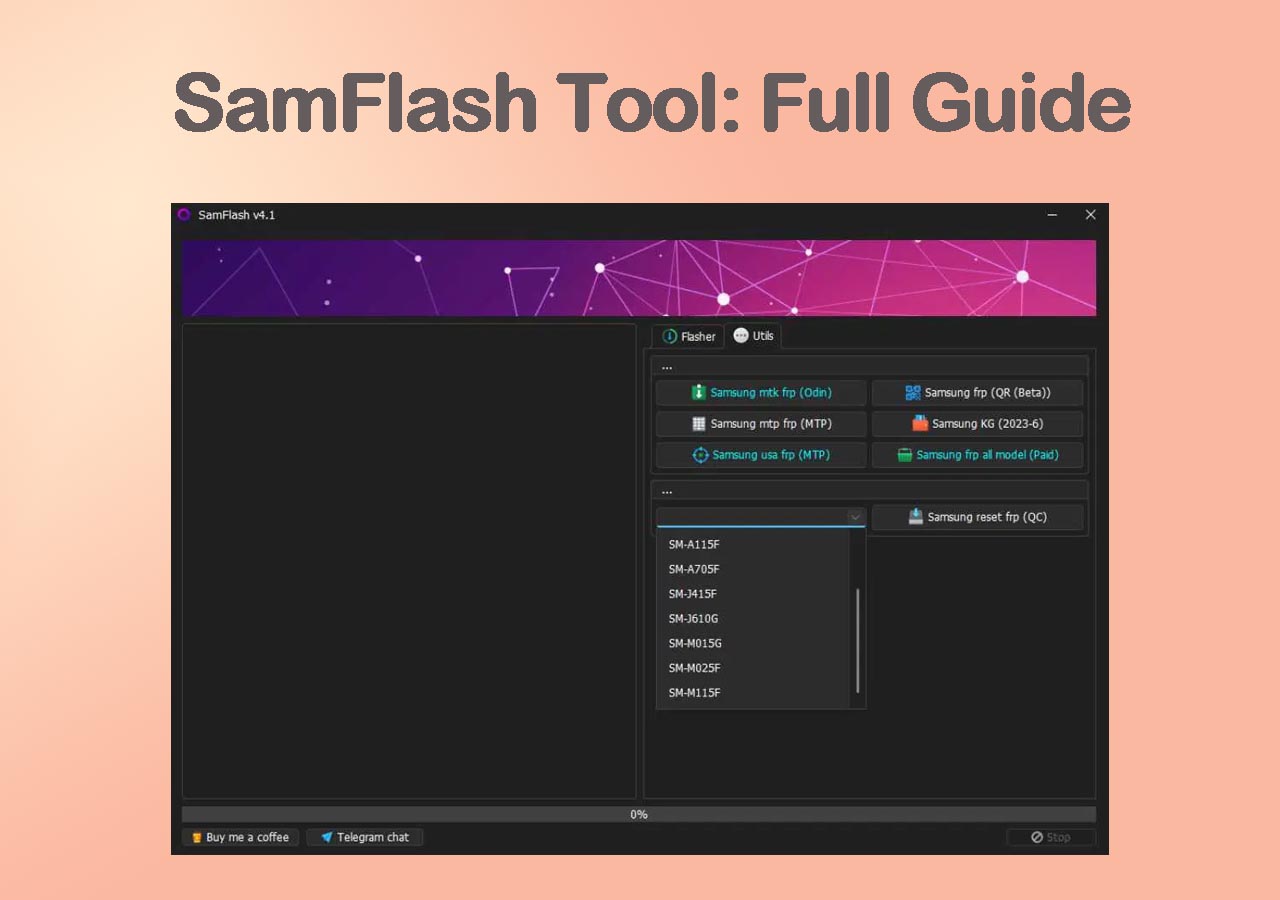
SamFw FRP Tool is typically a community or developer-maintained toolset that offers more advanced control (sometimes via ADB or command-line) and supports niche cases. It is best-suited to technically proficient users who can troubleshoot driver or ADB issues.
![SamFw FRP Tool v4.9 screenshot]()
Key Features
- Broad Model Support: Covers a vast range of Android phones and tablets including Samsung, Xiaomi and LG, often supporting newer models and Android versions than legacy tools.
- Free and Paid Option: In terms of FRP bypass, devices with newer security patches (from early 2023 and later) require payment to unlock via SamFw's paid IMEI unlock service, priced per device.
- Additional Utilities: Some versions offer features like Samsung account removal, CSC change, and device information functions.
🚨 SamFw FRP Tool is intended for legitimate device owners or authorized service personnel only. Do not use it on devices you do not own.
How to Use SamFw FRP Tool Step by Step:
Prepare the PC environment (ADB, drivers), place the device into the required connection state (ADB authorized, Download Mode, or similar), and run the SamFw routine (GUI or scripted commands). The tool typically runs targeted commands to clear account associations or install helper packages, then reboots to let you finish setup.
SamFw FRP Tool v4.9 Download: SamFwToolSetup_v4.9
Samsung USB Driver Download: samfw.com/Odin/SAMSUNG_USB_Driver_for_Mobile_Phones.exe
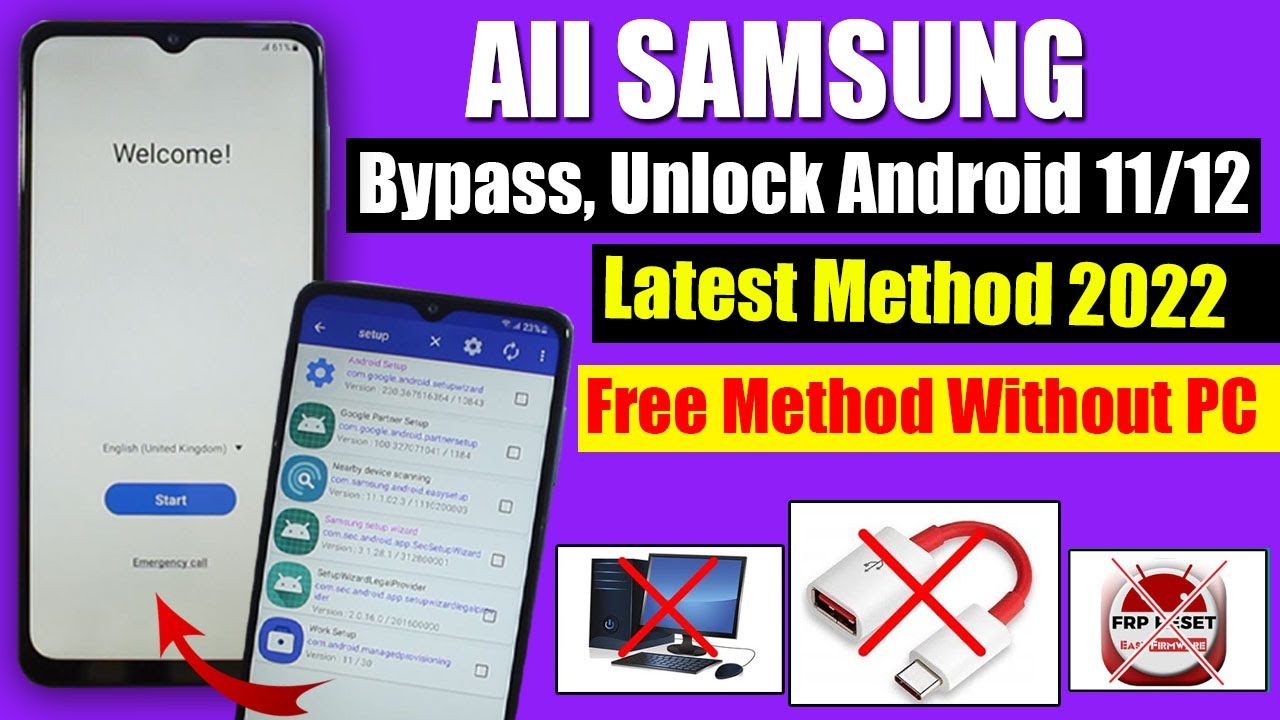
Remove FRP Lock Samsung J7 via Easy Flashing Bypass 8.0 APK (100% Free)
Easy Flashing Bypass 8.0 APK is an on-device APK-based approach tailored for Android 8.0 / 8.1 devices, enabling bypassing FRP lock on Samsung without PC. This no-PC-friendly method attempts to exploit workflows in older Android builds to open settings or install account managers and remove Google verification.
Note: APK methods can be faster but less universally reliable and sometimes require an intermediate flashing step (via Odin) to restore official firmware.
Key Features
- No PC Required: Works directly on Android devices using a USB drive and OTG cable, eliminating the need for a computer.
- Supports Latest Android Versions: Compatible with Android 8.0 and above, with support extending to Android 11+ on some devices.
- Free and Fast Bypass: The APK is free to download and complete bypass usually takes just a few minutes.
- Broad Brand Compatibility: Works on Samsung, Huawei, Xiaomi, OPPO, Vivo, and other major brands.
- No Root Needed: Bypass FRP without rooting your device.
🚨 Easy Flashing Bypass 8.0 APK may claim to bypass certain protections, but it should NOT be used on devices you do not own or without explicit permission. APKs from unverified sources can contain malware and may void warranties.
How to Use Easy Flashing Step by Step:
Obtain the APK and a verified hosting method (or sideload via SD card/ADB), trigger the bypass routine through an accessibility/Help & Feedback exploit or similar pathway, install the helper package to add accounts or remove verification, then complete device setup. If a full restoration is desired, use Odin to reflash official firmware afterward.
Free Download Easy Flashing Bypass 8.0 APK: https://easyflashing.com/easy-flashing-bypass-8-0-apk/
Troubleshooting Tips During FRP Bypass Samsung J7
When you install or use one of the FRP bypass tools listed above, you may encounter some qustions
1. Enable ADB Failed
This error usually means the tool couldn't activate ADB mode because your Samsung J7 runs a newer security patch that blocks older bypass exploits. It can also happen if Test Mode (*#0*#) is disabled or the process wasn't followed correctly.
Solution:
- Check your phone's Android version and security patch — if it's recently updated, try a newer FRP tool or an APK-based method instead of ADB.
- Make sure you're using the correct cable, installed Samsung USB drivers, and followed the tool's exact instructions.
- If the issue persists, flash a Combination ROM via Odin to re-enable developer access, then retry the bypass.
- When all methods fail, turn to another alternative mentioned above.
2. Windows Cannot Access the Specified Device, Path, or File Error
When you try to run the bypass tool (or install an APK), and you get the error: "Windows cannot access the specified device, path, or file," try the solution below:
- Right-click the file → Properties → Security tab: ensure your user/account has permission to run it.
- Make sure the file is on a local, accessible drive (not a disconnected network or external drive).
- Confirm the file wasn't moved, deleted or corrupted (re-download the tool/APK).
- Check if the file is blocked (in Properties, there may be an "Unblock" checkbox) and temporarily disable antivirus if it’s preventing execution.
3. Odin FAIL or Device Doesn't Boot After Flashing
Use the correct firmware for your exact model/region; try re-flashing with a different Odin version; clear cache and perform a factory reset in Recovery Mode.
If you're soft-bricked (device stuck in boot loop), you may need to flash the correct PIT file or reinstall firmware compatible with your device’s bootloader.
If stuck in Odin or Download Mode, force restart or remove the battery if possible, then reinsert and retry.
Conclusion
Bypassing FRP on a Samsung J7 can be tricky, especially since most methods depend on the Android version. If you want a quick and stable PC-based solution, EaseUS MobiUnlock is the most beginner-friendly option — it works on all Samsung models, provides clear on-screen instructions, and doesn't require complex flashing tools.
For users who prefer a free method and don't mind a few manual steps, SamFw FRP Tool or Easy Samsung FRP Tool can get the job done — just make sure your drivers are installed and USB debugging is properly enabled.
If your device runs older firmware or you're already familiar with Odin flashing, Easy Flashing is a more technical but powerful route.
Choose the method that best fits your setup and comfort level. No matter which you pick, always back up your data, use official drivers, and download tools only from trusted sources to avoid malware or data loss. Never use the methods on a Samsung J7 that you do not own.
Common Issues About Samsung FRP Bypass
- 1. What Is FRP?
-
FRP, or Factory Reset Protection, is a security feature on Android devices (including Samsung phones) designed to prevent unauthorized access after a factory reset. If a device is reset without the owner’s Google account credentials, FRP will block access until the original account is verified. This protects personal data in case the phone is lost or stolen, but it also means that legitimate owners must bypass FRP if they forget their Google account or purchase a second-hand device.
- 2. Is FRP bypass legal and safe?
-
Bypassing FRP on a device you own is legal in many jurisdictions, but bypassing protection on a device you do not own may be illegal. Always confirm ownership and local laws. If in doubt, contact Samsung service with proof of purchase.
- 3. Will these methods delete data on the phone?
-
Many FRP workflows involve factory resets or flashing which erase user data. If you still have access, back up your data before starting.
- 4. Which method should I try first?
-
If you prefer no-PC and your J7 runs Android 8.0–8.1, try Easy Flashing Bypass 8.0 APK first. If you want higher reliability and are comfortable using a PC, EaseUS MobiUnlock is a good follow-up. For experienced technicians, SamFw or Easy Samsung FRP Tool can address edge cases.
- 5. What if the phone bricks?
-
If flashing fails and the phone is unresponsive, attempt recovery via Odin and the correct stock firmware. If recovery fails, contact a professional repair center.
EaseUS does not endorse or encourage the unauthorized bypassing of device security. The tools discussed above (Easy Samsung FRP Tool, SamFw FRP Tool, Easy Flashing Bypass 8.0 APK, etc.) are mentioned for informational purposes only.







 NEW
NEW HOT
HOT
