If you're making the exciting switch from a Samsung phone to the brand-new iPhone 17, one of the biggest concerns might be how to safely and easily bring all your important data with you. Whether you have thousands of photos, hundreds of contacts, private messages, or even your favorite apps and settings, transferring everything can seem overwhelming. This guide is especially for users who want a clear, step-by-step solution to transfer data from Samsung to iPhone 17.
Transfer Data from Samsung to iPhone 17 with MobiMover
Supported data types: photos, videos, messages, notes, music, voice memos, contacts, WhatsApp messages and media, etc.
EaseUS MobiMover enables you to perform a direct phone-to-phone transfer, greatly simplifying the process of moving data from a Samsung device to an iPhone 17, iPhone 17 Air, iPhone 17 Pro, or iPhone 17 Pro Max. It supports transferring large amounts of data, works offline to avoid network disruptions, and allows selective transfer so you only bring what you need.
This method is particularly useful: 1️⃣when you want to transfer data from Samsung to iPhone 17 after setup; 2️⃣when wireless methods are inconvenient or not preferred; 3️⃣or when the internet is not accessible.
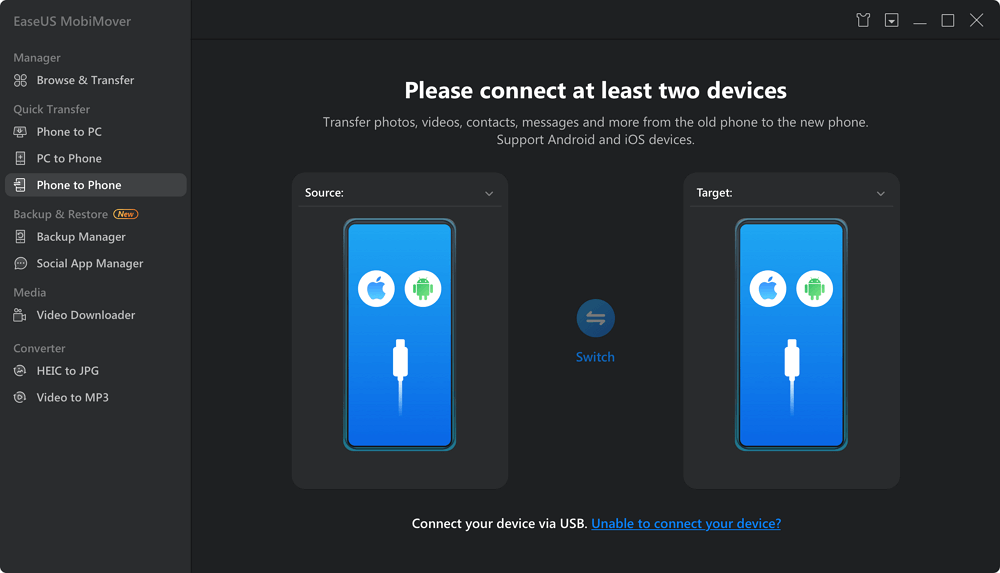
Step 1. Launch EaseUS MobiMover on your computer and connect both your phones to the PC using USB cables.
Step 2. Choose the Phone to Phone transfer mode from the left panel and set the iPhone 17 as the target device.
Related Article: How to Transfer Data from iPhone to iPhone 17
![phone to phone transfer mode]()
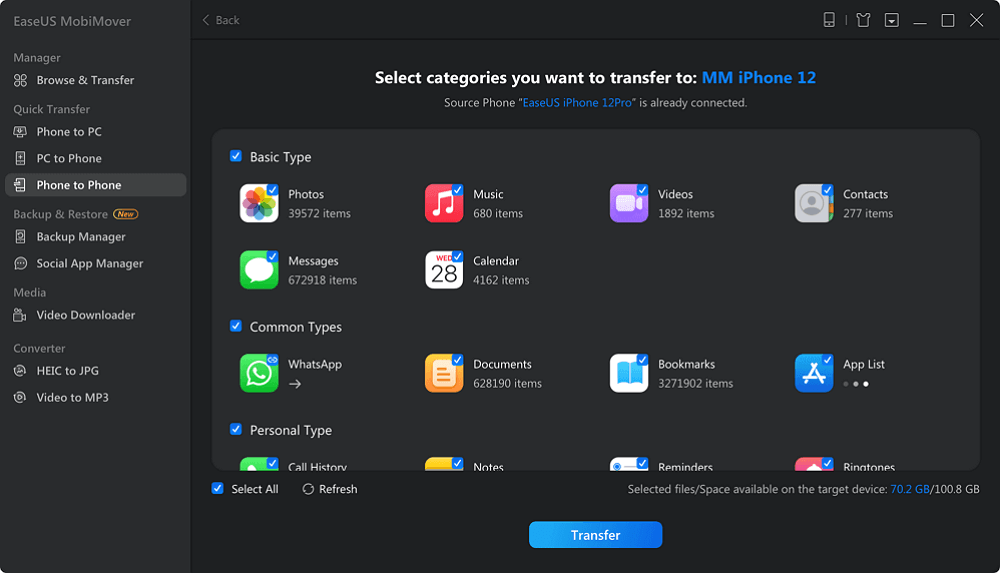
Step 3. Select the types of data you want to transfer (contacts, messages, photos, videos, notes, apps, etc.)
![select data types]()
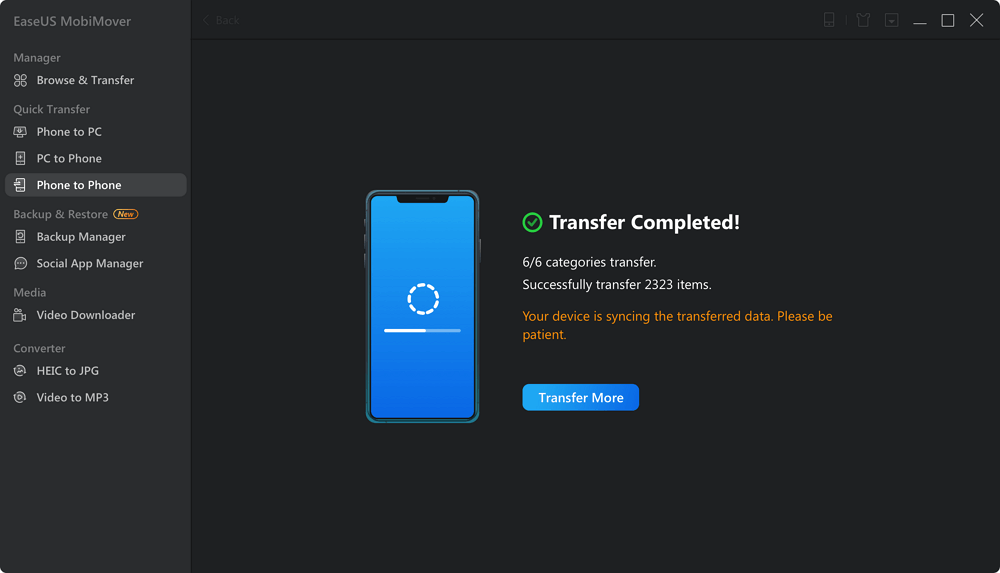
Step 4. Click Transfer, and it will begin moving the selected data from the Samsung phone to the iPhone.
![transfer completed]()
Note: Even though EaseUS MobiMover is a paid service for transferring your whole Samsung phone to your new iPhone, it provides a free version that allows you to transfer 20 files per day. If you don't have much data to move after iPhone 17 setup, you can give the free version a try.
Transfer Data from Android to iPhone 17 with Move to iOS
Supported data types: contacts, message history, camera photos and videos, calendars, web bookmarks, settings, etc.
Apple's Move to iOS app is designed to simplify data transition by securely and wirelessly moving your data directly from your Android phone to your new iPhone 17 during setup. It creates a private Wi-Fi connection between devices and transfers key data types directly during the iPhone setup, without needing a computer.
Move to iOS offers a straightforward, wireless way to bring essential data from Android to iPhone, helping you start fresh on iOS with minimal hassle.
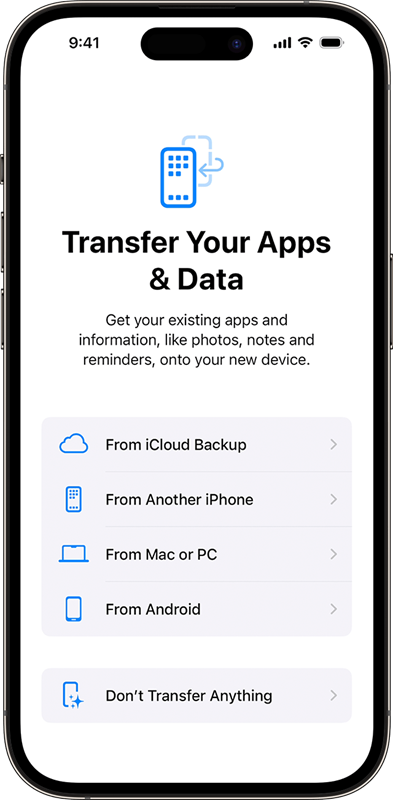
Step 1. On your iPhone 17, begin the setup process until you reach the App & Data screen and select Move Data from Android.
![transfer-data-from-android-to-iphone-apps-data.png]()
Step 2. On your Samsung phone, download and open the Move to iOS app from the Google Play Store.
Step 3. Tap Continue on both devices, then on the iPhone, wait for a 6-10 digit code to appear.
![how-to-fix-move-to-ios-code-not-showing-code.png]()
Step 4. Enter the code on your Samsung device to establish the connection.
Step 5. Select the data types you want to transfer when prompted on the Android phone.
Step 6. Wait for the transfer to complete while keeping both devices near.
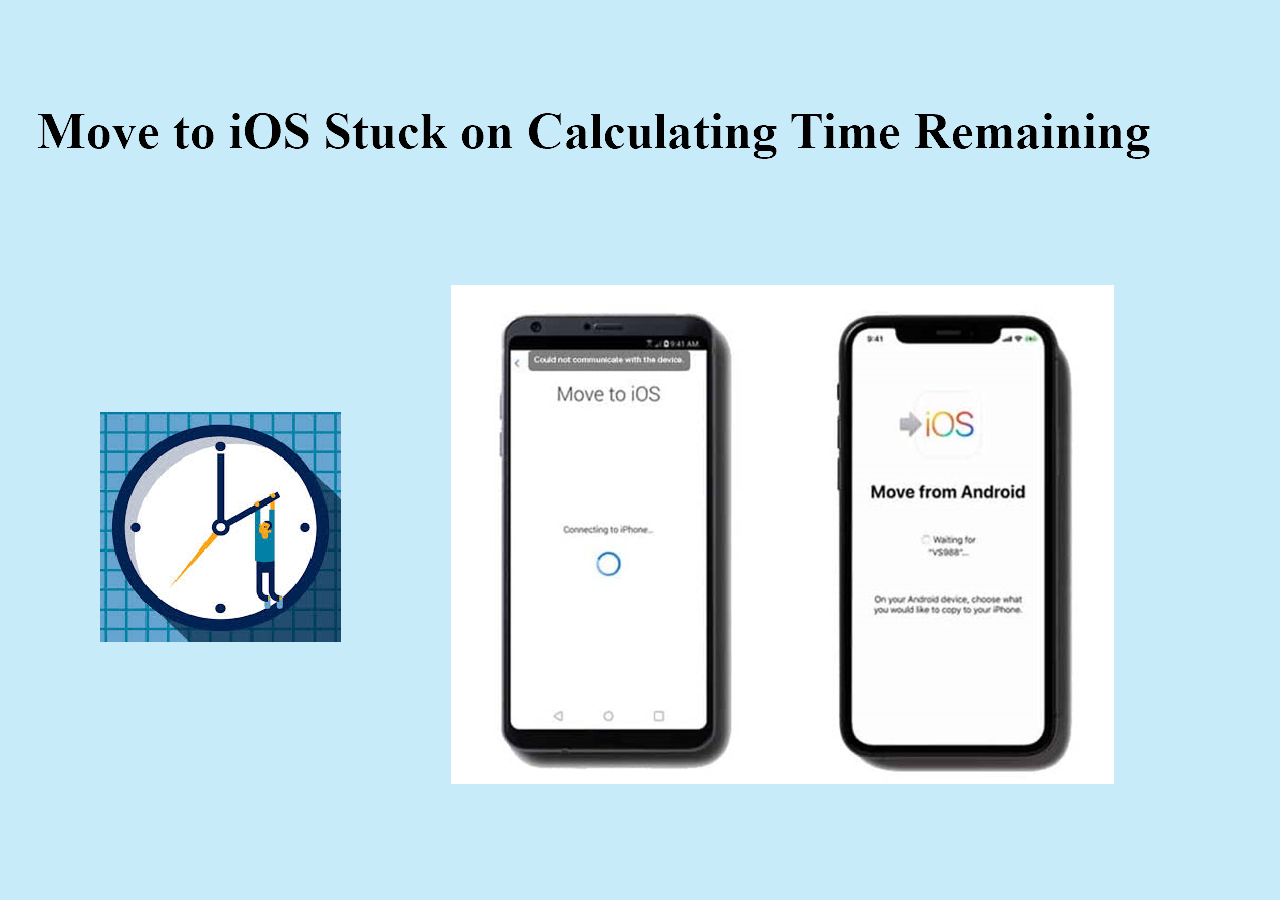
Note: Move to iOS only works on iPhones that have not completed initial setup; if your iPhone 17 is already set up, you will need to reset it to use this method.
Sync Data from Samsung to iPhone 17 with Google Account
Supported data types: contacts, calendars, emails, notes, bookmarks, photos, and videos.
Using your Google account is a convenient way to transfer data from a Samsung phone to an iPhone 17, especially for contacts, calendars, and email. By syncing your important information with Google on your Samsung device, you can easily access the same data on your iPhone by simply adding your Google account.
This method is ideal if you want to transfer data after the iPhone setup or prefer a cloud-based sync that keeps data up to date across both devices.
Step 1. On your Samsung phone, go to Settings> Accounts > Google.
Step 2. Select your Google account and turn on sync for contacts, calendars, emails, and other desired data types. Wait for the sync to complete.
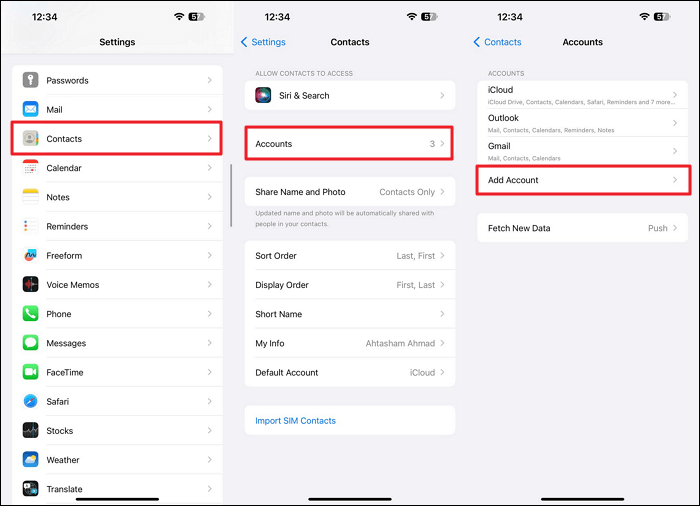
Step 3. On your iPhone 17, go to Settings > Mail/Contacts > Accounts > Add Account > Google.
![tap-the-add-account-option.png]()
Step 4. Sign in with the same Google account used on your Samsung device.
Step 5. Enable syncing for contacts, calendars, mail, and notes as needed.
Step 6. Install the Google Photos app on your iPhone and sign in to access photos and videos backed up from Samsung.
Note: Google Drive provides 15 GB of free storage shared across Google Drive, Gmail, and Google Photos. If you have a large amount of data to transfer, this free space may fill up quickly. To accommodate more data, you will need to purchase additional storage through a Google One subscription.
Use Cloud Storage Apps Like Google Drive or Dropbox
Supported data types: photos, videos, documents, PDFs, music, audio, presentations, spreadsheets, notes, text files, etc.
Cloud storage apps such as Google Drive and Dropbox offer an easy and flexible way to transfer files from a Samsung phone to an iPhone 17. By uploading your important files to the cloud from your Samsung device, you can then access and download them on your iPhone at your convenience.
This method is especially useful if you want to move specific files selectively or if you have already set up your iPhone and want to transfer data afterward.
Step 1. On your Samsung phone, download and open the Google Drive or Dropbox app. Sign in with your account.
Step 2. Upload the files and folders you want to transfer to the cloud storage app.
![upload-data-from-android-to-dropbox.png]()
Step 3. On your iPhone 17, download and open Google Drive/Dropbox. Log in with the same account.
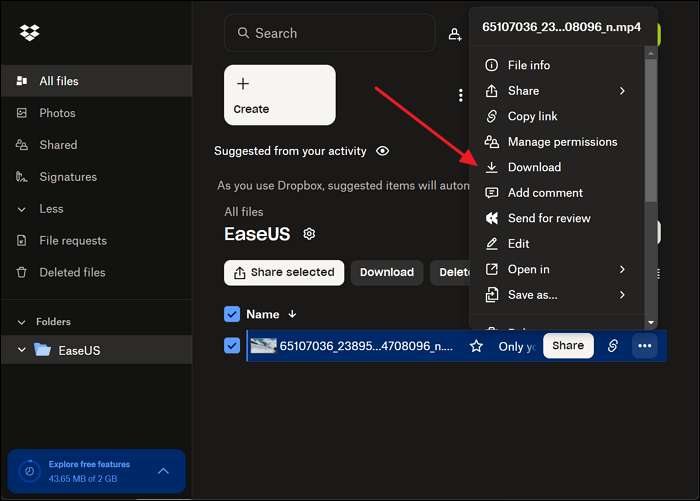
Step 4. Browse to the uploaded files and download them directly to your iPhone.
![download-data-from-dropbox-to-pc.png]()
Note: As mentioned above, Google Drive provides 15 GB of free storage. Dropbox offers 2 GB of free storage space for Basic accounts. If you exceed the limit, you may experience restrictions on uploading new files, syncing, and sharing.
Comparison of Data Transfer Methods from Samsung to iPhone
When moving data from a Samsung phone to an iPhone 17, several methods are available, each with its own strengths and best use cases. Here's a clear comparison to help choose the right one based on speed, cost, supported data types, and ease of use:
| Methods |
Speed |
Cost |
Best for |
Convenience |
| MobiMover |
Very Fast |
Paid
(20 files for free per day)
|
Full, selective data transfer |
Requires a computer connection |
| Move to iOS |
Fast |
Free |
First-time setup wireless transfer |
Wireless, simple setup during iPhone activation |
| Google Account |
Moderate
(depends on network)
|
Free
(15 GB for free use)
|
Ongoing data sync for Google users |
Continuous sync; requires a Google account |
| Dropbox |
Moderate
(depends on network)
|
Free
(2 GB for free use)
|
Selective file transfers |
Manual upload/download, file selection flexibility |
Conclusion
Transferring data from Samsung to iPhone 17 is simple with multiple available methods. Whether using EaseUS MobiMover for a complete transfer, the Move to iOS app for a wireless setup, Google account sync for ongoing data access, or cloud storage apps for selective file moves, each method offers unique advantages. Choose the one that best fits your needs to ensure a smooth switch and keep all important data accessible on your new iPhone 17.
FAQ
1. How long does it take to transfer data from Samsung to iPhone 17?
The transfer time usually depends on the amount of data and the Wi-Fi connection speed. For example, with Move to iOS, transferring 2 GB of data can take about 5-10 minutes, 5 GB around 10-20 minutes, and 10 GB roughly 20-30 minutes. However, transferring larger files, such as WhatsApp data, may take longer. Having a stable and strong Wi-Fi connection helps ensure a smoother and faster transfer.
2. Can I transfer my apps from Samsung to iPhone 17?
Most Android apps need to be downloaded manually on the iPhone. Some free apps available on both platforms may transfer during the Move to iOS process.
3. Does Move to iOS work if my iPhone 17 is already set up?
Move to iOS works best during the initial iPhone setup. If the iPhone is already set up, you may need to reset it to use this method.
4. Can WhatsApp chats be transferred from Samsung to iPhone 17?
Yes, some methods like Move to iOS and EaseUS MobiMover support transferring WhatsApp messages and media.
5. Can I transfer data from Samsung to iPhone using Samsung Smart Switch?
No, Samsung Smart Switch does not support transferring data to an iPhone. It is designed only for transferring data between Samsung Galaxy devices or from other devices to Samsung phones. To transfer data from a Samsung to an iPhone, you need to use alternatives like Apple's Move to iOS app.






 NEW
NEW HOT
HOT
