What Is Odin? What Is Odin FRP Bypass?
Odin is a Samsung-specific firmware flashing tool for Windows that allows users to install or repair system software on Samsung phones and tablets. It communicates with the device in Download Mode, so users can flash stock ROMs, custom recoveries, modems, and other binaries.
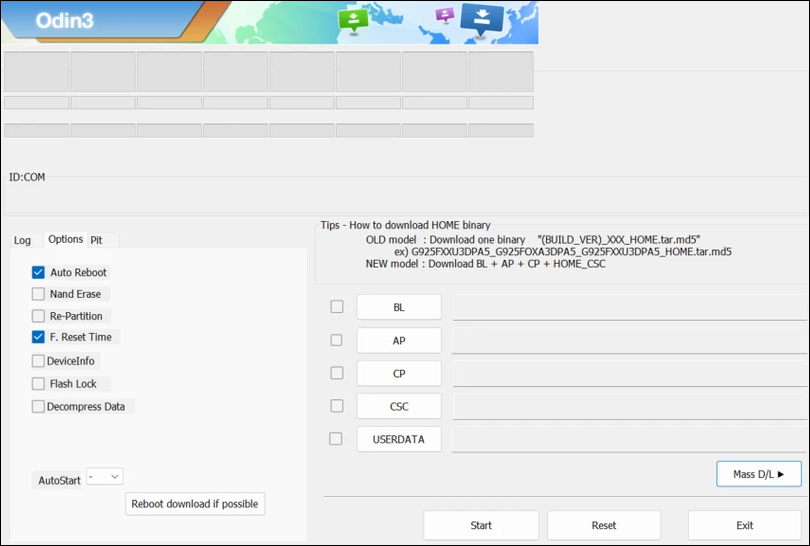
Odin FRP Bypass refers to using Odin to remove Google's FRP lock on Samsung devices by flashing special FRP reset files or firmware that disable the FRP check. In practice, this usually means loading an FRP reset.tar/.tar.md5 file in the AP/PDA slot and flashing it, so the device boots without enforcing the linked Google account, effectively clearing the FRP status.
![odin.png]()
Is Odin FRP Bypass Safe?
Odin FRP bypass is relatively safe for experienced technicians who know how to flash Samsung firmware correctly. For average users, it carries real risks to the phone, data, and security.
However, Odin itself is not officially distributed by Samsung, so you have to download it from third-party sites; untrusted sources can bundle malware or tampered tools that compromise your PC or phone. FRP reset files and patched images from random forums can contain malicious code or backdoors, weakening device security or exposing personal data after you regain access.
The method is comparatively safer when:
- You are the verified owner.
- You use known, trusted sources for Odin and firmware.
- You match the exact model/region and follow flashing instructions carefully.
Even then, it remains a high-risk, advanced procedure; non-technical users are usually better off with official account recovery, Samsung service, or reputable FRP tools that minimize the risk of bricking.
How to Disable Samsung FRP Lock with Odin
Using Odin to bypass the FRP lock on Samsung is risky, as it can brick your phone if mishandled. Success depends on the exact device model, firmware version, and region. It is more reliable and commonly successful on older models and older Android versions, and it may fail on newer Android 14/15 devices due to enhanced security.
FRP is an anti-theft security feature, so bypassing it should only be done on devices you own or are authorized to service; using FRP bypass methods on stolen or found devices may be illegal in many regions.
Required Preparations
- Download Odin v3.14.1 (the latest stable update) or v3.14.4 (the latest update), Samsung USB drivers, and a verified FRP reset .tar/.tar.md5 file.
- Use a Windows PC with admin access, a quality USB cable, and ensure the battery is over 50%.
- Disable antivirus temporarily, as it may flag Odin files.
Step 1. Install Samsung USB drivers, then extract Odin and run it as an administrator.
Step 2. Power off your Samsung device, then enter Download Mode: Press Volume Down + Power (or + Bixby/Home on older models) until the warning screen appears; press Volume Up to confirm.
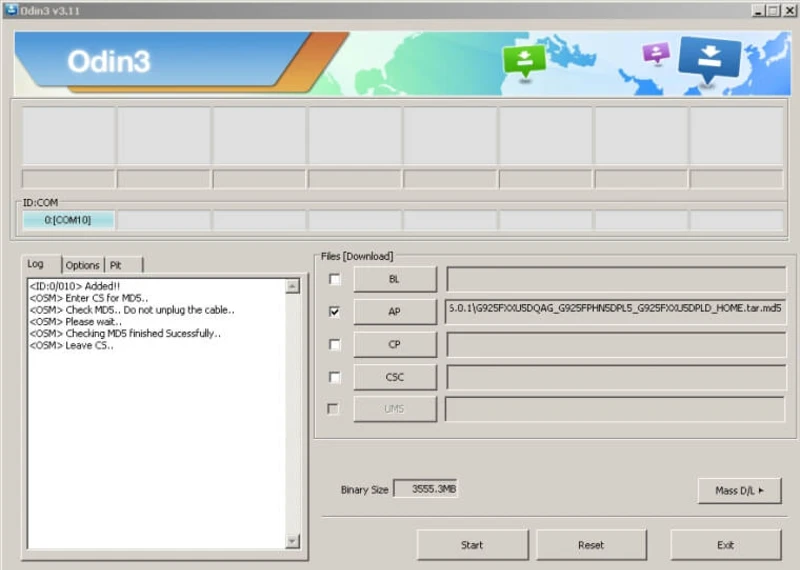
Step 3. Connect the device to the PC via USB; Odin should show a blue COM port and "Added!" message. If not, reinstall drivers or try another cable/port.
Step 4. In Odin, only check "Auto Reboot" and "F. Reset Time" in Options; load the FRP reset file into the AP (or PDA) slot by clicking AP and selecting the .tar file.
![odin-2.png]()
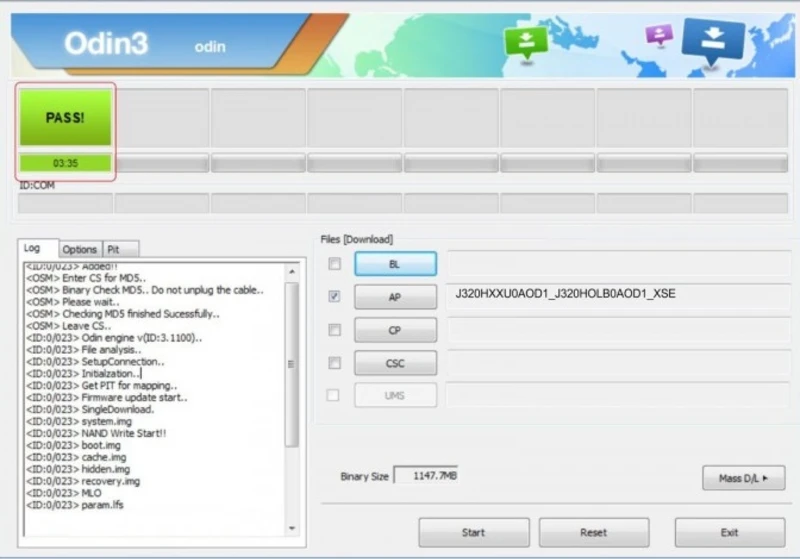
Step 5. Click "Start"; wait for the green "PASS!" message without disconnecting. The process takes 5-15 minutes.
![odin-2.png]()
Step 6. Your locked device reboots automatically, and FRP should be bypassed. If prompted again, repeat or factory reset via recovery.
Errors, Fixes, and Limitations of Odin FRP Bypass
While the method can work on compatible models, Odin FRP bypass carries significant risks that can permanently damage your Samsung device. Here are some common errors or risks that you may encounter:
| Errors |
Fixes |
| The wrong file/model causes bootloops or a hard brick |
Always verify the CSC/binary using tools like SamFw. |
| Common errors: "FAIL! (Auth)" |
It means a security patch mismatch. Flash the correct stock firmware first to align versions. |
| FRP screen still appears post-flash |
Some devices require a factory reset in recovery mode to fully clear FRP. |
| Connection failures (no COM port) |
Reinstall Samsung USB drivers, use a different USB port/cable, or run Odin as administrator. |
| Get stuck in Download Mode |
Force reboot and retry with verified files. |
Limitations
- Work primarily on older Samsung models (pre-2023) with Android 12 or earlier.
- Require the exact model/CSC/binary match, which is not friendly for beginners.
- It may permanently void the warranty and leave security vulnerabilities.
- Data loss risk, as flashing typically wipes the device.
Therefore, Odin FRP Bypass should be your last resort after official recovery options.
Alternative Way to Bypass Samsung FRP Lock
If you are looking for a safer, more user-friendly alternative to the Odin FRP bypass method, EaseUS MobiUnlock for Android is a reliable option, which can remove screen locks and FRP from Samsung devices or tablets. The professional tool supports Android versions up to 15, and it is available to both Windows and Mac users.
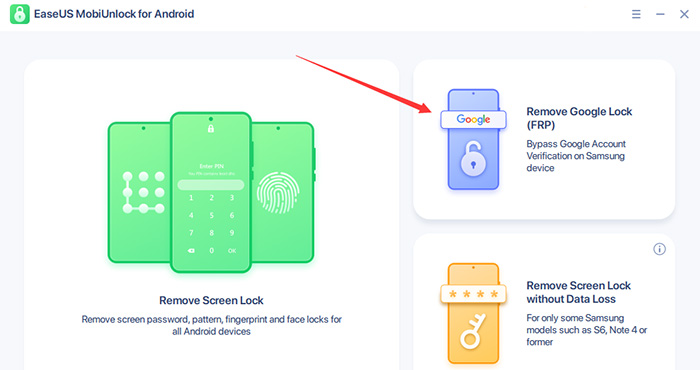
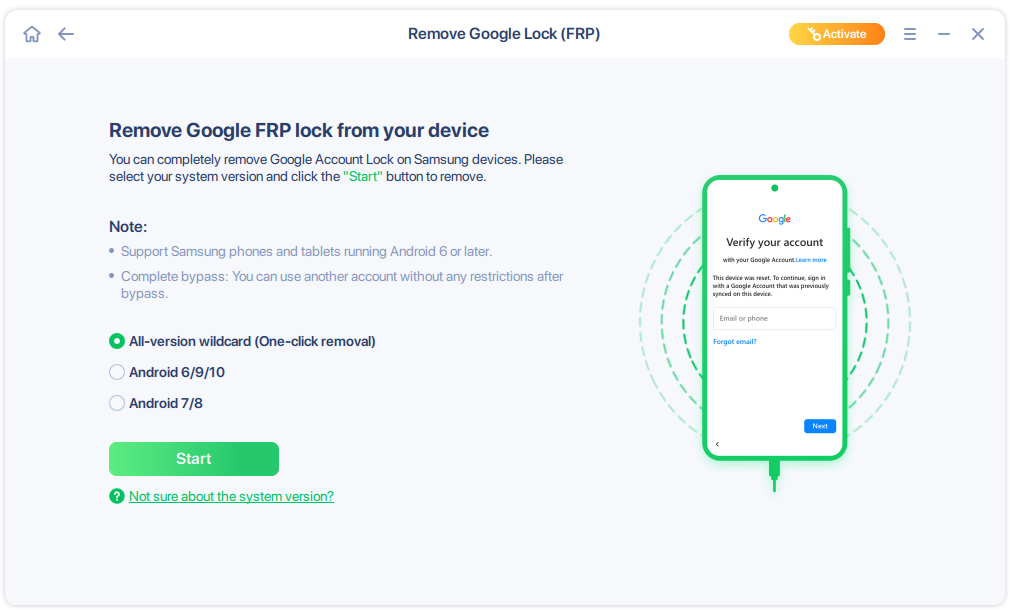
Step 1. Launch EaseUS MobiUnlock for Android on Windows, select Remove Google Lock (FRP).
![easeus mobiunlock homepage]()
Step 2. Connect your Android device via USB and click Start and follow the on-screen instructions.
![select Sart to bypass FRP now]()
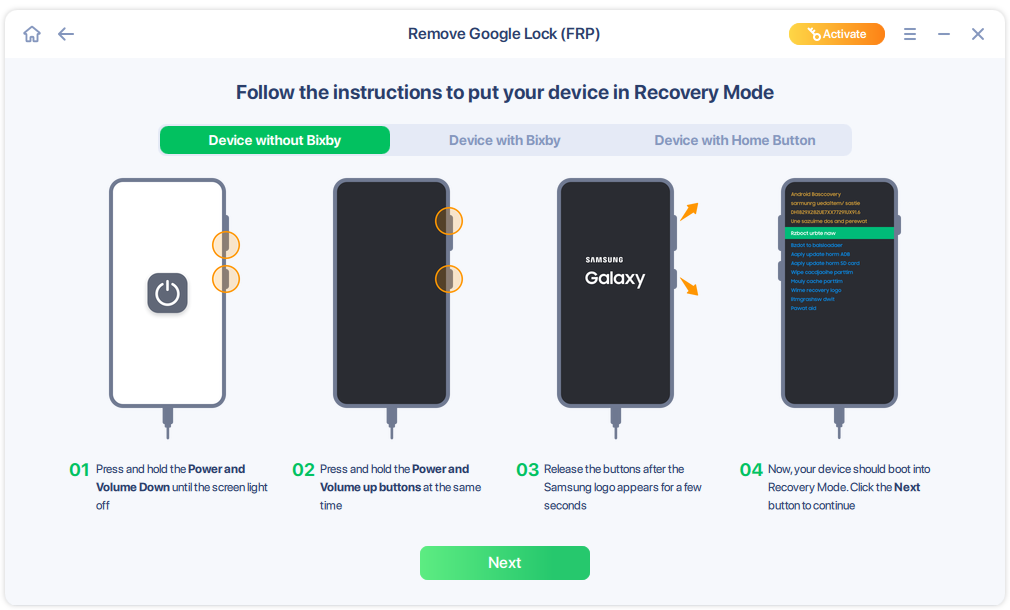
Step 3. Put your Android into Recovery Mode as prompt and wait 3–5 minutes for the FRP lock to be removed, then reboot.
![enter the recovery mode]()
EaseUS MobiUnlock vs Odin FRP Bypass
| Aspect |
EaseUS MobiUnlock |
Odin FRP Bypass |
| Ease of use |
One-click interface; no technical skills needed; guided steps. |
Requires Download Mode, file matching, and admin PC setup. |
| Safety |
Official software, malware-free, manimal bricking, 24/7 support |
Third-party downloads risk malware; bootloops/bricks from wrong files. |
| Compatibility |
Supports Samsung models running Android 6-15. |
Limited to older devices. |
| Cost |
Paid with trial, 30-day refund |
Free but risky; no support. |
Conclusion
While Odin FRP bypass offers a free, hands-on method for clearing Factory Reset Protection on compatible Samsung devices, its high risks, model-specific limitations, and declining effectiveness on modern Android versions make it unsuitable for most users.
Prioritise official Google account recovery or Samsung support with proof of ownership to avoid bricking your phone or legal issues. For persistent FRP locks, consider reputable professional tools, such as EaseUS MobiUnlock for Android, to ensure device safety and compliance.
Odin FRP Bypass FAQs
1. Is Odin FRP bypass legal?
It is legal only on devices you own or with the owner's consent. Bypassing FRP lock on lost or stolen phones violates anti-theft laws and Google/Samsung policies.
2. Where can I download Odin?
You can download it from XDA Developers or odindownload.com. Avoid random sites to prevent malware-infected versions that could harm your PC or device.
3. What is an FRP reset file, and where can I find it?
FRP reset file is a modified .tar package that disables FRP checks. You can source model-specific ones from SamFW, Frija, or SamMobile.
4. Does Odin work on non-Samsung Android devices?
No, Odin is Samsung-exclusive; other brands use tools like Fastboot or brand-specific flashers.
5. What happens if I interrupt Odin flashing?
An interruption often bricks the device. Always use a stable power source and a reliable USB cable to avoid partial flashes causing bootloops.






 NEW
NEW HOT
HOT
