Quick Answer:
❇️ SP Flash Tool Download Official: SP Flash Tool has no single official public download site from MediaTek; commonly used mirror sources include spflashtool.com and spflashtools.com, which are third‑party, not MTK‑owned.
❇️ SP Flash Tool Guide/Tutorial: Use SP Flash Tool only with correct MediaTek USB drivers installed, then load the exact stock firmware scatter file, choose "Download Only", click Download, power off the phone, and connect it so flashing starts automatically.
❇️ SP Flash Tool Errors [fixed]: Typical errors include "SP Flash Tool not detecting phone" (usually caused by missing VCOM/Preloader drivers or bad cable), "Local scatter file is invalid", and error codes like 4032 and 8417 linked to wrong or corrupted firmware/scatter or hardware issues.
❇️ SP Flash Tool Alternative: For Samsung FRP removal, SP Flash Tool is incompatible and not designed for FRP, so a dedicated solution such as EaseUS MobiUnlock is recommended instead.
What Is SP Flash Tool
SP Flash Tool (Smart Phone Flash Tool) is an official firmware flashing utility developed for MediaTek (MTK)–powered Android devices. It is mainly used to flash stock firmware, repair corrupted systems, and manage partitions on MTK smartphones and tablets.
However, due to stricter security mechanisms on modern Android devices, SP Flash Tool also has clear limitations, which are often misunderstood by users.
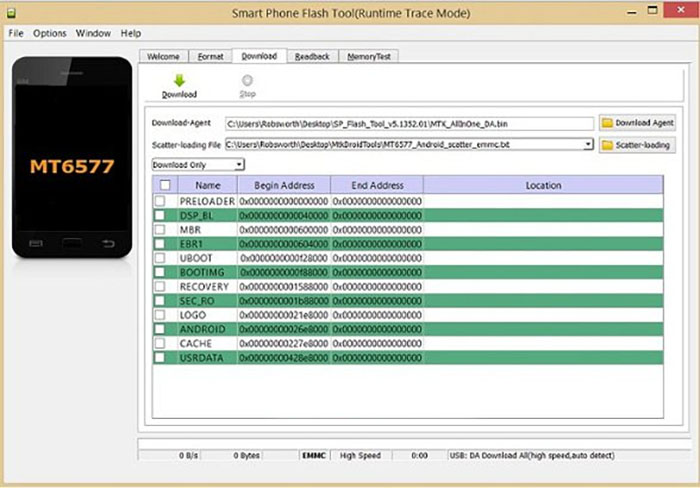
![sp flash tool screenshot]()
Download SP Flash Tool Latest Version
Where to download the official and latest version of SP Flash Tool? Unlike many consumer software products, MediaTek does not provide an official public website for SP Flash Tool.
Websites such as spflashtool.com or spflashtools.com are third-party mirror sites, not MediaTek-owned or officially endorsed platforms. While they may host usable versions of the tool, they should not be considered official sources.
Therefore, SP Flash Tool does not have a single, centralized official website.
Compatibility of SP Flash Tool:
SP Flash Tool is not 100% cross-platform compatible. It's available for Windows, with limited builds for Linux and macOS; and there's no Android version available. It's recommended to download SP Flash Tool on a Windows computer for full support.
| Operating System |
Support Status |
| Windows |
✅ Fully supported (recommended) |
| Mac |
⚠️ Limited / advanced users only |
| Linux |
⚠️ Experimental / unstable |
| Android |
❌Not suppoted |
For most users, Windows 10 or Windows 11 provides the highest success rate and driver compatibility.
Download SP Flash Tool for PC Windows (32/64-bit):
- Download SP Flash Tool v6 (latest version): https://spflashtools.com/windows/sp-flash-tool-v6-2404
- Download SP Flash Tool v5: https://spflashtools.com/windows/sp-flash-tool-v5-2404
- Download SP Flash Tool All Version: https://spflashtool.com/download/
- Notice When downloading SP Flash Tool:
- Avoid "patched" or "bypass" versions claiming to disable security checks
- Do not trust versions bundled with cracked tools or modified installers
- Use versions that clearly match your chipset generation and Android version
For more Android flash or FRP bypass tools, check the following:
How to Use SP Flash Tool (Step-by-Step Guide)
SP Flash Tool is not a one-click flashing solution. It requires specific files and conditions to work properly.
Before you start: SP Flash Tool works by writing firmware directly to your device’s internal storage. Flash only firmware that exactly matches your device model and variant. Incorrect use can permanently brick your device.
Here's how to use SP Flash Tool:
Step 1. Install the MediaTek USB Drivers
Your computer needs the correct MediaTek USB Drivers so that it can detect your phone while it's powered off. Without these drivers your phone will not be detected by SP Flash Tool.
Step 2. Launch SP Flash Tool and Load the Scatter File
SP Flash Tool uses a scatter file to know where each firmware partition goes on your device. The scatter file must come from the official stock firmware you downloaded — you cannot create scatter file for SP Flash Tool randomly. Without a valid scatter file, SP Flash Tool cannot flash firmware.
- Click the Scatter-Loading button in SP Flash Tool.
- Navigate to the folder where your firmware is extracted.
- Select the *_Android_scatter.txt file.
- Important notes about scatter files:
- Scatter files are device- and firmware-specific. They cannot be safely "created" at random. And there is no such thing as a universal scatter file.
Step 3. Choose the Right Flash Mode and Start the Process
On the main interface:
- Choose Download Only if you are just updating firmware or fixing minor issues.
- Click the Download button in SP Flash Tool.
- Turn off your phone completely (do not power it on).
- Connect your phone to the computer with a USB cable.
Once SP Flash Tool detects the phone, the flashing process will start automatically.
Common SP Flash Tool Errors
Many people encounter SP Flash Tool errors when they launch the program. These issues are usually not bugs, but security restrictions or missing requirements.
#1. SP Flash Tool Not Detecting Phone
This usually happens because of missing or incorrect MediaTek VCOM/Preloader drivers, a bad USB cable/port, the phone not entering preloader mode properly, or an incompatible SP Flash Tool/firmware version.
To fix SP Flash Tool not detecting phone:
- reinstall proper MTK VCOM/Preloader drivers (disabling driver signature enforcement if needed)
- use a good data cable on a USB 2.0 port, then in SP Flash Tool click "Download" and connect the fully powered‑off phone while holding the required volume key(s) for preloader detection.
- If the device still never appears as a MediaTek/Preloader port in Device Manager on any PC, the preloader or hardware might be damaged and may require specialist repair or test‑point recovery before SP Flash Tool can detect it again.
#2. Local Scatter File Is Invalid
This error means SP Flash Tool cannot parse your MTK scatter file because its format, header, or content does not match what the tool expects.
The most common fixes are:
- Use the correct scatter file for your exact MTK device and firmware, and avoid editing or renaming it arbitrarily.
- Open the scatter file in a text editor (for example, Notepad++), make sure the first line starts with the standard "General Setting" header (no extra text or characters above it), then save and load it again in SP Flash Tool.
- If the file structure still looks wrong or incomplete (missing partitions, wrong addresses), download a clean firmware package from a trusted source or from the device vendor, and try a different SP Flash Tool version (some ROMs only load correctly on specific v5 builds).
#3. Require Auth File for SP Flash Tool
An authentication file (.auth) is required on newer MTK devices to pass:
- SLA (Serial Link Authorization)
- DAA (Download Agent Authorization)
- Secure Boot checks
Key facts:
- Auth files are provided only to authorized service centers
- There is no public or universal auth file
- Most users cannot legally obtain one
This is one of the main reasons SP Flash Tool fails on modern devices.
#4. Verified Boot Is Enabled
When SP Flash Tool reports or logs indicate that Verified Boot is enabled, it means the device is enforcing Android Verified Boot (AVB).
AVB ensures that:
- boot, system, and vendor partitions are cryptographically verified
- unsigned or modified images are rejected
This is not an SP Flash Tool error, but a security feature preventing system modification.
#5. SP Flash Tool Error 4032
Error 4032 indicates that SP Flash Tool failed to initialize the device’s DRAM (memory) during flashing. In most cases this happens because the firmware you are trying to flash does not match your device hardware or there is a communication issue between the tool and phone.
#6. SP Flash Tool Error 8417
Error 8417 typically means that SP Flash Tool cannot parse or accept the scatter file you loaded. This usually happens because the scatter file is either corrupted, wrong format, incompatible with the SP Flash Tool version, or not correctly written for your firmware.
Limitations of SP Flash Tool on New Devices
1️⃣SP Flash Tool Cannot Disable Verified Boot — SP Flash Tool cannot disable Android Verified Boot. Verified Boot is controlled by the bootloader, vbmeta partition, and OEM security policies. Disabling it requires official unlocking or signed images, not a flashing utility.
2️⃣SP Flash Tool Cannot Unlock Bootloader — Another common misconception is reflected in searches like "unlock bootloader with SP Flash Tool". Actually, SP Flash Tool does not support bootloader unlocking. Flashing firmware does not change the bootloader lock state.
3️⃣SP Flash Tool Fails on New MTK Phones — On modern devices (especially Android 10+), multiple security layers are enforced simultaneously: authentication, secure Boot, verified Boot (AVB), locked bootloader. Even if SP Flash Tool connects successfully, one of these layers will often block the operation.
Samsung FRP Bypass Alternative to SP Flash Tool
SP Flash Tool is not designed for FRP (Factory Reset Protection) bypass, and it does not officially support Samsung devices.
For Samsung FRP removal:
- SP Flash Tool is incompatible
- Samsung devices require brand-specific solutions
- Purpose-built FRP tools or official account recovery methods are more appropriate
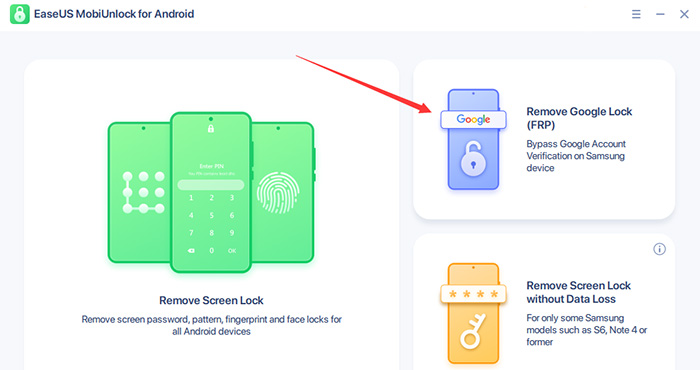
Using the wrong tool for FRP bypass can result in data loss, permanent lockout, or legal issues. Here I'd like to recommend a proper and safe Samsung FRP bypass tool - EaseUS MobiUnlock.
![easeus mobiunlock screenshot]()
Key Features of EaseUS MobiUnlock:
- Exclusively unlocks all Samsung FRP lock without effortness
- Works well on both old and new Android versions, including Android 6, 7, 8 ... 11/12/13, etc.
- Clean interface and guided workflow for beginners
- Trusted software and company with TrustPilot score at 4.8
FAQ
1. Does SP Flash Tool require an authentication file?
Yes, on many newer MediaTek devices. Without a valid auth file, flashing and formatting operations may be blocked.
2. Can SP Flash Tool disable Verified Boot?
No. SP Flash Tool cannot disable Android Verified Boot on modern devices.
3. Can SP Flash Tool unlock the bootloader?
No. Bootloader unlocking is controlled by the device manufacturer and cannot be done using SP Flash Tool.
4. Is SP Flash Tool safe to use?
SP Flash Tool itself is a legitimate utility, but incorrect firmware, scatter files, or unauthorized modifications can permanently damage a device.
Final Thoughts
SP Flash Tool remains a powerful utility for older and compatible MediaTek devices, especially for system repair and stock firmware flashing. However, modern Android security mechanisms have significantly limited what it can do.
Understanding what SP Flash Tool can and cannot do is essential. Most high-search issues related to authentication files, scatter files, verified boot, and bootloader unlocking stem from unrealistic expectations—not from the tool itself.







 NEW
NEW HOT
HOT
