HalabTech Tool Overview: Functions & Compatibility
HalabTech Tool is a Windows-based Android service and repair utility widely used by mobile repair technicians and advanced users to diagnose, unlock, and fix software issues on Android devices. It combines multiple functions into one software suite and supports a wide range of Android phones and systems.
Functions:
- Remove Google's FRP lock, screen locks, or carrier restrictions on supported devices.
- Fix corrupted or missing IMEI information to restore network connectivity.
- Flash official or custom firmware in multiple modes, such as EDL, Fastboot, etc.
- Read/write partitions and manage EFS for supported brands.
| Aspect |
Info |
| Latest Version |
V1.1 |
| Cost |
Free |
| Platform |
Windows 7/8/10/11 |
| Functions |
FRP bypass, unlocks, IMEI repair, firmware flash, rooting, etc. |
| Compatibility |
Samsung, Huawei, Xiaomi, Oppo, Tecno, Realme, Vivo, and others. |
| Android Version |
Android 6-13 |
Note: The official latest version is v1.1, according to the site, which is recognized as HalabTech's Primary tool page. However, some community sites and mirrors list a HalabTech Tool V4.0, with extended features reported for 2025, but this version is not officially confirmed or linked from the main HalabTech tool page.
HalabTech Tool Free Download & How to Use for FRP Removal
The HalabTech Tool is available as a free Windows utility and does not require a paid license for basic FRP removal and servicing functions. The safest way to download the latest version of HalabTech Tool is from the official website, where the developer publishes stable releases:
- Download link: https://tool.halabtech.com/
- File format: ZIP/RAR
Always use a trusted website to avoid cracked loaders from unknown sources, as they can carry malware or corrupt devices during critical operations. Only apply this tool to devices you own or have explicit permission to unlock.
Requirements Before Installation
- A Windows PC or laptop is required, and you have administrator access.
- A stable USB cable is needed to connect your locked phone to your computer.
- Installing the correct drivers is essential for proper device detection, such as MediaTek USB Driver, Qualcomm USB Driver, and Samsung USB Driver.
How to Install and Use HalabTech Tool on Windows 10/11
Step 1. Download the HalabTech Tool ZIP file and extract the downloaded archive to a folder on your PC.
Step 2. Open the extracted folder and run HalabTechTool.exe as Administrator.
Step 3. Power off the locked device, then boot it into the required mode: Download Mode for Samsung, EDL or Fastboot Mode for Qualcomm, and BootROM or Preloader for MTK.
Step 4. Connect the phone to the computer, then wait for the drivers to be detected.
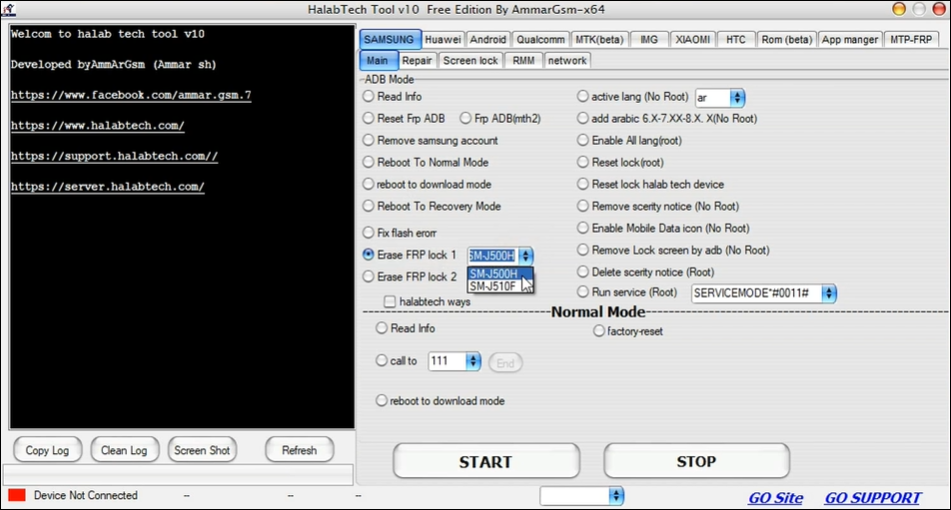
Step 5. In the HalabTech Tool, select the Android brand and choose Erase FRP Lock.
![halabtech-tool-erase-frp.png]()
Step 6. Click Start and wait for the tool to complete the operation. Do not disconnect the device during the process.
Step 7. Once the process shows Success, reboot the phone and proceed with normal setup without Google account verification.
| Common Issues |
Solutions
|
|
Device Not Detected
|
- Reinstall USB drivers
- Try a different USB port or cable
- Run the tool as Administrator
|
|
FRP Removal Failed
|
|
Pros and Cons of Using HalabTech Tool
Pros
- It supports a range of repair and service functions, including FRP removal, network unlock, firmware flashing, IMEI repair, and more.
- The tool has functionality for Samsung, Xiaomi, Huawei, and other Android devices, making it useful across a broad hardware range.
- HalabTech Tool has a relatively straightforward interface that many technicians find easier to navigate.
- The tool is available for free download, making it attractive to repair shops or users with a limited budget.
Cons
- Many of the advanced features require technical knowledge and careful handling. Beginners may struggle or make mistakes.
- FRP removal may fail on certain models or newer Android versions, and device support can be inconsistent.
- Official support options are limited. Users may have to rely on forums or community guidance instead.
- Many downloadable versions are shared on third-party sites, and users may encounter outdated builds, malware-infected downloads, or unofficial versions mislabelled as "latest."
Alternative to HalabTech Tool for Samsung FRP Reset
EaseUS MobiUnlock for Android serves as a reliable, user-friendly alternative to HalabTech Tool, focusing on straightforward screen lock removal and FRP bypass without needing advanced technical setups.
- Removes screen locks via a simple USB connection and on-screen steps, though it erases data on most devices (except some early Samsung models).
- Bypasses Google FRP locks on Samsung phones and tablets, ideal for second-hand devices or lockout due to forgotten Google credentials.
- Offers a user-friendly GUI for both beginners and advanced users.
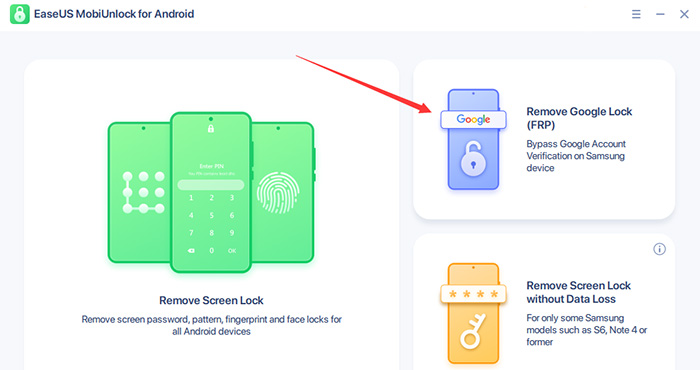
Step 1. Launch EaseUS MobiUnlock for Android on Windows, select Remove Google Lock (FRP).
![easeus mobiunlock homepage]()
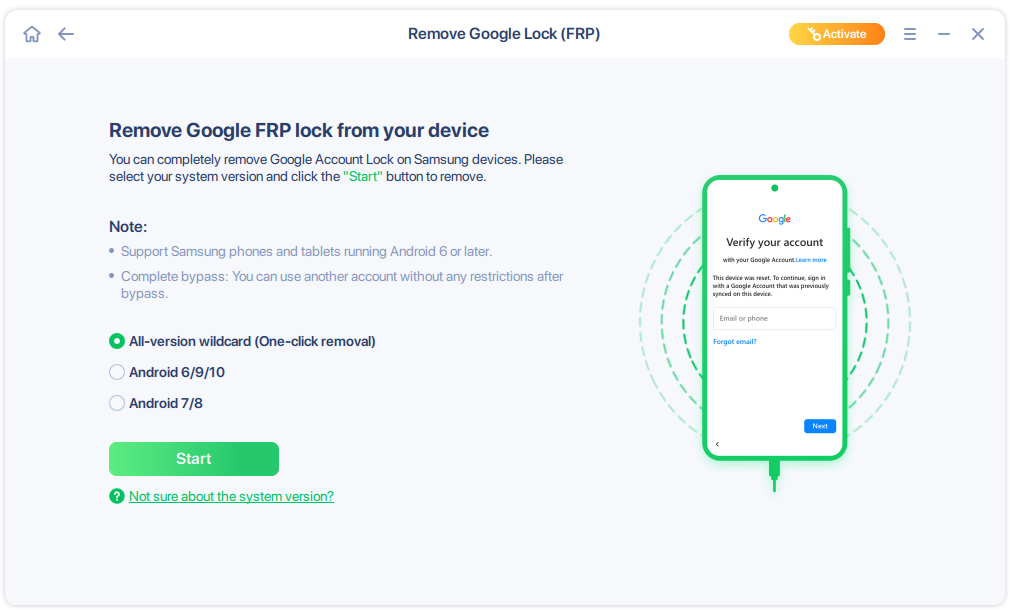
Step 2. Connect your Android device via USB and click Start and follow the on-screen instructions.
![select Sart to bypass FRP now]()
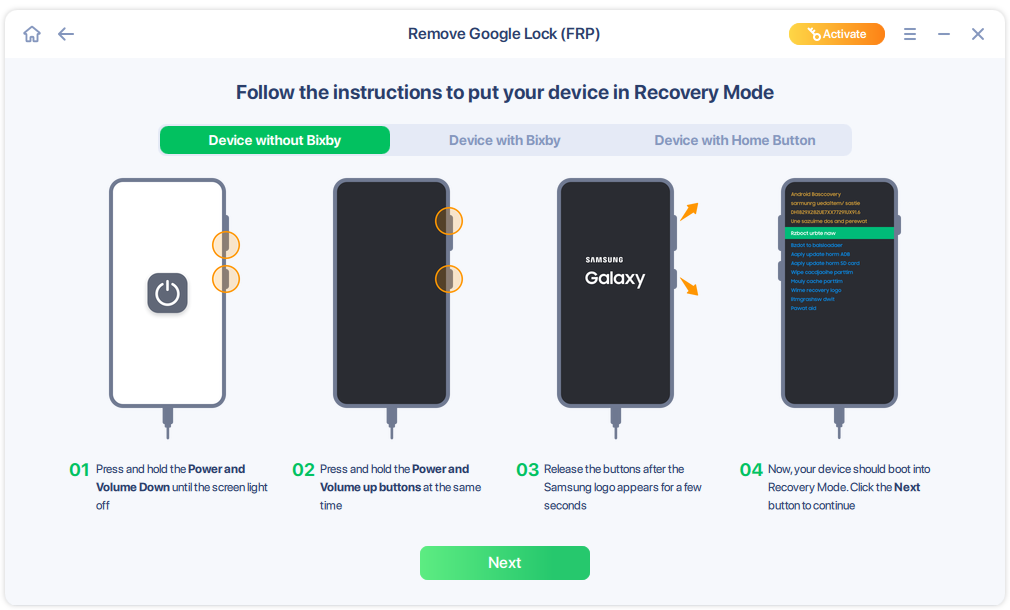
Step 3. Put your Android into Recovery Mode as prompt and wait 3–5 minutes for the FRP lock to be removed, then reboot.
![enter the recovery mode]()
Conclusion
In summary, the HalabTech Tool stands out as a versatile, all-in-one solution for Android enthusiasts and technicians looking to bypass FRP, unlock screens, flash devices, and perform repairs across diverse brands and chipsets. By following the outlined download, setup, and workflow steps, users can restore devices. However, if you are looking for a more user-friendly tool, EaseUS MobiUnlock for Android is a reliable option that supports removing FRP from Samsung devices running up to Android 15.






 NEW
NEW HOT
HOT
