Upgrading to a new Android device or switching between phones has become part of our digital lives, but transferring data smoothly and securely often remains a challenge. Whether it's contacts, photos, messages, apps, or documents, there are various powerful solutions to help transfer data efficiently, ranging from built-in features to versatile third-party applications and web-based platforms.
Best Android Data Transfer App for Multiple Platforms
EaseUS MobiMover is a versatile and user-friendly data transfer tool designed to simplify moving data from one phone to another. Especially valuable for Android data transfer, it allows quick and secure one-click transfers of all data, including contacts, messages, photos, videos, and much more.
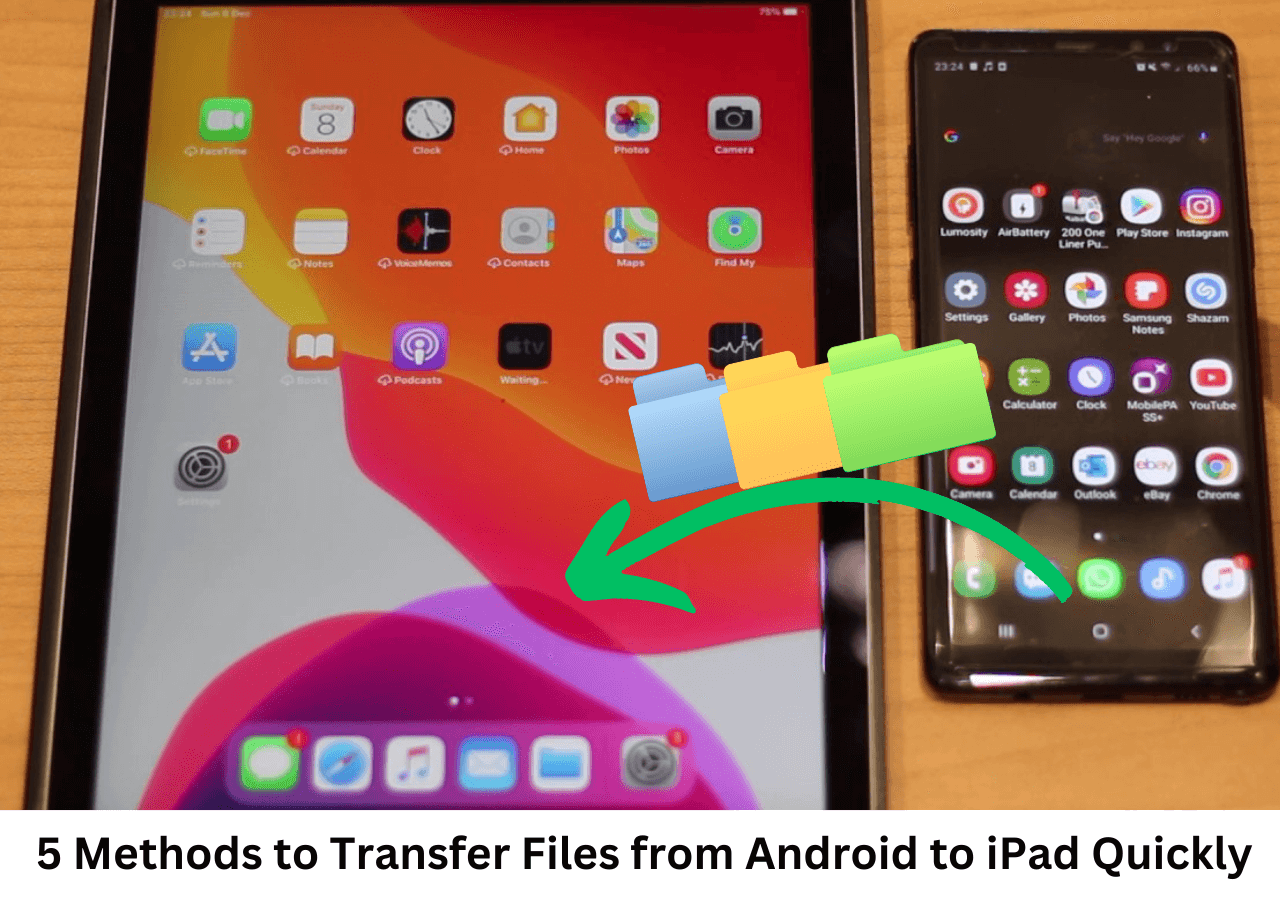
It also supports cross-platform data migration, such as from Android to iPhone, from Android to Mac/PC, and vice versa. Additionally, MobiMover serves as a device management solution, allowing users to browse, organize, and edit files directly from their computer.
Compatible with Android 5.0+ and Windows/Mac operating systems, it is an ideal all-in-one data migration, management, and backup tool for mobile users.
![transfer-files.jpg]()
Pros:
- Support multiple data types and cross-platform data transfer.
- Flexible data transfer choices - selective transfer, or whole data transfer.
- Speedy and secure transfers with a wired USB connection.
- Easy-peasy data transfer process with a clean UI.
Cons:
- The free version only allows transferring 20 items per day.
- A computer and USB cables are essential.
Best Built-in App to Transfer Data from Android to Android
The following are some of the best built-in apps for transferring data from Android to Android, each offering unique strengths to meet different user needs. If you prefer not to download third-party software, you can choose the option below.
Samsung Smart Switch
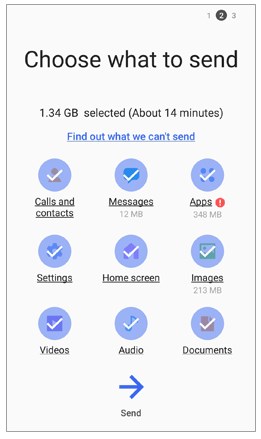
Samsung Smart Switch is a trusted, official, and all-in-one data transfer solution specially for Samsung users. It stands out by supporting a broad range of content, contacts, messages, apps, photos, videos, and device settings, ensuring users can pick up right where they left off on their new device.
Whether switching from an older Samsung or another Android phone, the app's tight integration with Samsung's ecosystem boosts transfer reliability and speeds. Importantly, Smart Switch does not require an internet connection for wireless transfers, enhancing security and convenience.
![smart-switch-choose-send-data.jpg]()
Pros:
- Support wireless, wired, and PC-based transfer options.
- Free to use with no data size limits.
- No internet connection needed for wireless transfer.
Cons:
- Best experience limited to Samsung-to-Samsung transfers.
- Wireless speed can be slow if devices aren't close.
Google Backup
Google Backup is an essential built-in service for Android users that simplifies data protection and device migration through cloud-based backup and restoration. Integrated deeply into the Android ecosystem, Google Backup automatically secures key data, including app data, contacts, call history, device settings, calendars, photos, and videos, to Google Drive.
This approach ensures that when you switch to a new Android device or reset your current one, your important information can be easily restored simply by signing in with your Google account. Its reliance on cloud storage means it protects your data even if your device is lost or damaged.
![enable-google-backup-of-data.jpg]()
Pros:
- Automatic, continuous backup and sync to the cloud.
- Broad device compatibility beyond brand boundaries.
- Easy restoration during device setup with Google account sign-in.
Cons:
- Requires a stable internet connection for backup and restore.
- Storage limits unless you pay for more space.
- Indirect transfer method—not peer-to-peer or offline.
Bluetooth
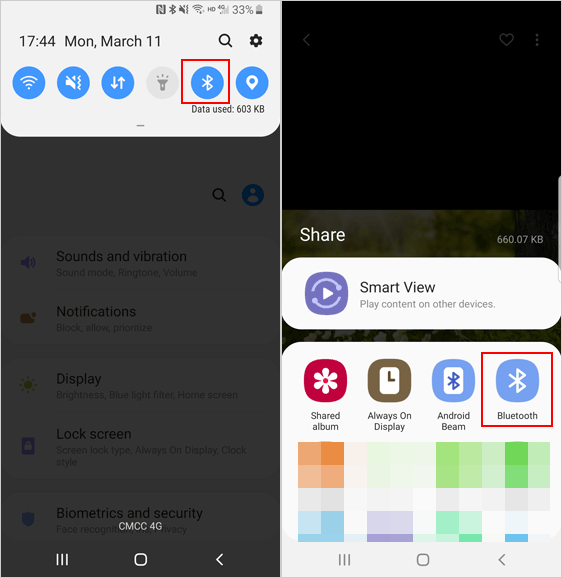
Bluetooth is a classic and universally supported method for transferring data between Android devices, without the need to download or install anything. It's especially handy for quickly sharing smaller files, such as contacts, photos, and documents. Bluetooth works by pairing two devices within close range and securely sending files over this wireless connection.
![proceed-with-bluetooth-option.jpg]()
Pros:
- Available on virtually all Android devices.
- Secure for transferring personal files between trusted devices.
- Simple peer-to-peer sharing without extra apps or setup
Cons:
- Slow transfer speeds compared to Wi-Fi Direct or specialized apps.
- Not ideal for large files or bulk transfers.
Quick Share
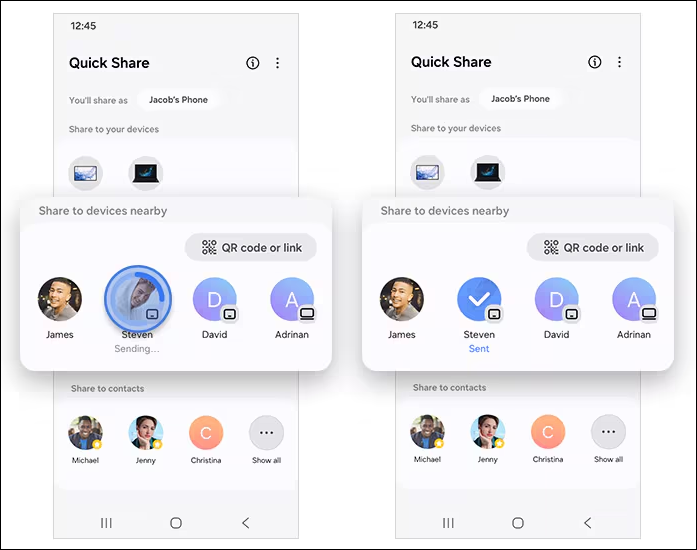
Quick Share is an advanced file-sharing feature that resulted from the merger of the original Samsung Quick Share and Google's Nearby Share. It is officially supported on Android devices running version 6.0 or later. It enhances file transfers by using a combination of Bluetooth for device discovery and Wi-Fi Direct for high-speed, direct file transfers between devices.
Quick Share supports sharing files with up to 5 nearby devices simultaneously, making it ideal for quick, multi-recipient transfers. It also offers cloud sharing through Samsung Cloud. When devices are not nearby, it can upload files to a cloud service to generate a shareable link or QR code.
![quick-share.png]()
Pros:
- The ability to send files to multiple nearby devices simultaneously.
- Broad device compatibility, including Android phones, Windows, and Chromebooks.
- Send files in original format and resolution, without compression.
Cons:
- You cannot send and receive files at the same time.
Web-based Transfer Apps for Remote Android Data Transfer
When you need to transfer Android data without being physically close to the other device, web-based transfer apps provide a flexible and convenient solution. The following tools enable you to share files remotely over the internet, allowing you to transfer various types of files, including photos, videos, and large documents, from one phone to another.
Send Anywhere
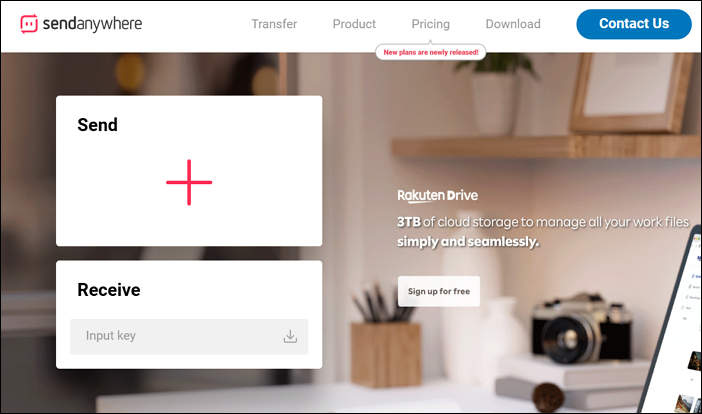
Send Anywhere is a file-sharing service that allows users to transfer any file across devices, including from Android to Android. With it, you can send anything quickly without worrying about file size limits. Moreover, you don't need to be near the other phone, as it can work over the internet using a simple 6-digit code or a shareable link. If you are concerned about safety, Send Anywhere utilizes direct device-to-device transfers and strong encryption to ensure your data remains safe and private.
![send-ahywhere.png]()
Pros:
- No sign-up or login needed.
- Transfer any file type without compression or quality loss.
- Support sharing with multiple people through shareable links.
- Work with Android, iOS, Windows, Mac, and Web.
Cons:
- Free version includes ads.
- The free version limits file size to 10 GB.
TransferNow
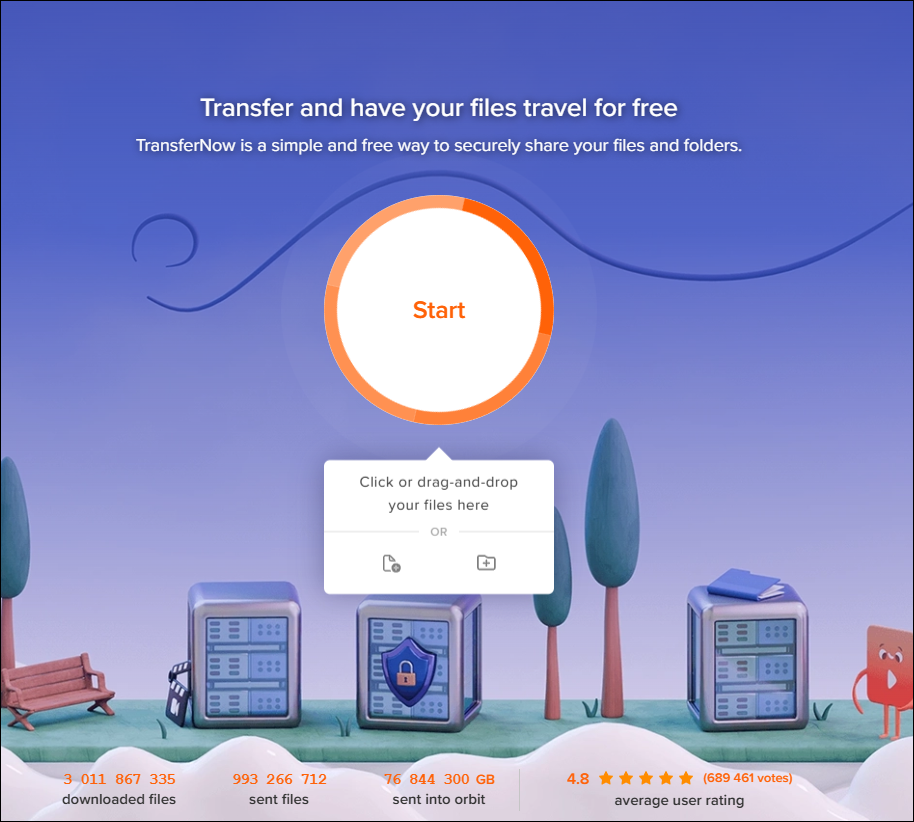
TransferNow is an online file transfer service that lets you send large files quickly and securely from Android devices and other platforms. It works through direct email or shareable links, allowing you to share funny pictures or viral videos with friends and family. You can easily control how long files are available, set download limits, and even password-protect your transfers for extra security.
![transfernow.png]()
Pros:
- Support multi-device access.
- No need to create an account to send files.
- Offer customized protection for files.
Cons:
- The free version limits file storage to 7 days and a maximum of 5GB per transfer.
- Premium plans start around €8-30/month, depending on tier.
Zapya Transfer
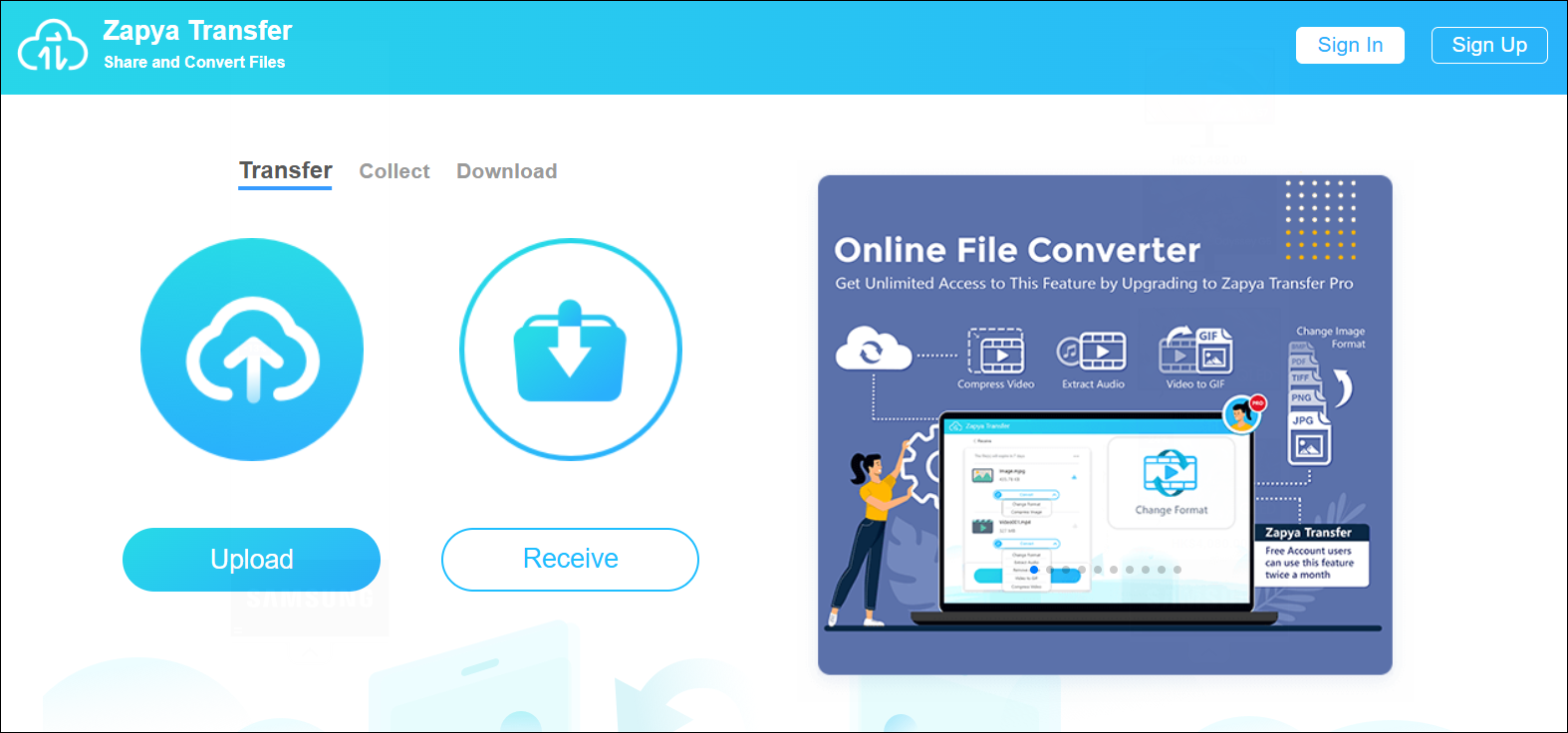
Zapya Transfer is the online version of Zapya, allowing you to share files instantly without needing to download or install any app. Similar to Send Anywhere, you just upload your files via a web browser, and the recipient can download them using a six-digit code or a shareable link. Zapya Transfer is incredibly convenient for users who want quick file sharing on the go without any app installation.
While Zapya also offers a popular app version that supports offline transfers via Wi-Fi Direct and other advanced features, such as group sharing and phone replication, the online Zapya Transfer tool is ideal for remote sharing.
![zapya-transfer.png]()
Pros:
- Works on any device with a web browser and internet connection.
- Easy sharing with a simple code or link.
- Free to use with multi-language support.
Cons:
- You can upload files up to 1 GB in size.
- It has ads on its website.
Mobile Apps to Transfer Data from Android to Android
When you need to transfer data from one Android phone to another, mobile apps make it easy to share photos, videos, contacts, apps, and other files directly between devices without cables or a computer. To transfer with the following apps, you have to download the transfer app on both the source phone and the target phone.
SHAREit
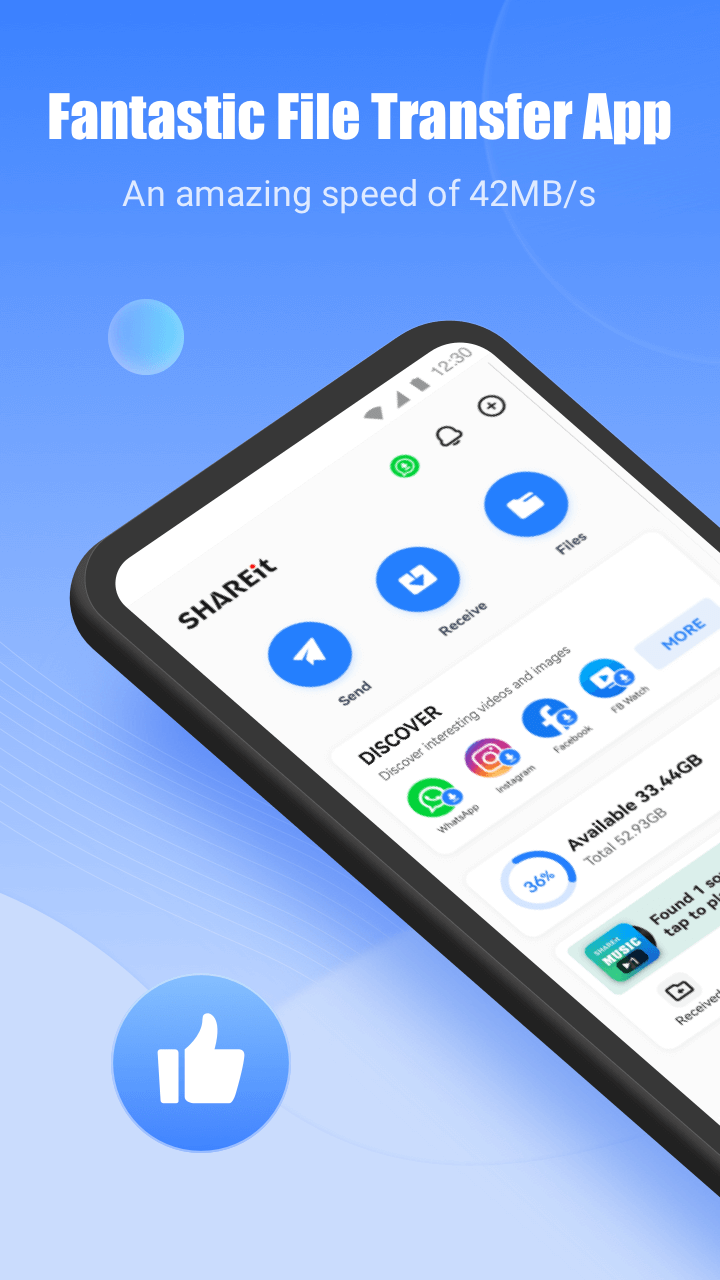
SHAREit is a widely popular file-transfer app known for its fast and free peer-to-peer sharing capabilities. It leverages Wi-Fi Direct to achieve high transfer speeds up to around 42MB/s, which is faster than Bluetooth. The app also includes extra features like a built-in music player, video downloader, file manager, and a phone clone tool to migrate data from an old phone to a new one.
![shareit.png]()
Pros:
- Fast file transfers without size or type restrictions.
- Cross-platform support covers phones, tablets, and PCs.
- Free to use and does not compress files.
Cons:
- Displays ads that can be intrusive for some users.
- Doesn't transfer app data, only app files and media.
Xender
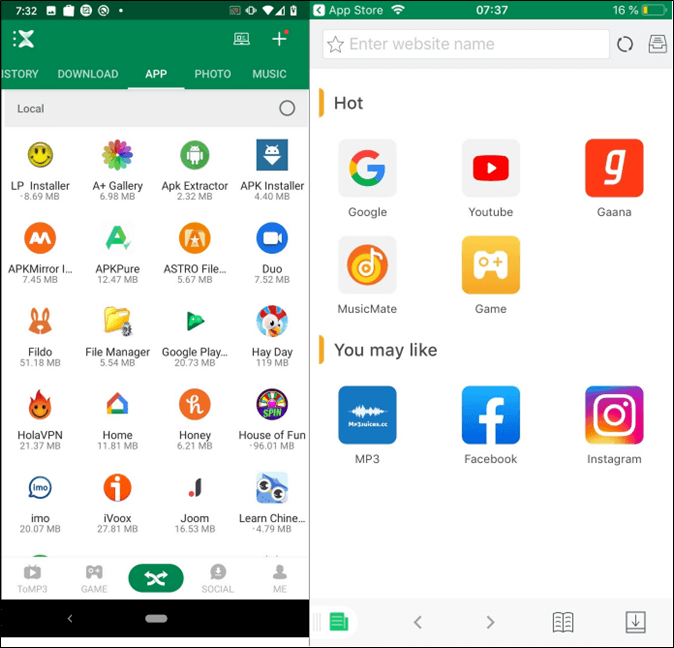
Xender is a popular and versatile file transfer app that lets users share photos, videos, music, documents, apps, and more between Android devices. It uses Wi-Fi Direct technology to enable fast transfers without mobile data or internet, providing speeds up to 40MB/s. Xender supports unlimited file size transfers, making it ideal for sending large files like HD videos.
![xender.png]()
Pros:
- Supports all file types with no size restrictions.
- Phone copy feature simplifies transferring data from old to new devices.
- Free to download and use with a large user base (2 billion users trusted).
Cons:
- Contains ads.
- App use requires installation on both devices for transfers.
- Some users report occasional issues with connection reliability.
Conclusion
When it comes to apps to transfer data from Android to Android, you have plenty of choices catering to different needs.
- Best for comprehensive Android device management: EaseUS MobiMover
- Best overall for native speed and ease: Quick Share
- Best for remote/cloud sharing: Send Anywhere
- Best for offline speed + extras: SHAREit or Xender
- Best for full device transfer (Samsung only): Samsung Smart Switch
| App |
Speed |
Offline |
File Size Limits |
Security |
Free? |
| MobiMover |
Fast via USB/PC |
Yes |
No limit |
Secure, PC-based |
Free/Paid |
| Smart Switch |
Up to 20MB/s |
Yes |
No explicit limit |
Encrypted |
Free |
| Google |
Internet-based |
No |
5 GB for free |
Encrypted |
Free/Paid |
| Bluetooth |
Up to 2-3 Mbps |
Yes |
Limited by Bluetooth specs |
Basic encryption |
Free |
| Quich Share |
Up to 20MB/s |
Yes |
Depends on device storage |
Private by default |
Free |
| SendAnywhere |
Up to 20MB/s |
Yes |
Up to 10 GB for free |
256-bit encryption |
Free/Paid |
| TransferNow |
Internet-based |
No |
Up to 5 GB for free |
AES-256 encryption |
Free/Paid |
| Zapya Transfer |
Internet-based |
No |
Up to 1 GB for free |
Secure cloud storage |
Free/Paid |
| SHAREit |
Up to 42MB/s |
Yes |
No limit |
Basic encryption |
Free + Ads |
| Xender |
Up to 40MB/s |
Yes |
No limit |
Basic encryption |
Free + Ads |
FAQs
1. Can I transfer all types of data, including apps and messages?
Some apps like EaseUS MobiMover and Samsung Smart Switch support full device transfers, including apps, contacts, messages, photos, and settings. Basic sharing apps mostly transfer media and documents only.
2. How do I choose the best app?
Consider your priorities: Are you transferring locally or remotely? Need full device migration or just files? Want multi-platform support or native ease? Speed, security, and convenience vary across apps, so pick the one that fits your use case best.
3. How long does it take to transfer data between Android phones?
Transfer time depends on file size and the method used. Wi-Fi Direct transfers (SHAREit, Quick Share) are much faster and can move gigabytes within minutes. Cloud or internet-based transfers take longer, depending on connection speed.
4. Can I transfer data without losing quality or compressing files?
Yes, apps like EaseUS MobiMover, Send Anywhere, Quick Share, Xender, and SHAREit transfer files without compression or quality loss, preserving original file integrity.





 NEW
NEW HOT
HOT
