There are times when you watch a YouTube movie and surprisingly find its background music is so impressive that you want to extract and download it to your iPhone or iPad for offline listening. But unfortunately, YouTube doesn't allow you to do this within its app. So you may wonder: is there any way to convert a YouTube video to MP3 on iPhone?
Yes, there is. You can do this with some Youtube to MP3 converters & downloaders, just as shown below.
Quick Answer:
To convert YouTube video to MP3 on iPhone or iPad, you can use:
- 🔹EaseUS MobiMover (2-in-1 YouTube to MP3 Converter & MP3 File Transfer to iPhone)
- 🔹Online YouTube to MP3 converters (like YTMP3, YTHub.cc)
- 🔹Third-party apps (Use Documents by Readdle)
Among these, EaseUS MobiMover is the most stable and feature-rich option, especially for YouTube to MP3 bulk downloads on iPhone or iPad.
Part 1. Best Way to Convert YouTube Video to MP3 on iPhone Using EaseUS MobiMover
EaseUS MobiMover is a desktop-based YouTube to MP3 converter and iPhone transfer tool. Unlike online tools that only let you download MP3s and leave the transfer process to you, MobiMover handles both: downloading and sending the file directly to your iPhone or iPad — no iTunes or cloud sync required.
With its "Video Downloader" feature, you can download videos or music from public streaming site (such as YouTube, Facebook, Instagram and TikTok) in MP3 or WAV format and convert YouTube playlist to MP3.
Once you download YouTube to mp3, connect your iPhone or iPad to the computer and go to "PC to Phone" menu to transfer the converted YouTube MP3 files from your computer to iPhone easily.
Why Choose the 2-in-1 video converter & iPhone transfer tool:
- Convert videos from 1000+ sites to MP4, MP3, WAV and more.
- Transfer MP3s from computer or laptop directly to iPhone/iPad.
- Support batch downloading from YouTube to MP3.
- Available for both Windows & macOS.
- Convert YouTube to MP3 at 320 kpbs.
- Also functions as an iPhone file manager, backup tool, and WhatsApp data mover
Now, let's start converting YouTube video to MP3 on iPhone with EaseUS MobiMover:
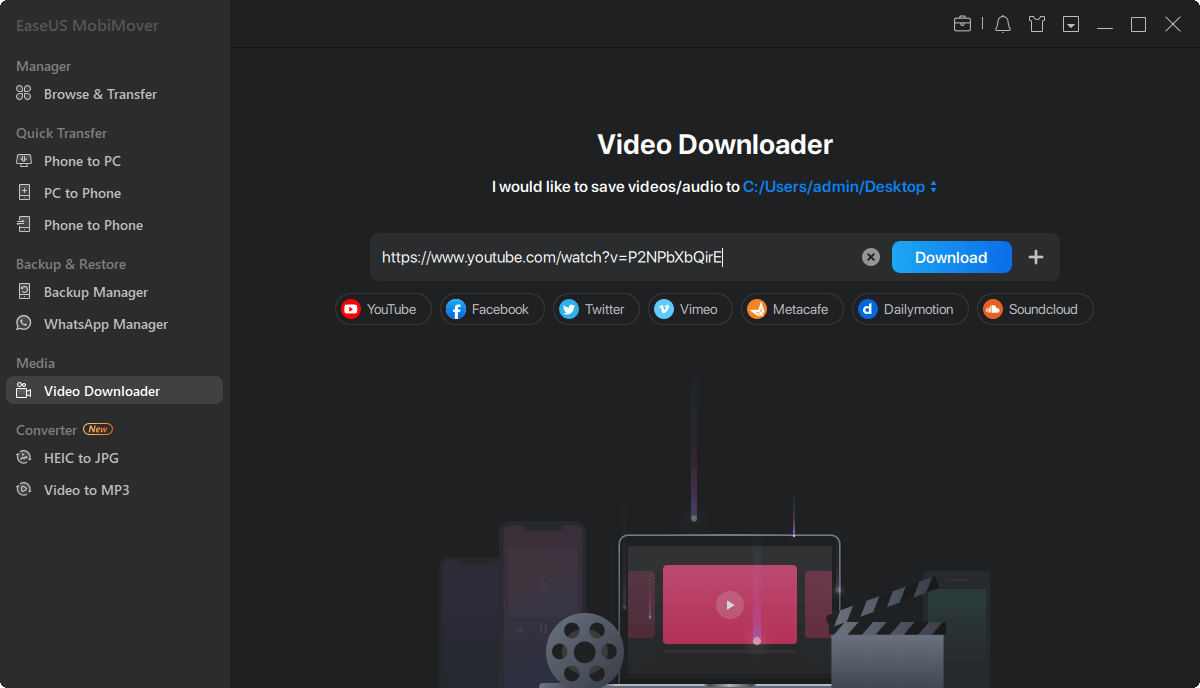
Step 1. Launch EaseUS MobiMover, click "Video Downloader" on the left panel of the interface. Copy the URL of the video you want to download, paste it into the address bar.
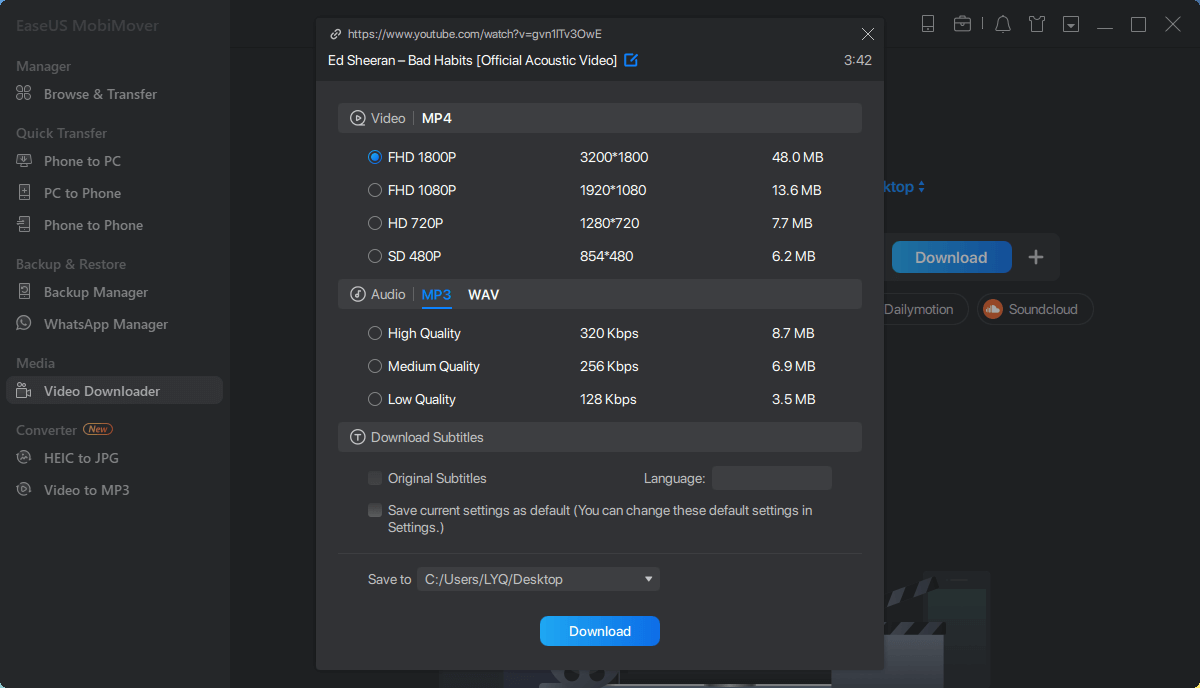
Step 2. Then click the "Download" button. In the popup window, you can choose to save the video in MP3. You can download the video in MP4 and WAV as well.
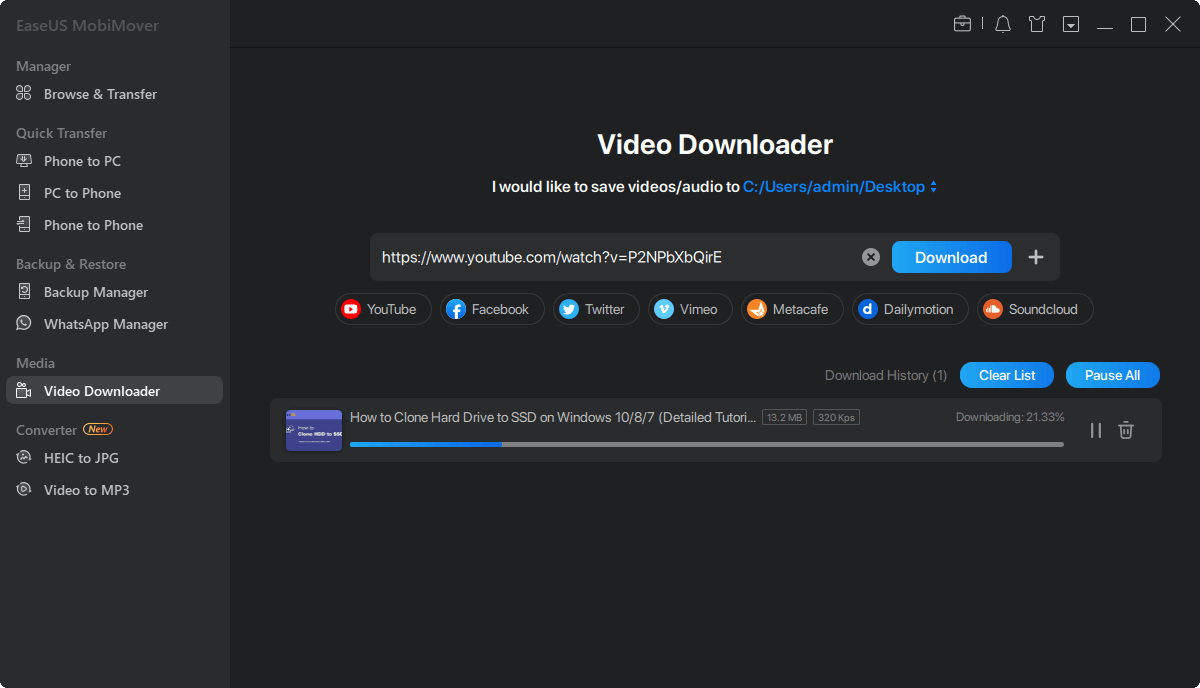
Step 3. Wait for EaseUS MobiMover to save the video to your computer in MP3. When the downloading process completes, you can access the downloaded MP3 file in the selected folder on your computer.
Part 2. Use Online YouTube to MP3 Converters on iPhone (No App Required)
If you prefer to convert YouTube videos to MP3 online, you can try some online converters. These converters don't need you to install any apps. All you need is a working internet connection with good speed. The best part of such converters is that they are compatible with almost all operating systems, including iOS, Android, macOS, and Windows.
📖Note: If you're on a computer, these tools work great. After the conversion on computer, you can use EaseUS MobiMover to transfer these MP3 files from PC to your iOS device easily. If you are planning to access the online YouTube converters directly on your iPhone, scroll down to the next section for more information.
1. YouTubetoMP3 Converter
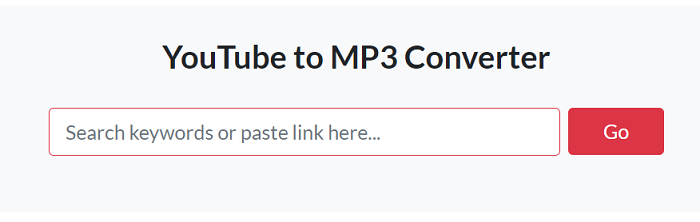
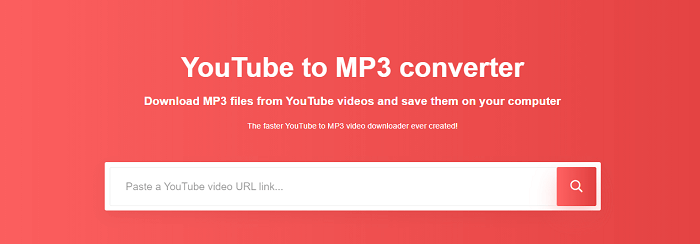
YouTubetoMP3 Converter is an easy-to-use Youtube video converter that lets you convert YouTube to MP3 by using a URL. All you need is to copy and paste the link of the YouTube video you wish to convert to the download box and then choose your wanted export format (mp3). Finally, click on the "Convert" button to start the conversion process.
![YouTube to MP3 Converter]()
2. YTMP3
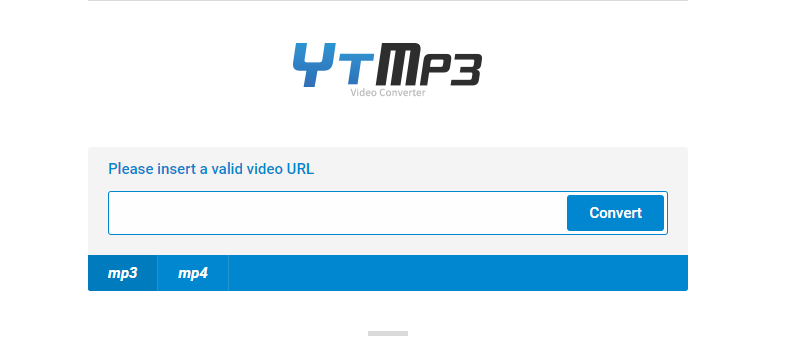
By using YTMP3, you can easily download and convert your wanted YouTube videos in MP4 or MP3 format. It can work seamlessly for computers, tablets, and mobile devices. There are no ads and no need for the installation of any software. All you need is a stable internet connection. But there is a shortcoming of this tool - it can only convert videos up to a length of 90 minutes. If you don't mind this, you can give it a try.
![YTMP3 video converter]()
3. GO-MP3
GO-MP3 is another online converter that allows you to download YouTube videos to MP3 for free. Actually, it works similar to other online converters, and there is nothing special about it, so that we won't go into any details.
![Go MP3 Converter]()
4. YTHUB.CC
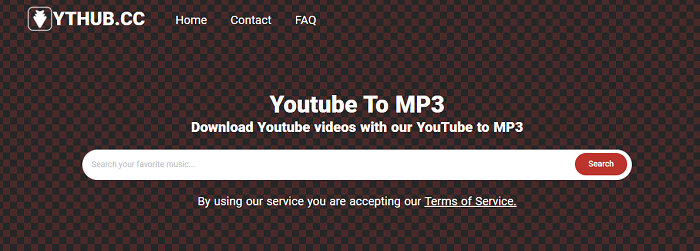
YTHUB.CC works differently from the other three online converters introduced above. It doesn't require you to open another tab and copy the URL. Instead, you can directly search for your wanted videos by inputting the keywords. Another advantage of this tool is that it allows you to download YouTube playlists in MP3. If you need to download playlists, don't miss this tool.
![YTHUB YouTube to MP3 converter]()
Part 3. Convert YouTube Video to MP3 on iPhone Using an App (Without Computer)
If you're looking for a way to convert YouTube videos to MP3 directly on your iPhone without a computer, one of the most practical solutions is to use the Documents by Readdle app combined with a reliable online YouTube to MP3 converter.
Due to App Store restrictions, there are very few dedicated YouTube video to MP3 converter apps for iPhone, and most don't work reliably. The Documents app workaround remains one of the safest and most effective methods available.
Here's how to convert YouTube to MP3 on iPhone without computer:
Step 1. Install "Documents by Readdle" from the App Store.
Step 2. Open the app and use its built-in browser to visit an online YouTube to MP3 converter (e.g., YTMP3 or YTHUB.cc).
Step 3. Paste the YouTube video URL and choose MP3 as the format.
Step 4. Download the MP3 file and save it to the app’s storage.
Step 5. From there, you can move the file to the Files app, or open it with a music player of your choice.
This method doesn't require jailbreaking and gives you more control over the download process. However, you'll still need to be careful with ad-heavy or suspicious websites. Make sure to use only trusted online converters.
Bottom Line
As you can see, you can convert YouTube to MP3 in many different ways. Different ways have different features or limitations. The desktop-based converter - EaseUS MobiMover is reliable, safe, and quick. It can fulfill most needs for video conversion and files transfer from computer to iPhone. While the online converters may offer a limited number of videos for conversion. And the Documents by Readdle app is limite to download YouTube as MP3 file on iPhone/iPad.




 NEW
NEW HOT
HOT
