Getting a new iPhone 17 or iPhone Air is exciting, but what if you already set up your new iPhone and realized later that you forgot to move photos, contacts, messages or even WhatsApp chats? This is a very common situation, and the good news is that you still have multiple ways to transfer data to iPhone 17 or iPhone Air after setup.
In this guide, we'll compare Apple's official methods with third-party solutions, highlight the limitations of Quick Start and iCloud, and show you how to move data (including iCloud backups, messages, and apps) without erasing your new device.
| Method |
Pros |
Cons |
| 1. EaseUS MobiMover |
● no reset/network needed;
● fast and flexible;
● supports selective data
|
● requires third-party software |
| 2. Quick Start |
● fast, official Apple method;
● transfers almost everything
|
● requires reset if setup is done |
| 3. iCloud |
● wireless;
● restores most apps, settings, and data
|
● requires reset;
● dependent on Wi-Fi and iCloud storage
|
| 4. iTunes |
● works offline;
● suitable for large data
|
● requires reset;
● needs a computer and cable
|
Method 1. Transfer Data to New iPhone 17 After Setup Using EaseUS MobiMover (without resetting)
If you only want to transfer specific data, like photos, contacts, or videos without resetting your iPhone 17, a third-party tool such as EaseUS MobiMover is very effective.
Such a third-party solution is also suitable for people who's iCloud backup is unavialbe for some reasons. If you want a flexible, no-reset solution, consider third-party apps like EaseUS MobiMover. It enables:
✅ Selective data transfer of photos, contacts, messages, music, and app data.
✅ Direct phone-to-phone transfer using a computer.
✅ Compatibility across various iOS versions and devices.
✅ Preview before transfer to control what gets moved.
To transfer data to new iPhone after setup without iCloud, check the following steps:
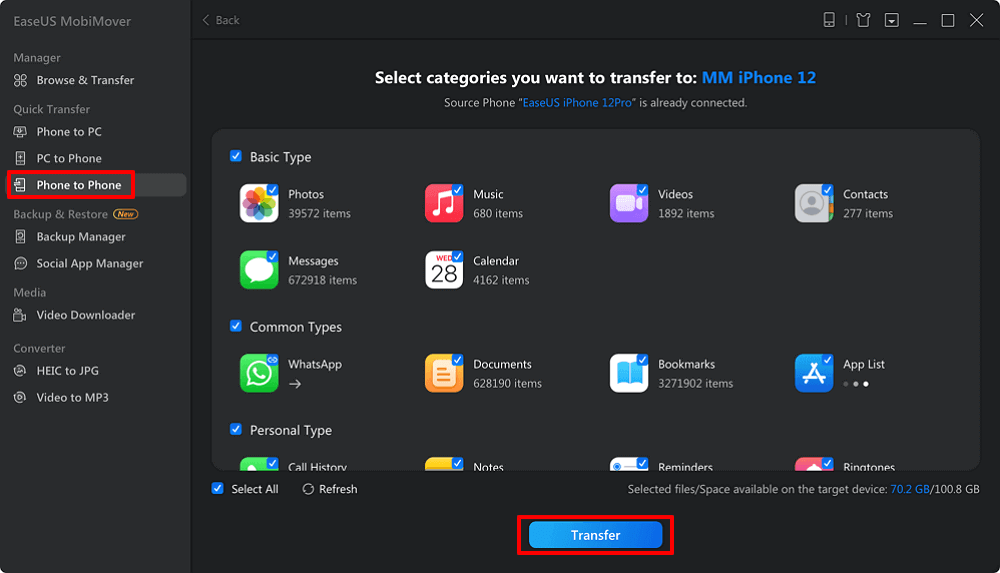
Step 1. Open the program on your computer and connect both of your iPhones to the computer.
Step 2. Click Phone to Phone in the left panel in MobiMover.
Step 3. Select the data that you want to transfer from old iPhone to new iPhone after setup.
Step 4. Click Transfer to start the process.
![use MobiMover to transfer data to iphone]()
If you want to try this tool to transfer data to your new iPhone 16/17/Air after setup without resetting easily, click below to download it for free!
Method 2. Transfer Data to New iPhone 17 After Setup Using Quick Start (reset required)
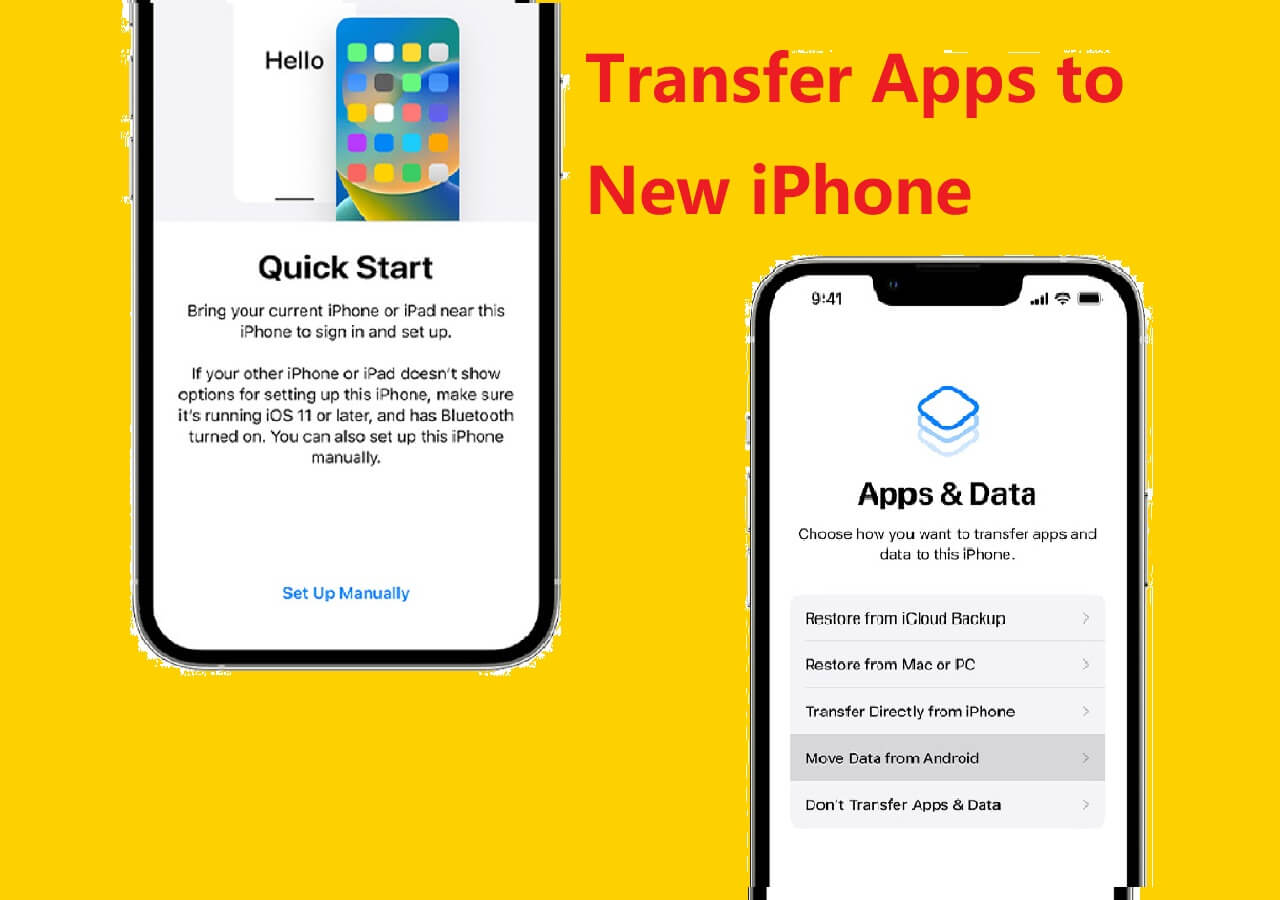
Quick Start is Apple's official method for setting up a new iPhone, including the latest iPhone 17 and iPhone Air. When you bring your new device close to your old one, a prompt appears to help you transfer data. Although Quick Start works best during initial setup, if you've already set up your iPhone 17, you may need to erase and reset it to use Quick Start again to transfer data to new iPhone after setup.
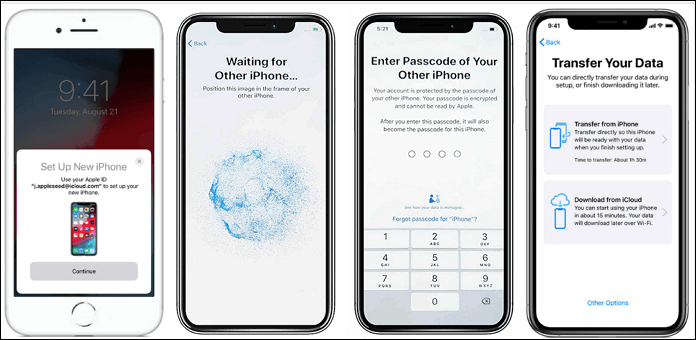
Step 1. Place both iPhones close to each other and make sure Bluetooth is enabled.
Step 2. Turn on your new iPhone 17/iPhone Air. A Quick Start screen will appear on your old iPhone.
Step 3. Scan the animation on your new iPhone using the camera of the old one.
Step 4. Follow the on-screen instructions to transfer your Apple ID and settings.
Step 5. Select "Transfer from iPhone" and wait for the process to complete.
![quick start]()
Method 3. Restore from iCloud Backup After Setup (reset required)
If you already set up your iPhone 17 (Pro) or iPhone Air, you can still move your old data by erasing the new device and restoring from iCloud backup. This is useful if you regularly back up your old iPhone to iCloud.
It's easy for full restores, no need for computer. However, it requires erasing new iPhone to restore fully and backup size is limited by iCloud storage.
To transfer data to new iPhone after setup with iCloud, follow the steps below:
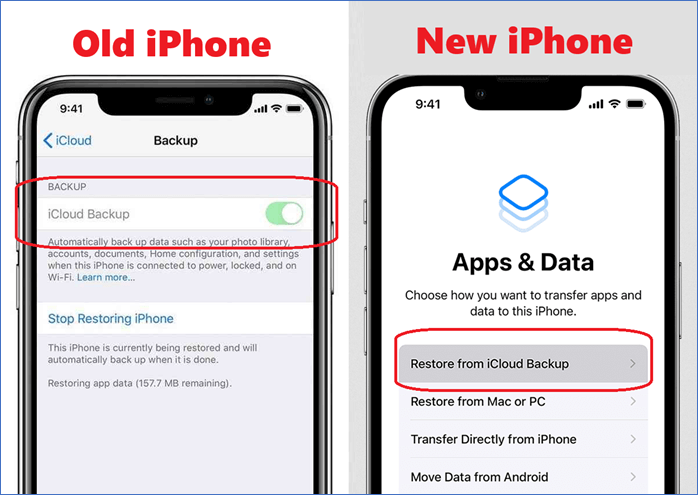
Step 1. On your new iPhone, go to Settings > General > Reset > Erase All Content and Settings.
Step 2. After the device restarts, choose the option to Restore from iCloud Backup during setup.
Step 3. Sign in with your Apple ID and select the latest backup from your old device.
Step 4. Wait for the restore process; your apps, photos, settings, and other data will download.
![select restore from iCloud on your new iPhone]()
❇️ If you prefer not to erase your new iPhone, you can still sync iCloud data such as contacts, calendars, photos, and notes by signing into iCloud and enabling these features. However, this does not restore app data or messages completely.
Method 4. Restore from iTunes Backup After Setup (reset required)
If you prefer a wired method, iTunes (Windows) or Finder (Mac) can help restore your old iPhone data to your new iPhone 17. It's suitable for users with large data files or slow internet connections.
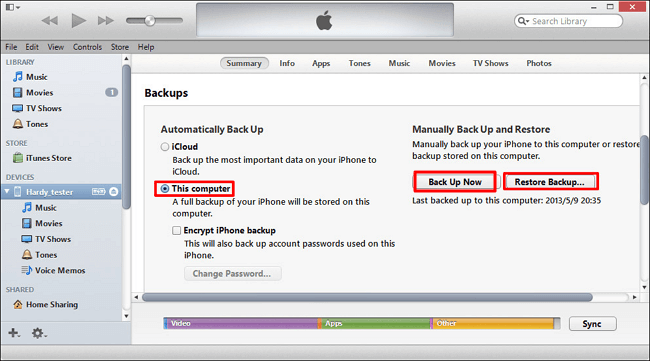
Step 1. Connect your old iPhone to your computer and open iTunes/Finder.
Step 2. Select your device and click Back Up Now.
Step 3. Once the backup is complete, connect your iPhone 17.
Step 4. Choose Restore Backup and select the latest backup file.
Step 5. Wait for the transfer to complete before disconnecting.
![backup and restore iPhone via iTunes]()
Comparison: Apple Official Methods vs. EaseUS MobiMover
As we can see from the comparison table below, EaseUS MobiMover is more flexible to transfer data between iPhones, compared to Quick Start or iCloud/iTunes restore. If you are interested in this program now, click below to download the trial version for free and you'll find it's beyond an iOS data transferring tool!
| Scenario |
Quick Start / iCloud / iTunes |
EaseUS MobiMover |
| Without resetting |
❌ |
✔️ |
| Selective data transfer |
❌ |
✔️ |
| Transfer messages after setup |
❌ |
✔️ |
| No Wi-Fi need |
❌ |
✔️ |
| Transfer apps & app data |
❌ |
Supports WhatsApp data |
| Ease of use |
Moderate |
Simple drag & drop interface |
| Transfer speed |
Medium–Fast |
Fast |
FAQ on Transferring Data to New iPhone 17
- 1. How long does data transfer take after setup?
-
Time depends on the amount of data and method. Quick Start usually takes 30 minutes to 2 hours. iCloud restores can take several hours. Third-party tools vary.
- 2. Will I lose data during transfer?
-
Following the correct steps should prevent data loss. Always backup before starting. Some app data may not transfer with partial methods.
- 3. Can I transfer data from older iPhones or other Apple devices?
-
Yes. Official methods generally support devices running iOS 12.4 or later. Third-party tools can support a wider range.
- 4. Can I transfer data without resetting my new iPhone?
-
Yes, third-party tools offer flexible no-reset transfers. Official full restores require factory reset.
- 5. Can I transfer apps to new iPhone after setup
-
- Apple's approach: Your App Store purchases will sync to your new iPhone, but you must manually re-download them.
- App data: Some apps (like WhatsApp) allow you to move chat history, but most apps won't transfer their internal data without a tool.
- Third-party tools: These cannot copy the actual app installation, but they can transfer supported app data.
- 6. How to transfer messages to new iPhone after setup?
-
To transfer messages after setup:
- Enable Messages in iCloud on both old and new devices (if available).
- For SMS and iMessages stored locally, third-party tools like MobileTrans can help transfer message histories without resetting.
- For WhatsApp or other chat apps, use their own backup and restore processes or trusted third-party apps.
Conclusion
Transferring data to your new iPhone 17 or iPhone Air after setup is absolutely achievable with the right approach. Whether you prefer Apple's official iCloud and restore methods or third-party tools that don't require erasing your new device, this guide has you covered for moving photos, messages, apps, and more. Choose the method that fits your scenario best, follow the steps carefully, and enjoy your fully loaded new iPhone!





 NEW
NEW HOT
HOT
