⚡ Quick Answer
If your iPhone is stuck in recovery mode after installing iOS 26 Beta, the most effective solution is to enter DFU mode and restore your device to iOS 18.5 using iTunes, Finder, or the Apple Devices app. iOS 26 Beta 2 introduces a new Recovery Assistant, which may offer on-device repair without needing a computer — but its success varies in early testing.
What's Causing iOS 26 Beta to Get Stuck in Recovery Mode? (3 Main Reasons)
All the Information Is Based on Real Apple User Experiences
Since Apple announced iOS 26 (a.k.a. iOS 19 internally) at WWDC 2025, many beta testers have run into a frustrating issue: their iPhones getting stuck in recovery mode after attempting the update or unable to check for update at all. Here are the most common reasons that we got from Reddit:
1. Beta Software Instability: The iOS 26 beta was unstable and caused the iPhone to stay stuck in Recovery Mode no matter how many times you restarted it.
2. Overheating During Installation: Some older iPhone model overheats after installing iOS 26, e.g. iPhone 12 or below. It rebooted several times and then went straight into recovery mode.
3. Storage Overload: If an iPhone gets so full of storage, it can't do anything, not to mention updating and normal running. (A customer of EaseUS has confirmed this.)
For more iOS update bugs like battery draining or iPhone overheating, refer to the integrated page: iOS Update Errors and Bugs for fixes.
How to Fix iOS 26 Stuck in Recovery Mode (4 Tested and Worked Ways)
Here are solutions that we tested and actually worked:
✅Method 1: Repair iOS 26 Stuck Issues with EaseUS MobiXpert
EaseUS MobiXpert is a dedicated iOS system repair tool that can fix iPhones stuck in recovery mode, Apple logo screen, or reboot loops. If the stuck problem is caused by an iOS system issue, then you can use this iOS repair to fix it.
Moreover, if you think the iOS 26 beta is pretty unstable, and you will probably encounter further problems, you can use the tool to downgrade iOS 26 to iOS 18 or 18.5 easily.
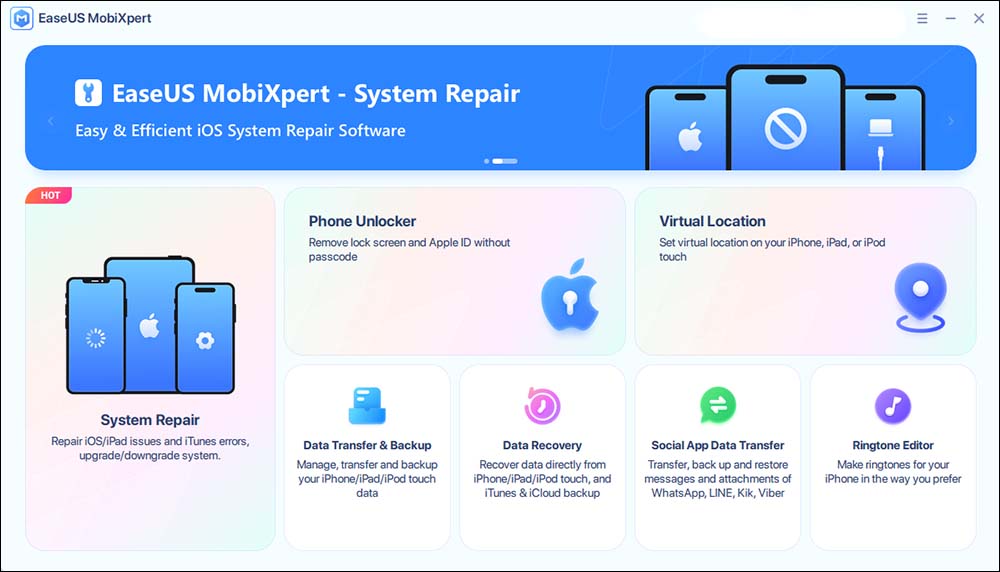
Step 1. Launch EaseUS MobiXpert on your computer, choose "System Repair" from the Home page.
![MobiXpert hompage]()
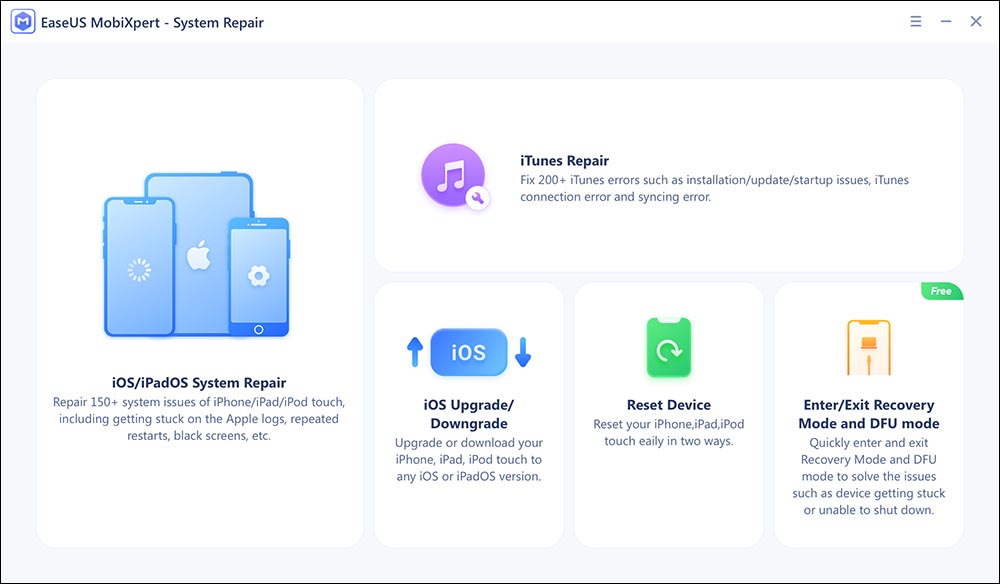
Step 2. Then, choose "iOS/iPadOS System Repair" from the new screen.
![ios system repair]()
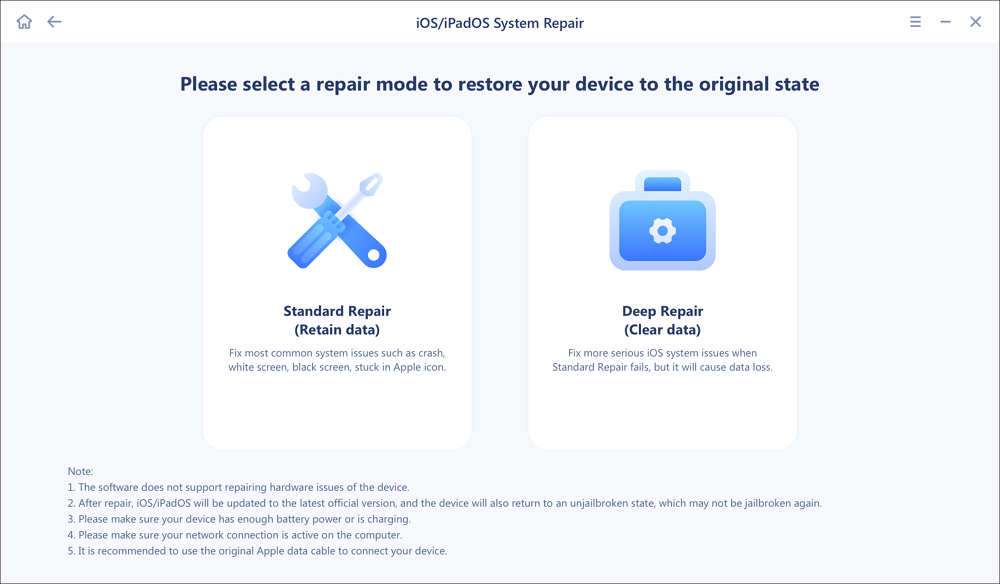
Step 3. Connect your iPhone or iPad to the computer and choose "Standard Repair." If you want a thorough repair, you can choose "Deep Repair."
![select repair mode]()
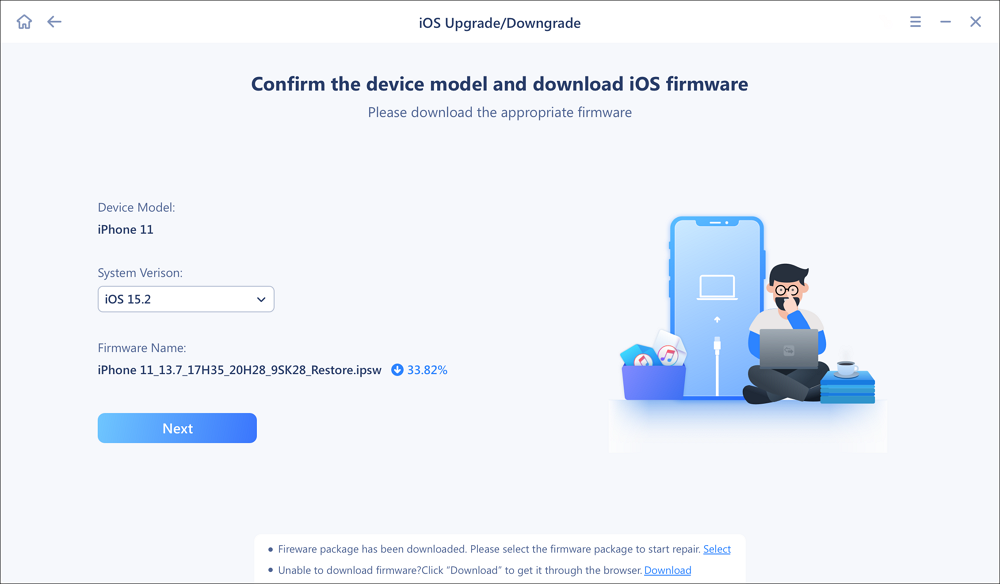
Step 4. Confirm your device model and click "Next" to move on. Then, EaseUS MobiXpert will download a firmware for you, which will take a while. If you have installed a firmware before using this software, you can directly click "Verify" to continue.
![verify firmware]()
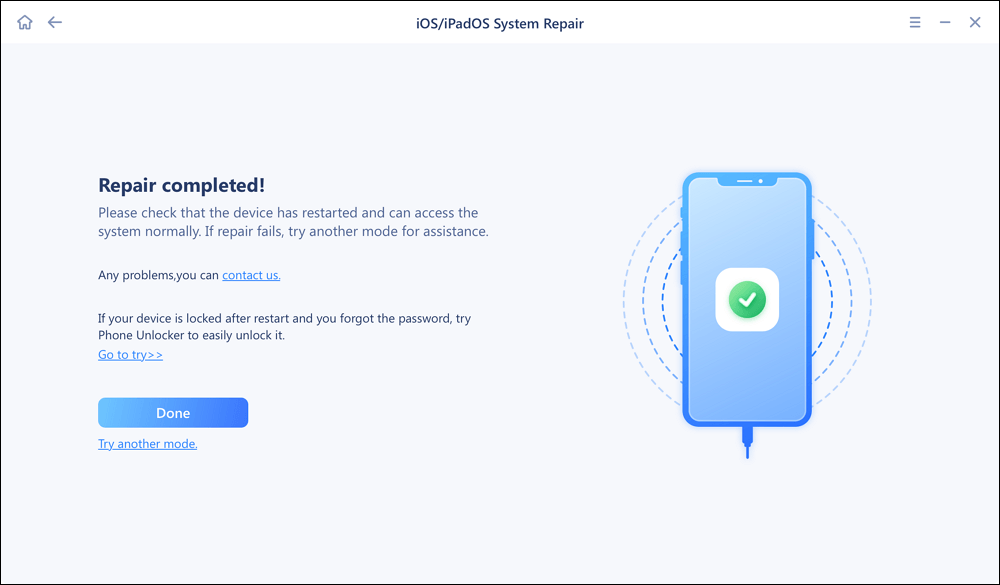
Step 5. Then, click "Repair Now" to start the repair process. After the repair completes, you can check your device and restart it for use.
✅Method 2: Force Restart (First Attempt)
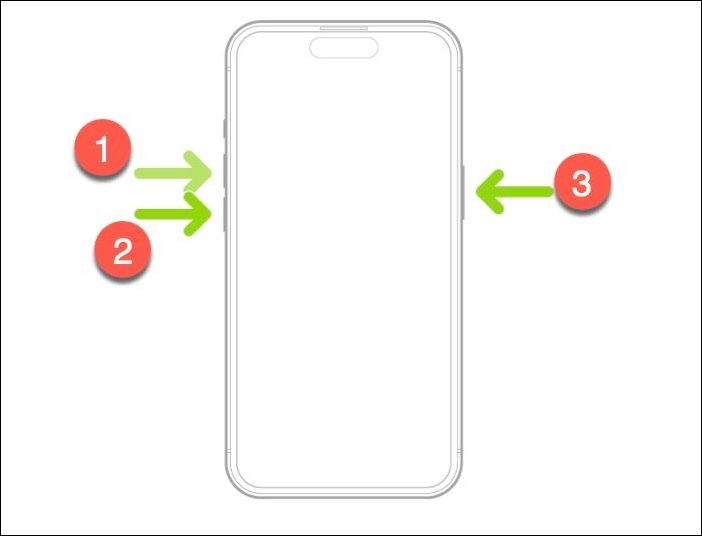
Some users were able to exit recovery mode by force restarting the iPhone:
Step 1. Quickly press and release Volume Up
Step 2. Quickly press and release Volume Down
Step 3. Hold the Side button until the Apple logo appears
If that fails, move to the next solution.
![force restart iPhone]()
✅Method 3: Use DFU Mode + Finder or iTunes
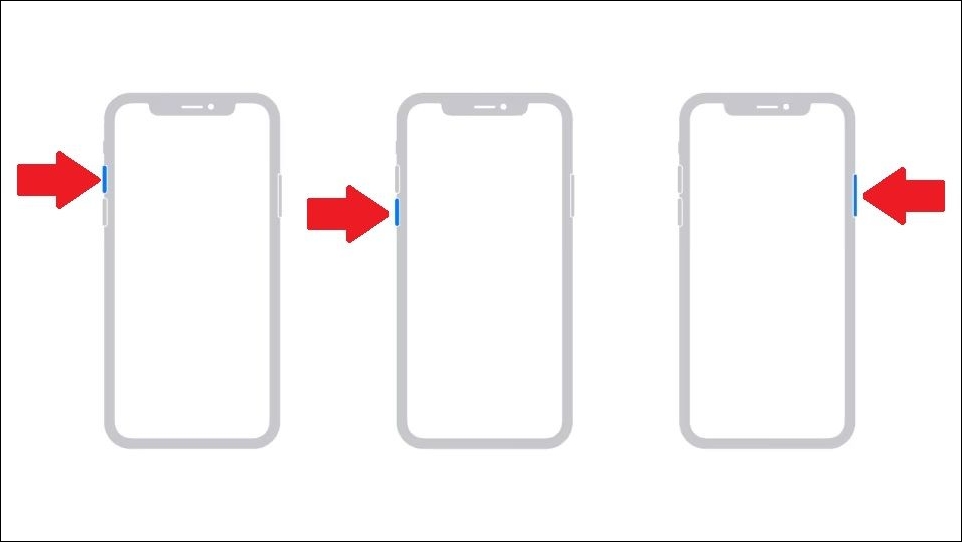
The most reliable fix has been putting the iPhone into DFU mode and restoring it to iOS 18.5 using iTunes or Finder. Here's how fix iOS 26 stuck on Recovery Mode by entering DFU mode step by step:
Step 1. Connect your iPhone to a computer and quickly press Volume Up, then Volume Down
Step 2. Hold the Side button until the screen goes black
Step 3. While still holding the Side button, press and hold Volume Down for 5 seconds
Step 4. Release the Side button, but keep holding Volume Down for another 10 seconds
![DFU mode]()
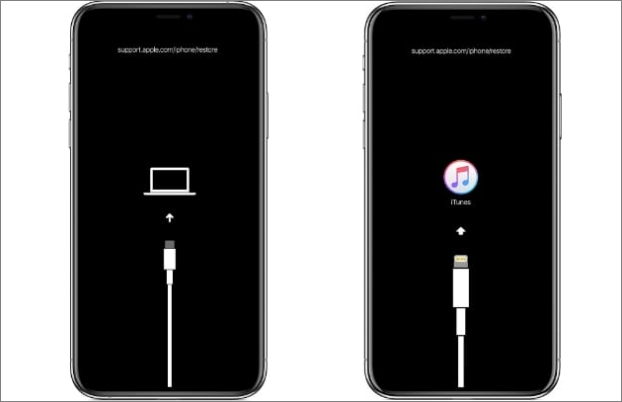
Step 5. Your screen should stay black, and your computer should detect the iPhone in DFU mode
![connect to iTunes under DFU mode]()
Step 6. Then open iTunes on your computer. Click "Restore" to erase and reinstall iOS.
![restore iPhone using iTunes]()
✅Method 4: Downgrade from iOS 26 to iOS 18/18.5 with EaseUS MobiXpert
Except for fixing the iOS stuck issue with iTunes/Finder, force restart, or using a third-party iOS repair tool, you can directly downgrade from iOS 26 to the iOS version that you previously used, like iOS 18 or iOS 17. EaseUS MobiXpert can help you easily go back to iOS 18 from iOS 26.
The UI is clear and friendly, and it doesn't require any iOS technical or skill. All you need to do is follow the on-screen instruction to select the iOS version that you want to downgrade and then click the Downgrade button to start the process. Now click the button blow to download it for free!
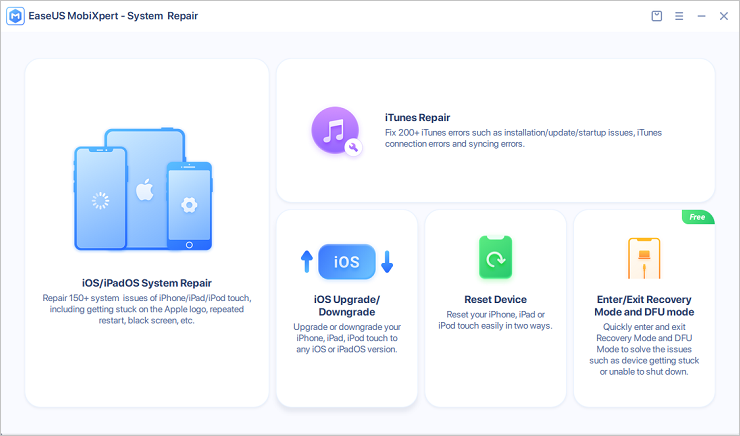
Step 1. Launch EaseUS MobiXpert on your computer. And select "System Repair" from the homepage.
![MobiXpert hompage]()
Step 2. Tap "iOS Upgrade/Downgrade" from the new interface.
![iOS Upgrade/Downgrade]()
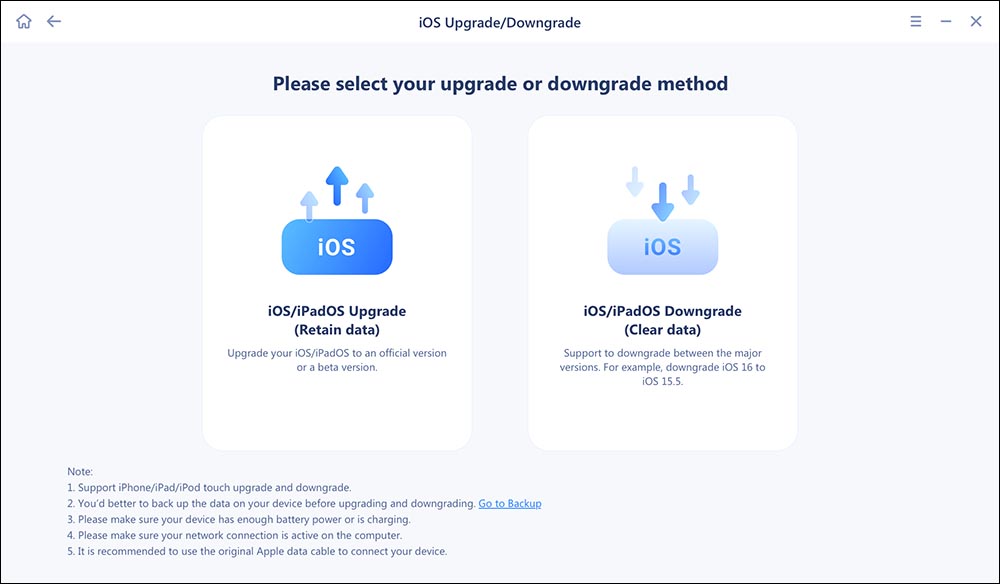
Step 3. And then select the "iOS/iPadOS Downgrade" option.
![select iOS/iPadOS Downgrade]()
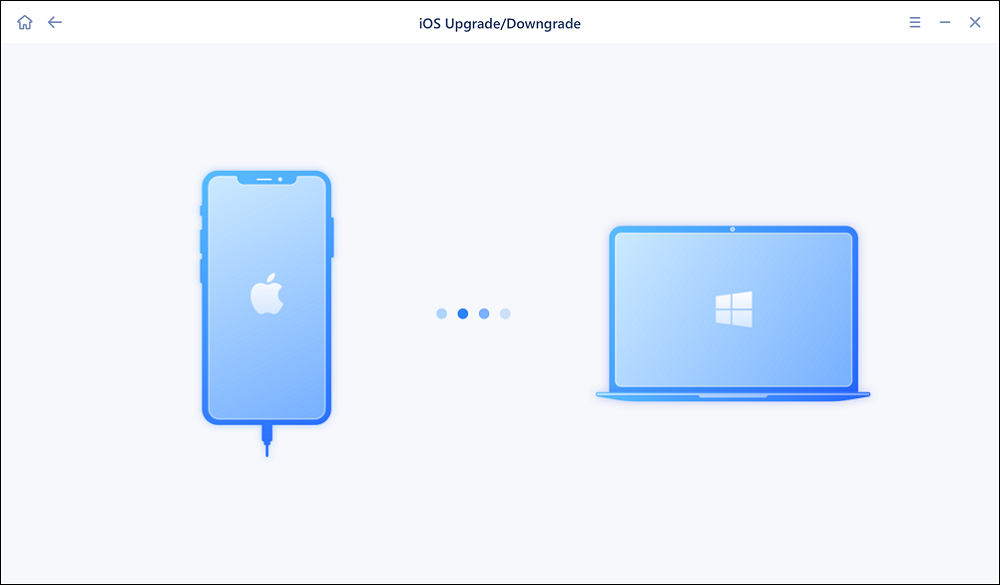
Step 4. Then you will be guided to connect your iPhone to the computer via a USB cable.
![Connect iPhone to computer]()
Step 5. Confirm your device model and then click "Next" to download the firmware for a downgrade.
![Download firmware]()
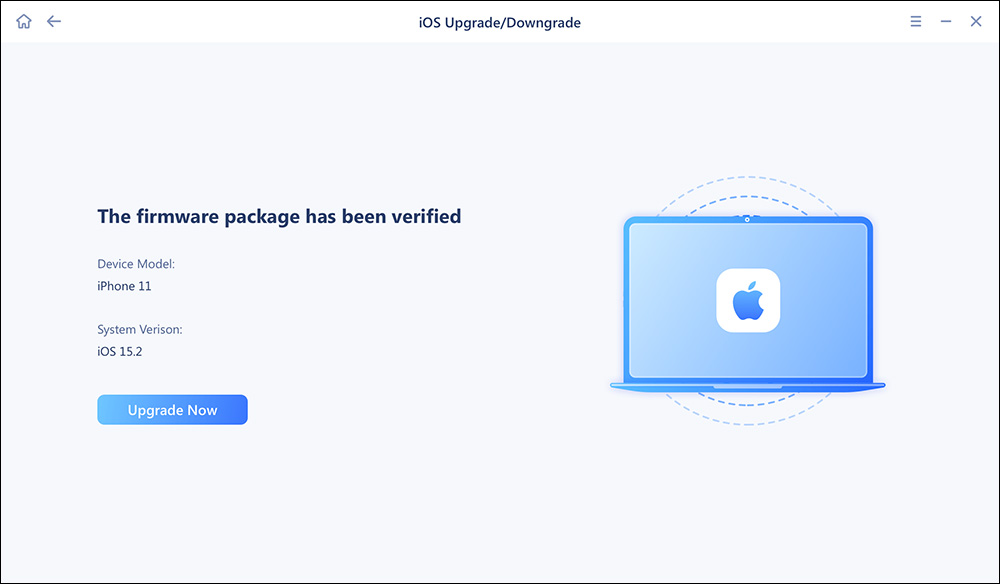
Step 6. When the firmware is verified, click "Upgrade Now" to start.
![Verify firmware]()
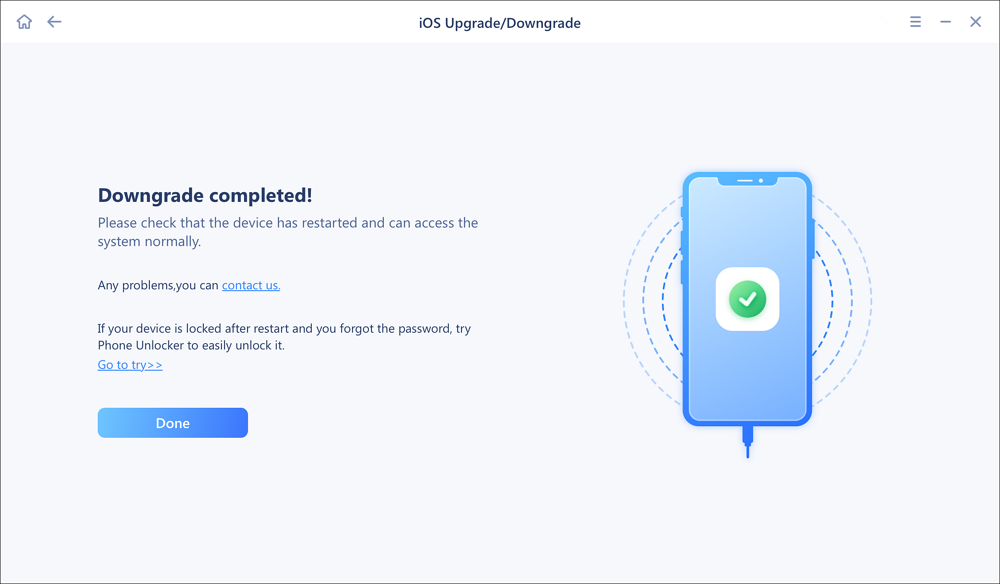
Step 7. Wait for the downgrade process to complete and click "Done" to close it. Then your iPhone will be downgraded.
![Downgrade completed]()
What About iOS 26's New "Recovery Assistant" to Restore iPhone Without Computer
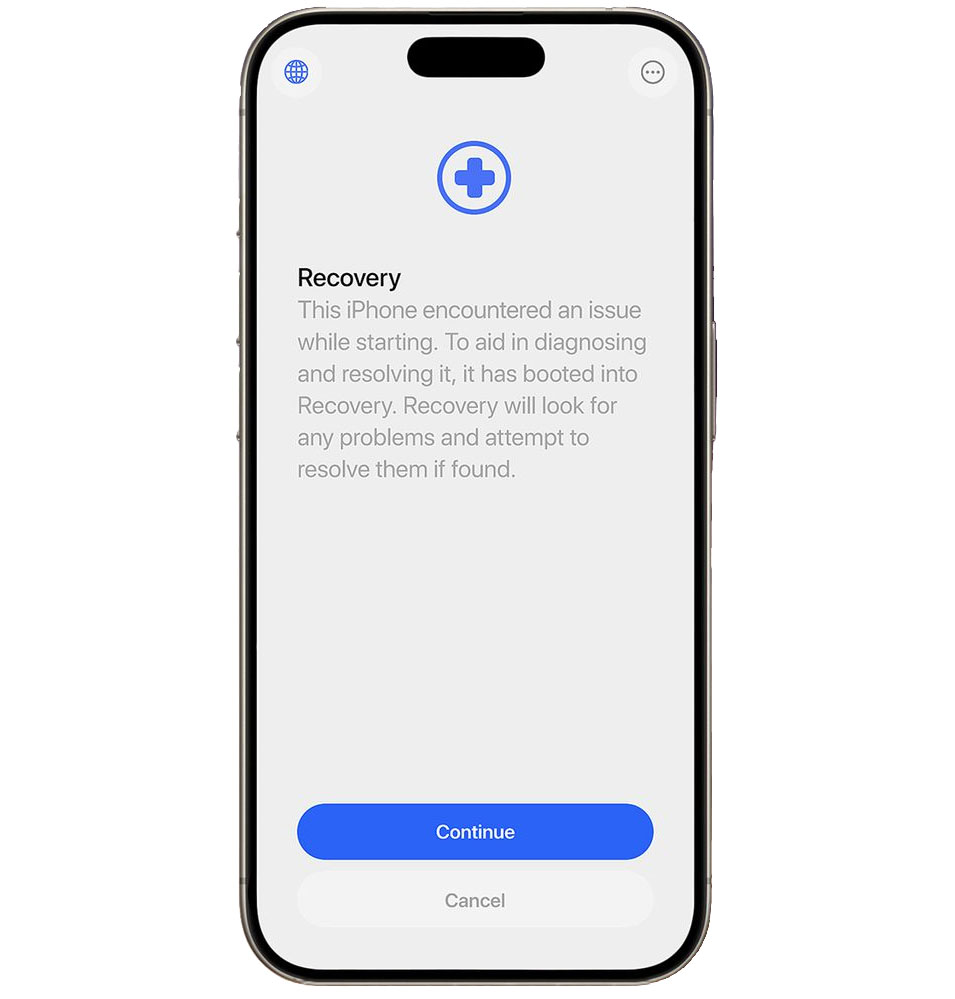
iOS 26 introduces Recovery Assistant, a built-in system designed to help restore your iPhone if it doesn't start up normally.
According to Apple, Recovery Assistant can analyze boot issues and attempt to resolve them automatically — all without needing a computer or secondary device. If a problem is detected, the assistant will guide users through steps to reinstall iOS directly on the affected device.
According to MacRumors and AppleInsider, Recovery Assistant is automatically triggered when your iPhone detects a boot failure. It launches an on-device interface to guide you through system recovery, including reinstalling iOS.
![recovery assistant]()
This eliminates the need for iTunes, Finder, or Apple Configurator — making iPhone recovery more self-contained and user-friendly than ever before. However, as the feature is still in beta, its effectiveness may vary depending on the device model and update status.
🙋♀️ FAQ: Stuck in Recovery Mode iOS 26
1. What is Recovery Mode?
Recovery Mode is a built-in fail-safe state that allows your iPhone to connect to a computer for troubleshooting, updating, or restoring the operating system — typically used when an update fails or the device becomes unresponsive.
2. What is DFU Mode?
DFU (Device Firmware Update) Mode is a deeper restore mode than Recovery Mode. It lets your iPhone interface with iTunes/Finder without loading the iOS bootloader, making it useful for more advanced troubleshooting, downgrades, or fixing serious system issues.
3. Does DFU mode delete everything?
Yes, restoring in DFU mode wipes your device. Backup first if possible.
4. Is Recovery Assistant available for all devices?
It's available in iOS 26 but may not work consistently in early beta versions.
Final Thoughts
This article walked you through how to fix iOS 26 stuck in Recovery Mode issue and provided 4 step-by-step guides to help you easily fix the problem or downgrade to a lower version instead without hassle.



 Myra/2026-01-21
 NEW
NEW HOT
HOT
