IOS System Repair Online Help
This is a dedicated online help to assist you understand our product easily and quickly, for any questions and concerns not addressed on this page, please do not hesitate to contact and we will always be happy to help.
EaseUS MobiXpert - System Repair
- System Requirements
- Hardware Requirements
- Supported iOS Device
- Supported iOS/iPadOS Version
- Settings
- Activation
Welcome
Thank you for choosing to use EaseUS MobiXpert - System Repair. Our product is specifically designed to solve the following scenarios with ease:
1. Resolving common issues found on iOS devices such as update or restore failures, boot issues, freezing screens, and unexpected shutdowns.
2. Assisting users who have difficulties entering or exiting recovery mode, including system errors and iTunes errors.
3. Addressing problems that may arise while using iTunes, including connectivity issues with devices, sync failures, and errors launching the application.
Getting Started
This part outlines basic parameters to use EaseUS MobiXpert - System Repair. It is to help you acquire a general understanding before you get started.
System Requirements
1. EaseUS System Repair can be installed on Windows® 7/8/10/11.
2. The latest version of iTunes needs to be installed onto the computer.
Hardware Requirements
CPU requirement: Intel processor with a speed of 1GHz or higher
Windows RAM requirement: 256MB or greater (recommended: 1024MB)
Display resolution: 1024×768 or higher
Available hard disk space: at least 500MB
Graphics card: 64MB of dedicated RAM for accelerated 3D graphics
Supported iOS Device
iPhone 4s, 5, 5s, 6, 6s, 6 Plus, 6s Plus, 7, 7 Plus, 8, 8 Plus, X, XS, XS Max, XR, 11, 11 Pro, SE, 12 mini, 12, 12 Pro, 12 Pro Max, 13 mini, 13, 13 Pro.
iPad mini 2, 3, 4, Air, Air 2, Pro.
iPod Touch 7/6/5/4/3/2
Supported iOS/iPadOS Version
iOS 9.0 and later versions, iPadOS 13.0 and later versions
Settings
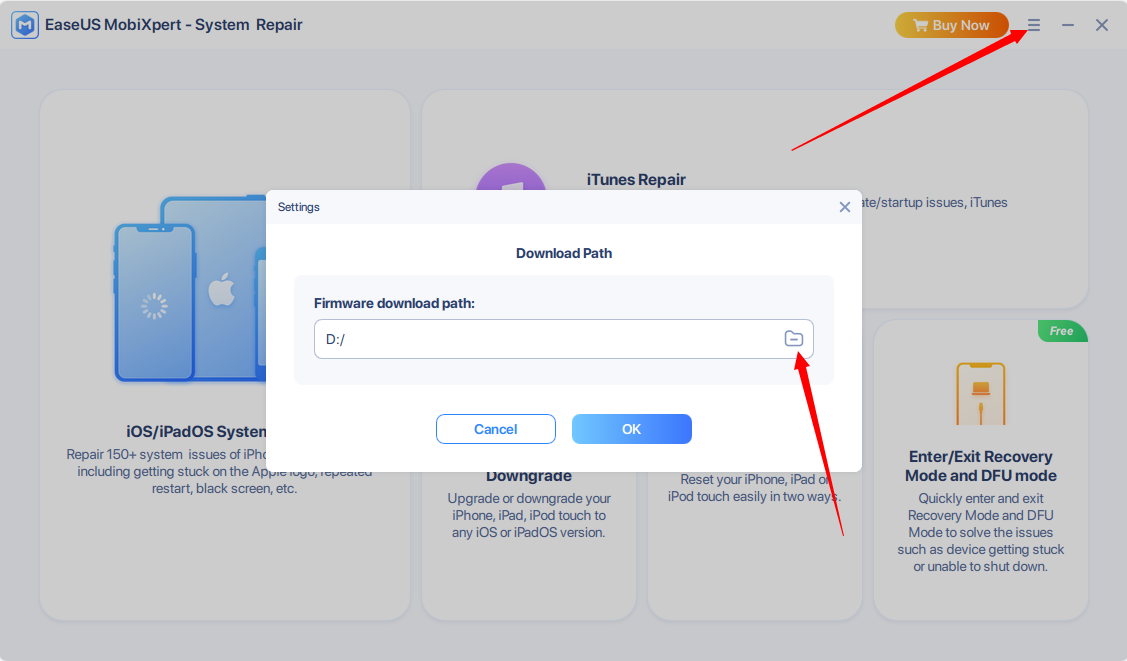
Firmware Download Path can be changed in Settings.
Activation
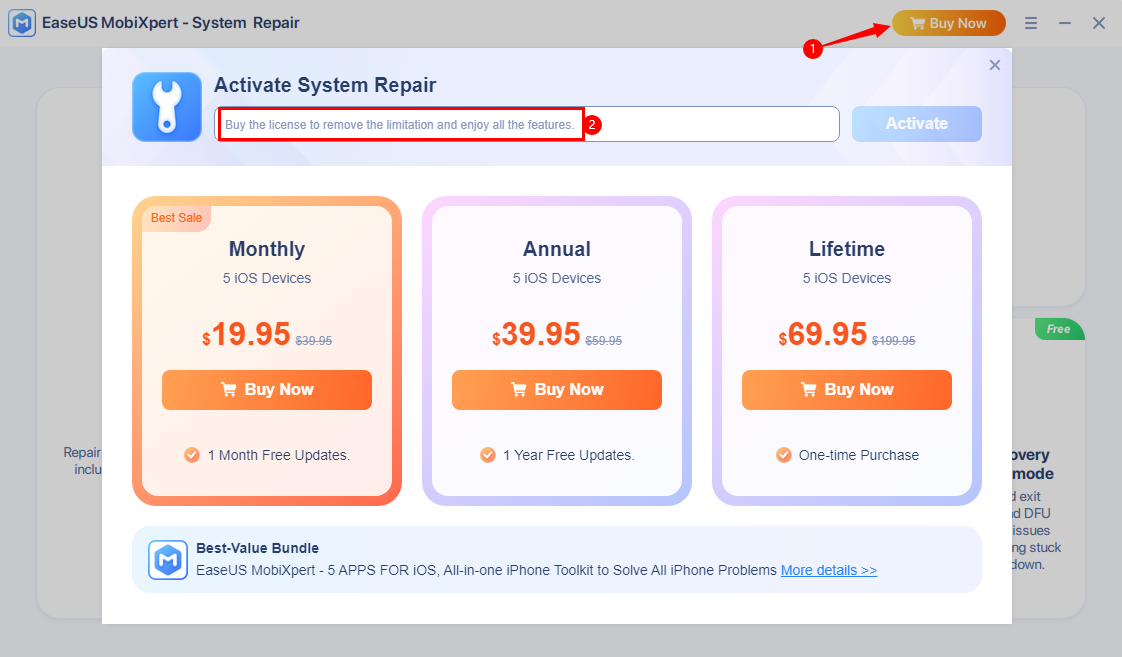
EaseUS System Repair provides both trial and professional versions. The free version permits the utilization of only Enter/Exit Recovery Mode and DFU mode and Standard Reset (Retain data). In addition, by using the trial version, you can preview the remaining features of the software. To utilize the final operation, a license code must be inputted.
Here are steps to activate the software:
1. Install EaseUS MobiXpert first, and click System Repair which is a sub-product.
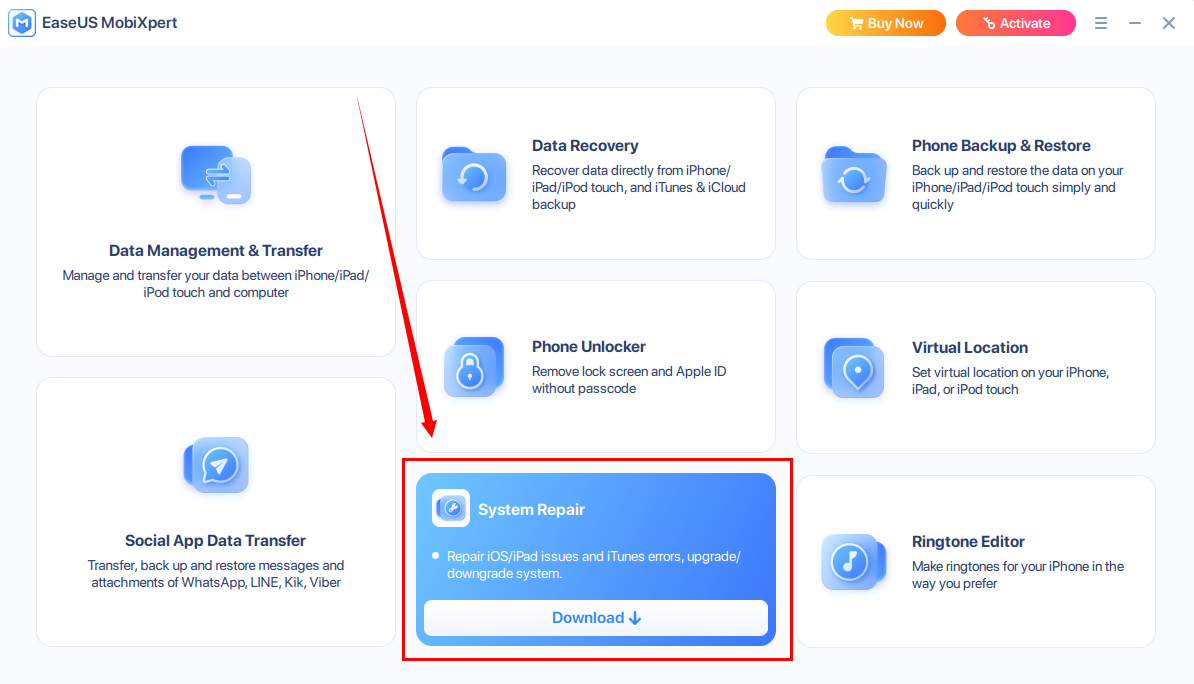
2. Once the installation is complete, click Start to Launch the tool. Then enter the license code by clicking Buy Now in the right corner.
iOS/iPadOS System Repair
iOS/iPadOS System Repair can address a variety of issues that may be hindering your iPhone/iPad from being updated through Settings or causing iOS updates to fail altogether. This includes hardware problems such as the device not turning on, shutting down unexpectedly, or repeatedly restarting. Additionally, it can help when you encounter difficulties proceeding to the next step on a particular interface or when encountering error codes (such as 1110, 2009, 3194, 4005) on your iPhone. With the assistance of iOS/iPadOS System Repair, you can rapidly and effectively resolve these problems and restore your device to smooth functioning.
Here are the steps:
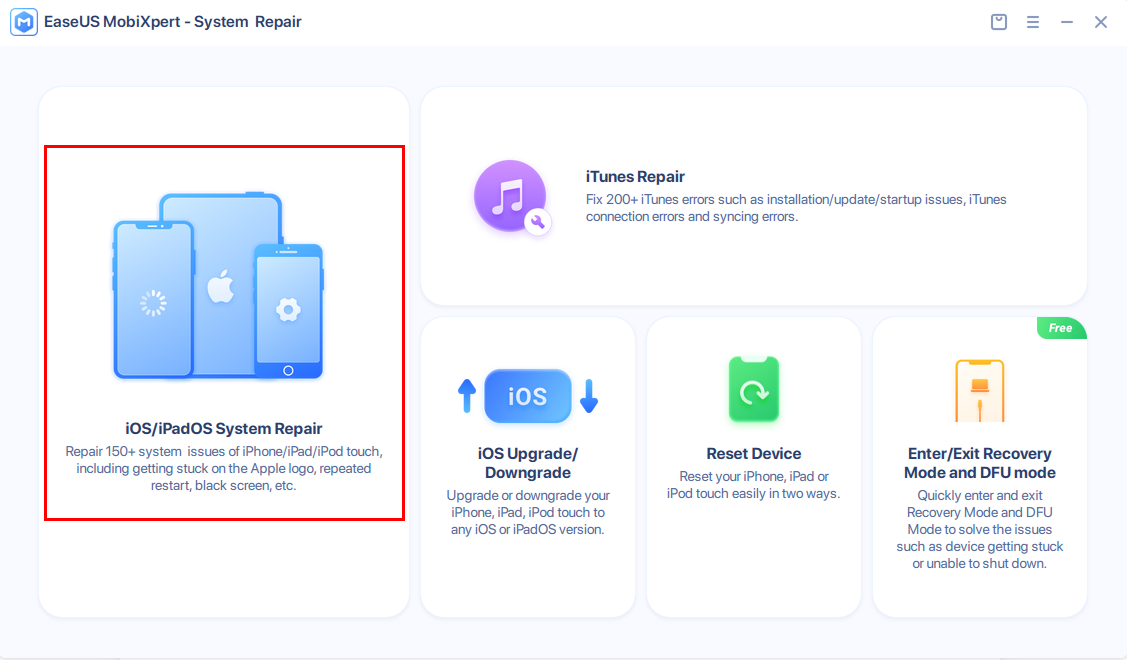
1. Connect your iOS device to your computer and click iOS/iPadOS System Repair on the left side.
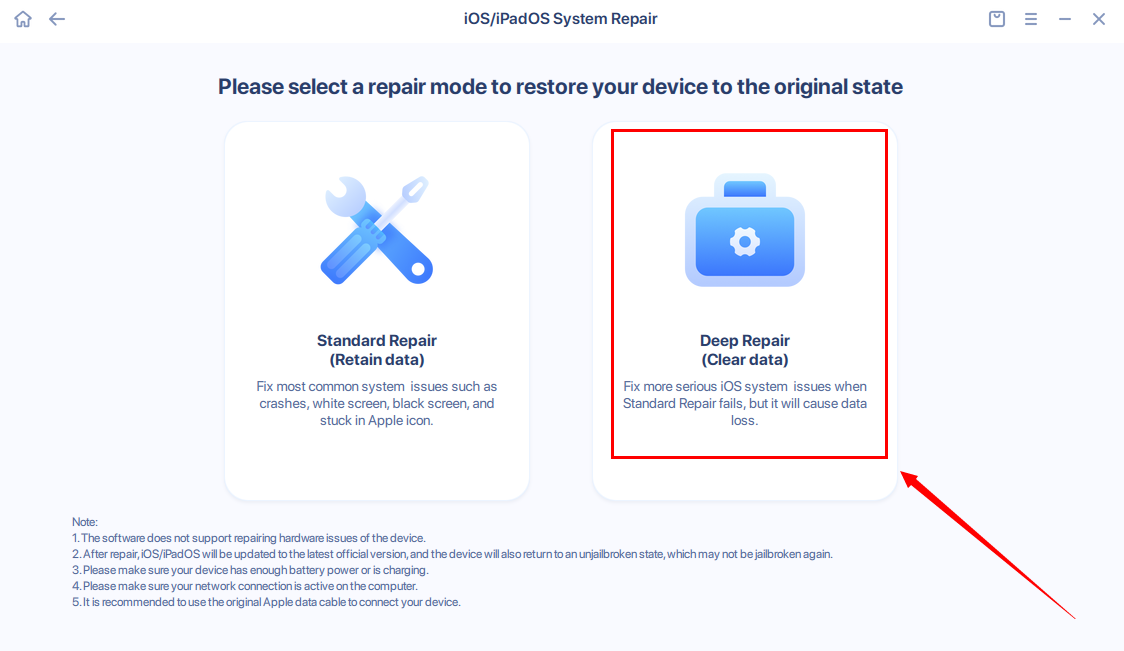
2. It is recommended to prioritize Standard Repair as the initial option.
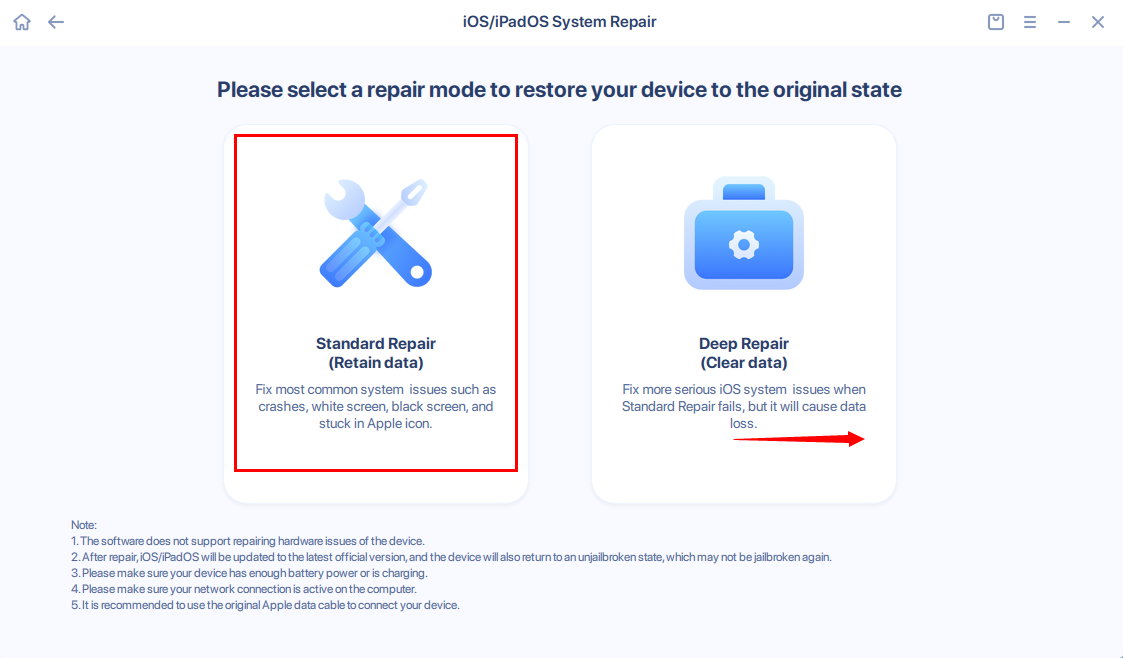
3. Follow the steps to enter the device into Recovery Mode. The methods vary from different devices. For more information about this, please click here.
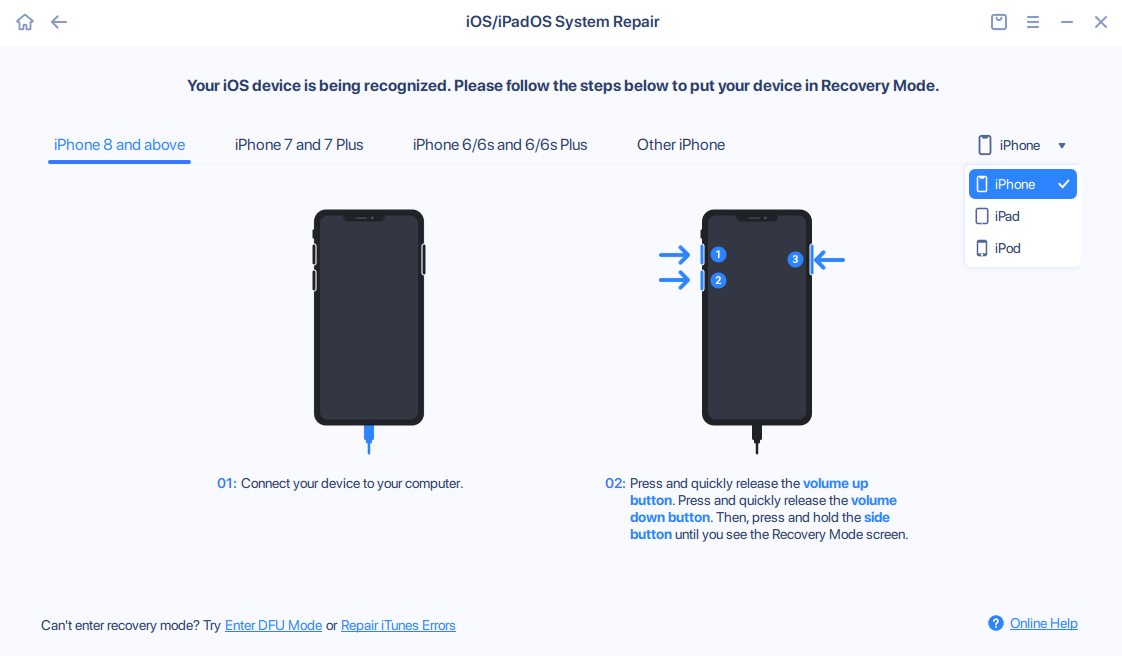
Note:
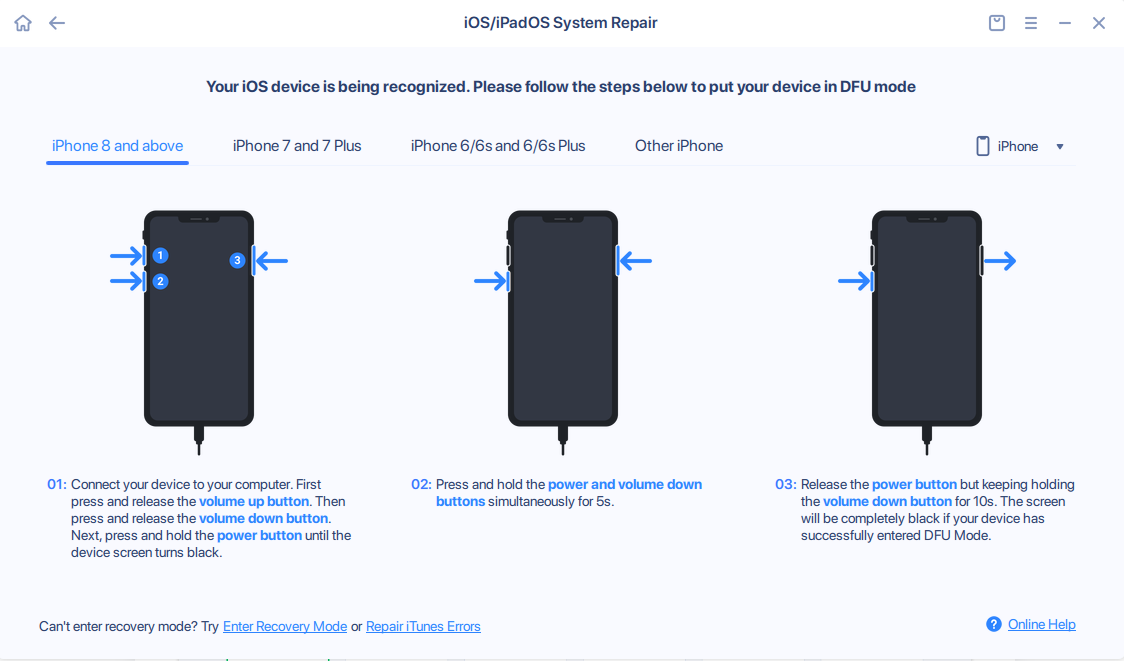
If you have problems entering Recovery Mode, you can click Enter DFU Mode to start the repair. For more details about DFU Mode, please kindly check the feature Enter/Exit Recovery Mode and DFU Mode on the Home page.
4. Upon successfully entering recovery mode, kindly proceed to download the firmware package.
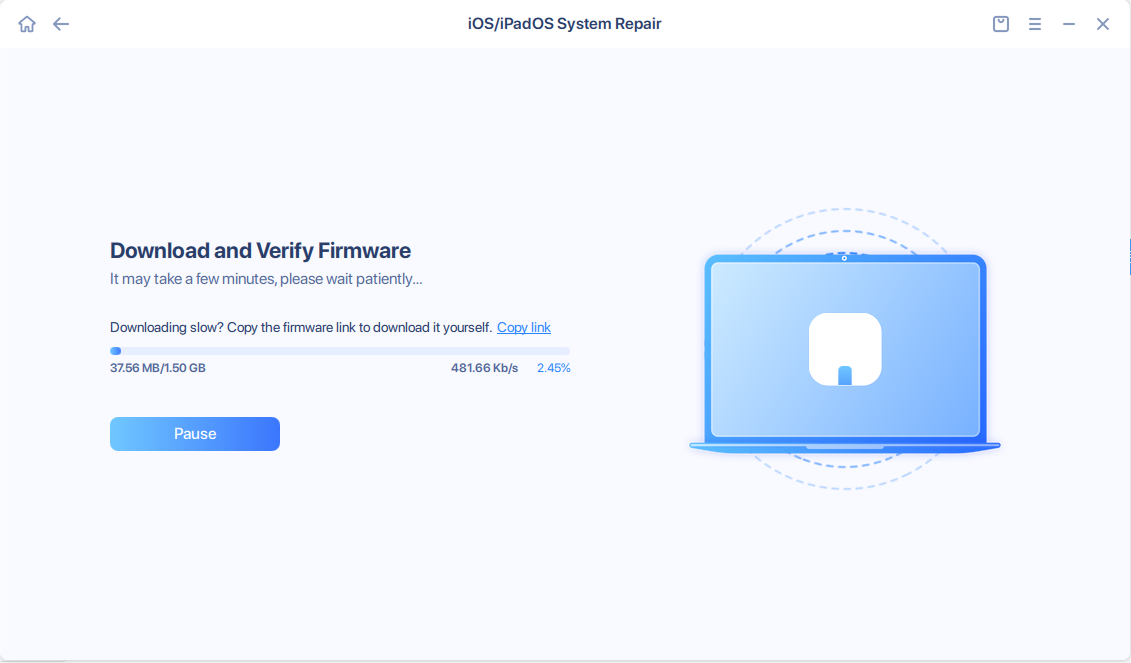
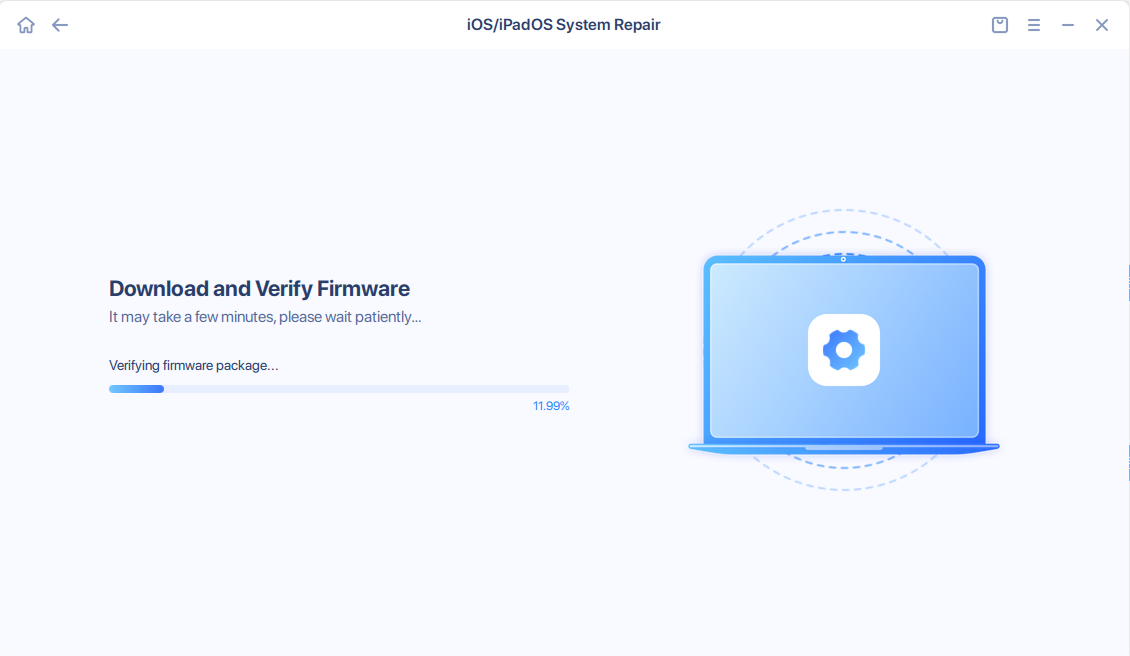
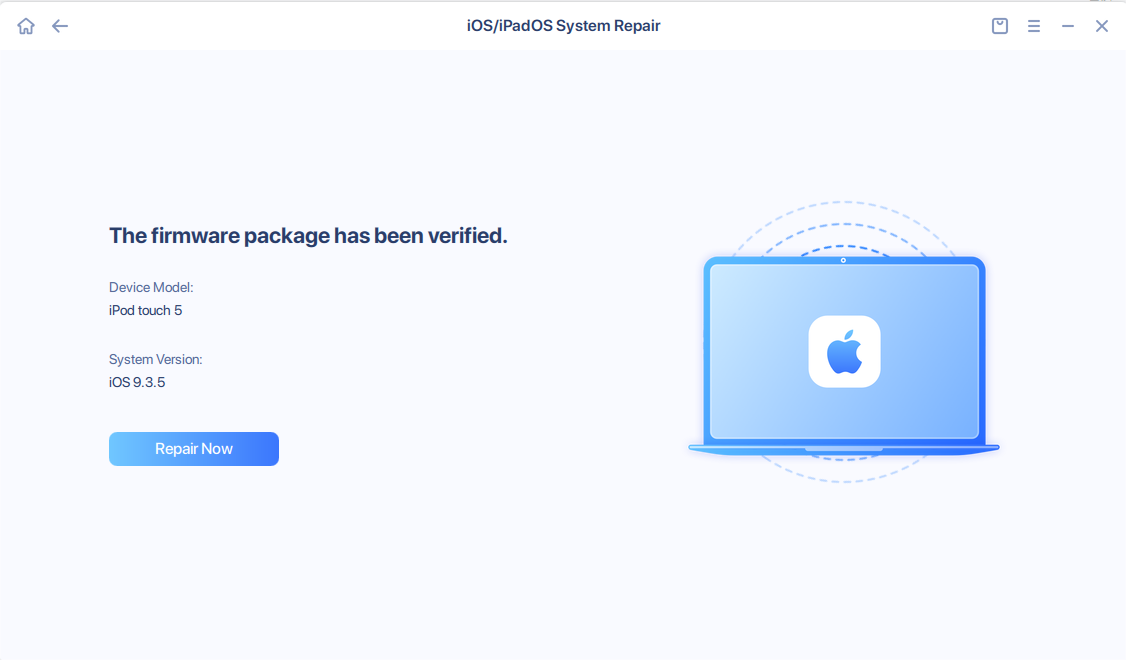
5. In the event that the firmware package cannot be downloaded, kindly click Copy link, then paste it into your browser for a manual download.
Note:
It is imperative to download an iOS/iPadOS firmware package that is officially supported by Apple.
6. Start repairing.
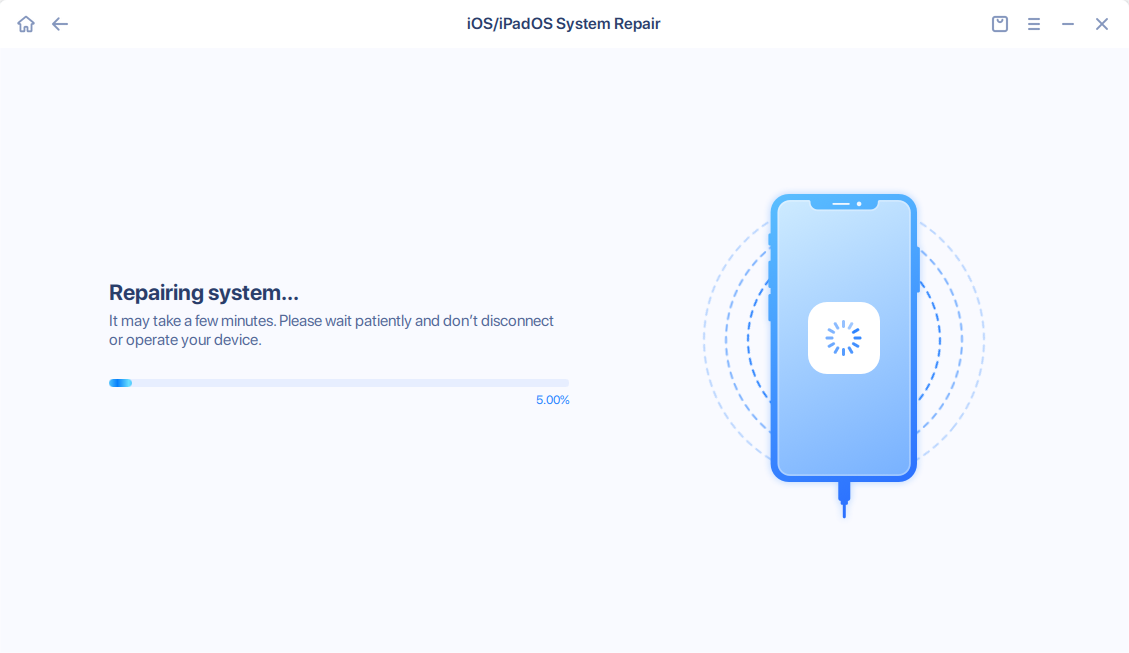
The process of repair may require some time, kindly wait patiently. Your device will be fully operational and ready for use as soon as the repair is completed.
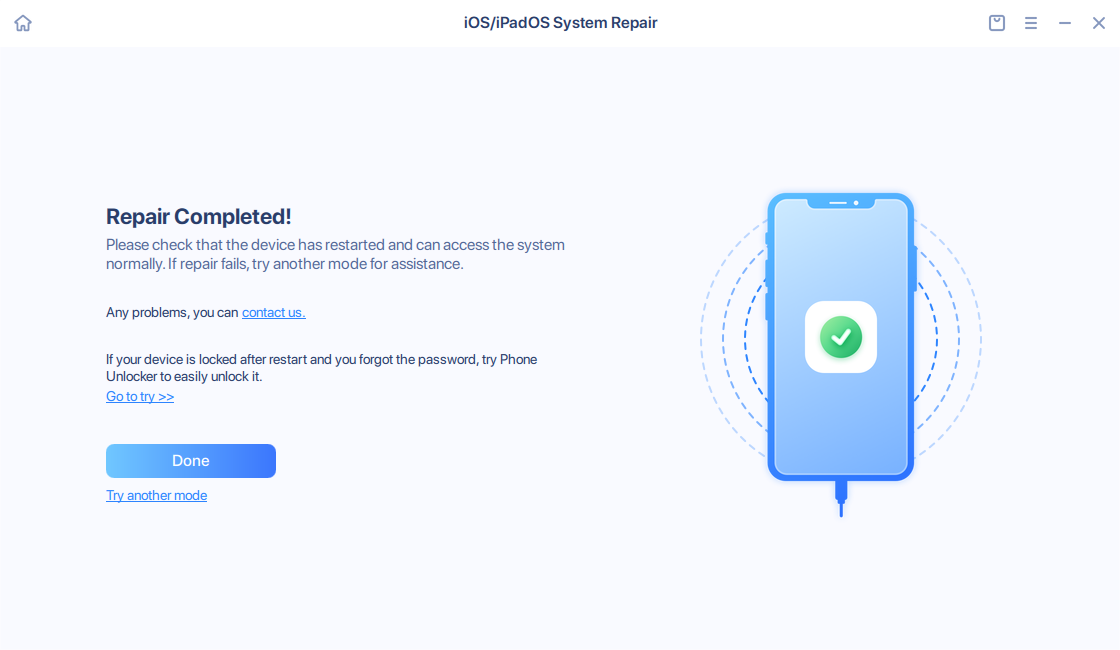
7. If the repair is not successful, you may consider Deep Repair. However, this operation will erase the data during the repair process. All other steps are identical to the Standard Repair procedure.
Note:
Unfortunately, System Repair cannot fix iPhone/iPad/iPod touch hardware issues.
iTunes Repair
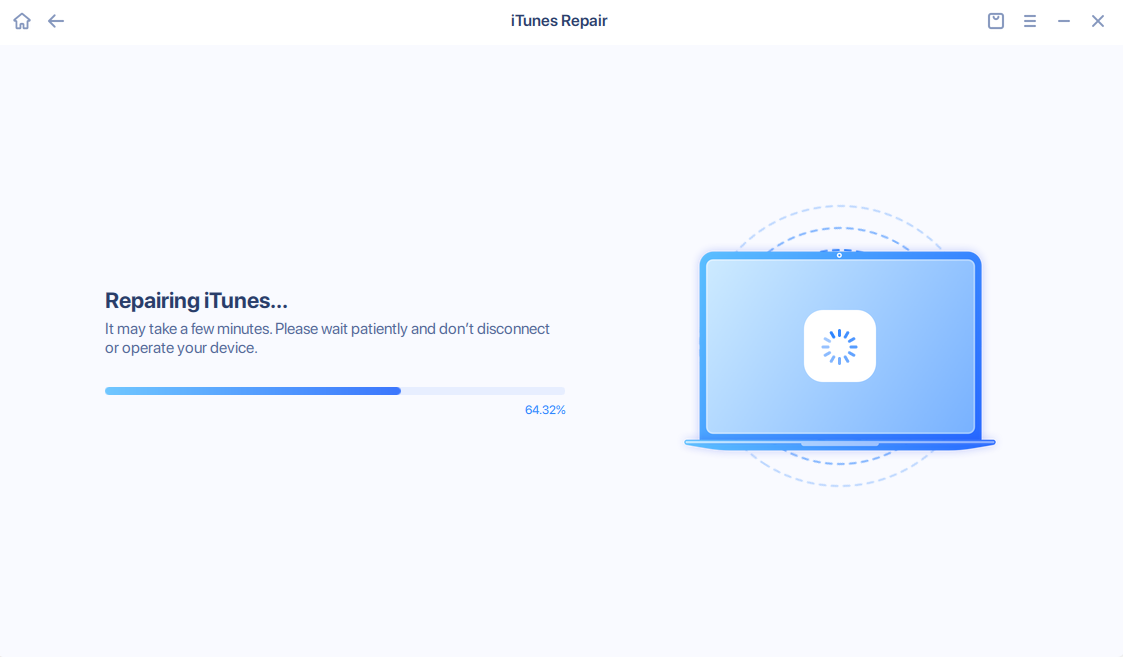
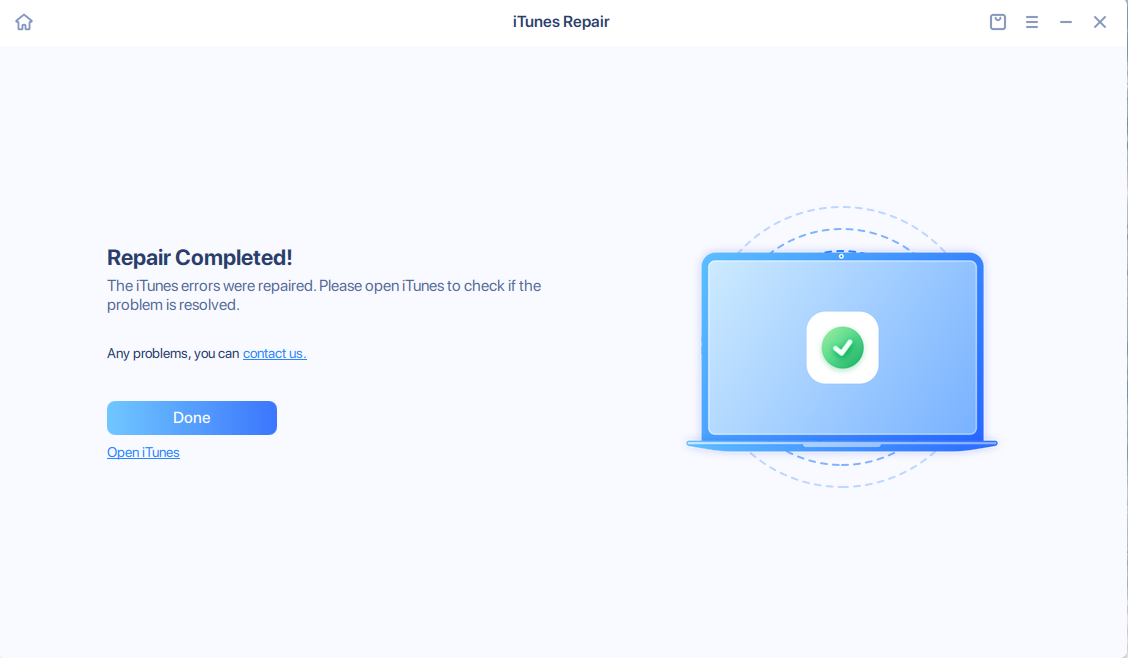
It is possible that you may encounter challenges in connecting or synchronizing data with your device due to the usage of iTunes or encountering errors with iTunes and its services. In order to address this issue, you can utilize iTunes Repair option. This will enable you to verify the version of iTunes and confirm the status of any related services that may have been installed.
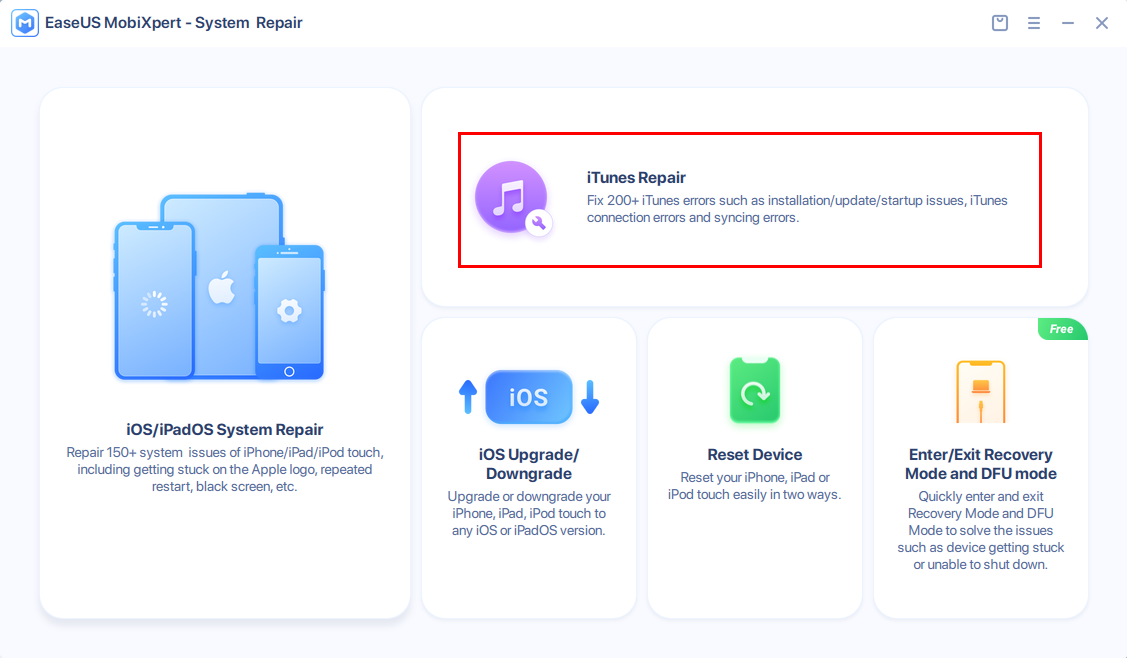
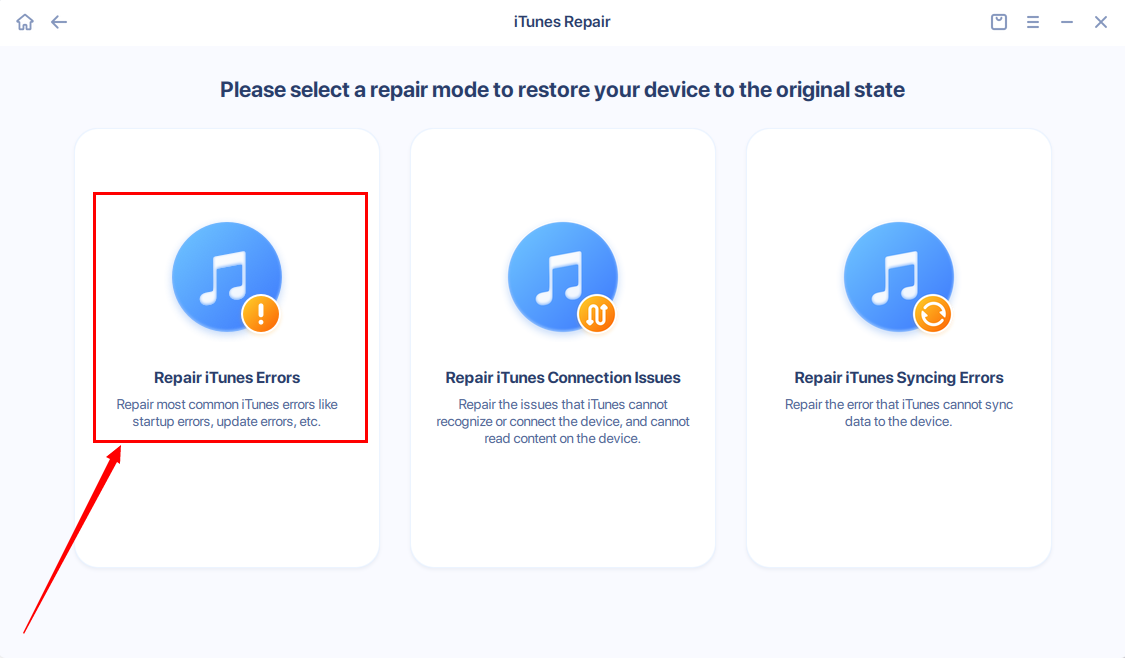
The iTunes Repair process does not entail any loss of data on your device. The process is quite simple and straightforward. All you need to do is carefully follow the steps for repairing iTunes errors, connection issues, or syncing errors as applicable.
It will take some time to check iTunes components. If there are any abnormal hints, please click Repair Now.
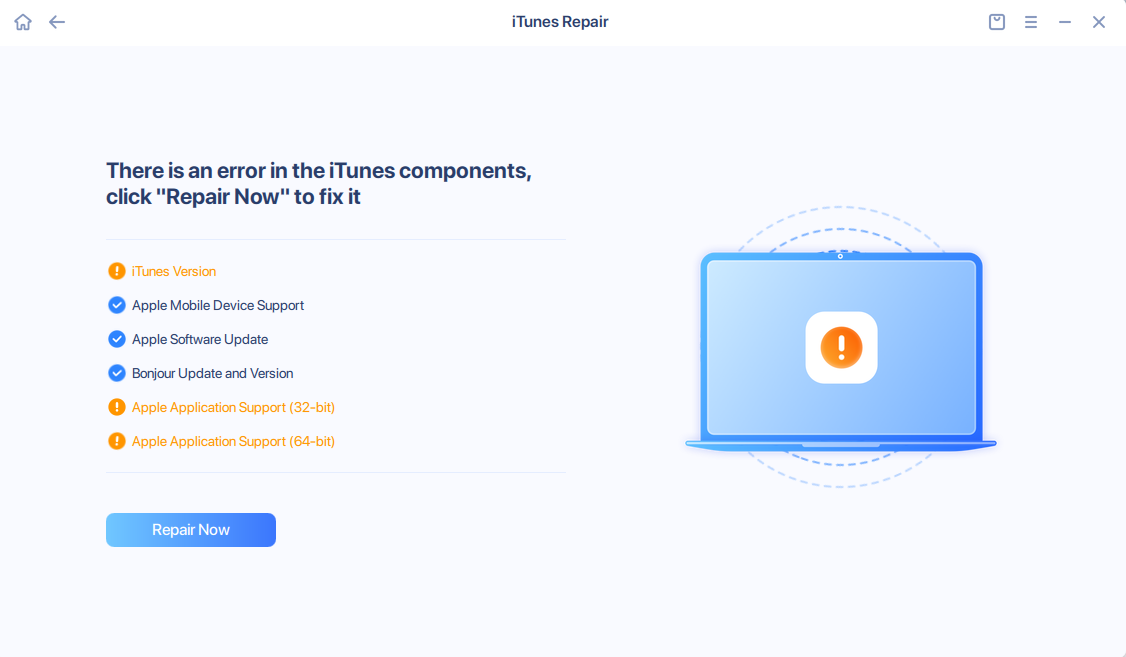
Upon detection of abnormal installation of iTunes and related services, our software will promptly proceed to uninstall and reinstall the affected programs in order to rectify the issue.
iOS Upgrade/Downgrade
This feature guarantees a more reliable and consistent iOS/iPadOS system update or rollback that aligns with your preferences, while considering compatibility and performance concerns with the latest operating system.
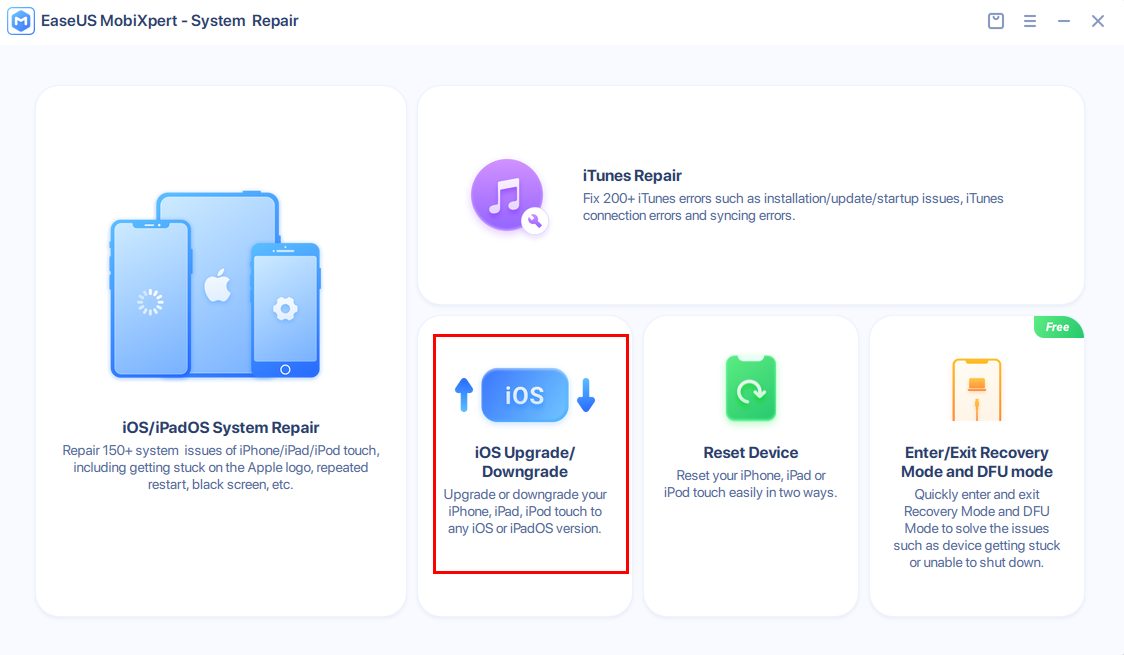
iOS/iPadOS Upgrade with the third-party software for system upgrades may facilitate a more steady upgrade process, as they are capable of automatically downloading and installing the most current iOS firmware. This, in turn, prevents potential disruptions and errors that may arise during the upgrading process. Additionally, you are given the option to choose the specific version you wish to upgrade to.
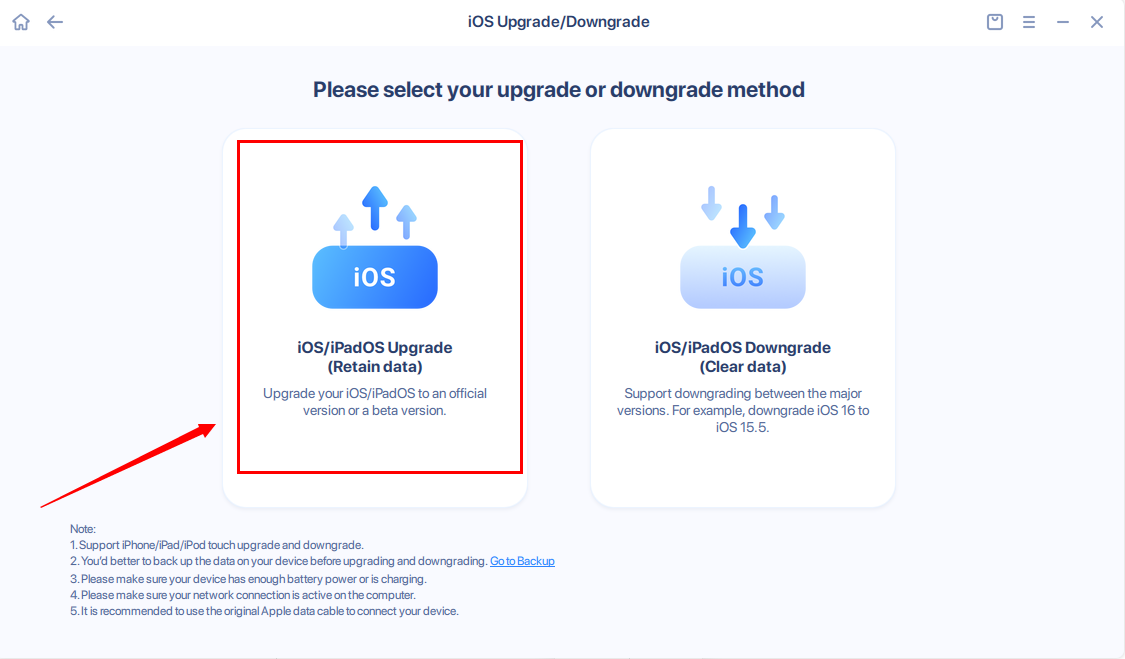
To proceed, you will need to connect your device to the computer and afterward, download and verify the firmware package.
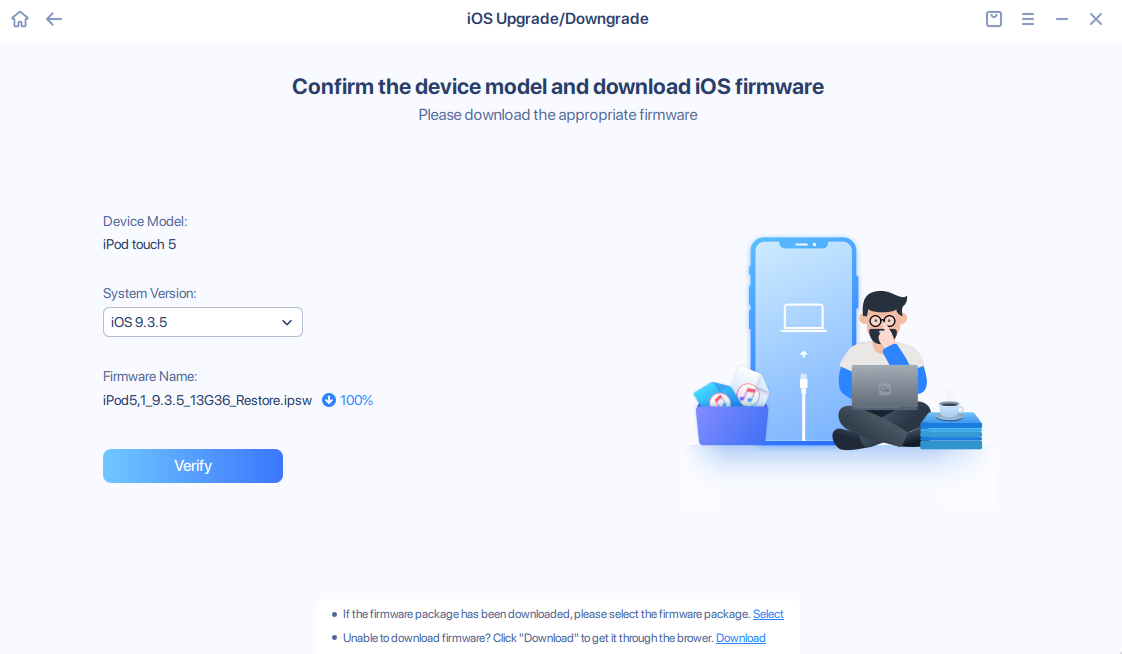
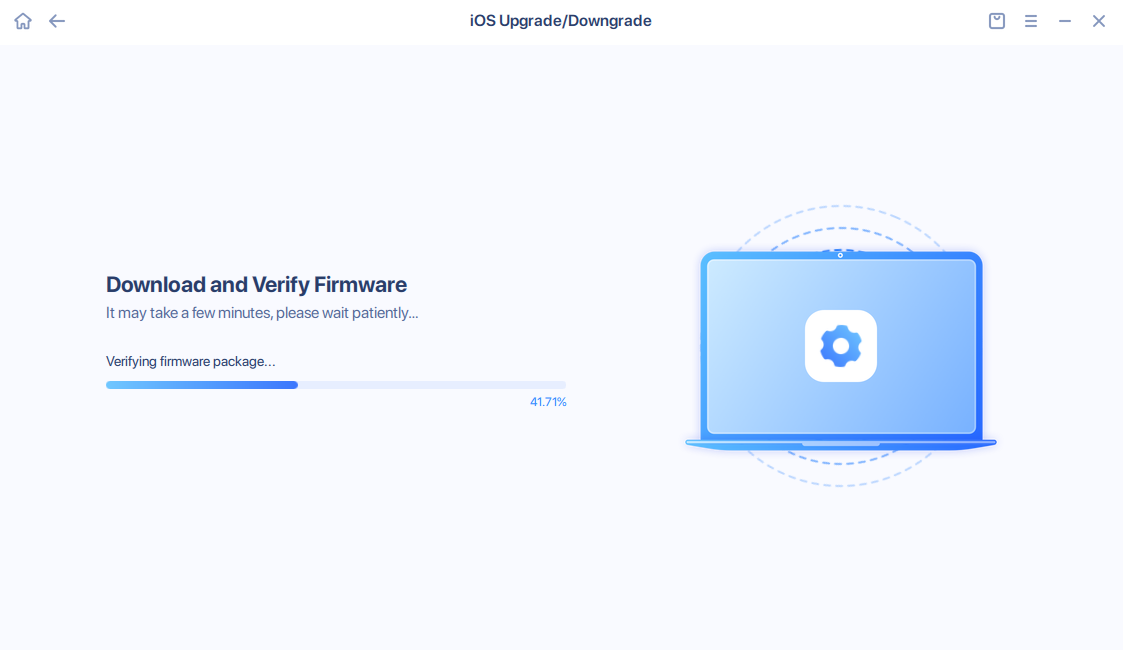
Once the verification of the firmware package has been successfully completed, you may proceed by clicking on Repair Now button to initiate the upgrade process.
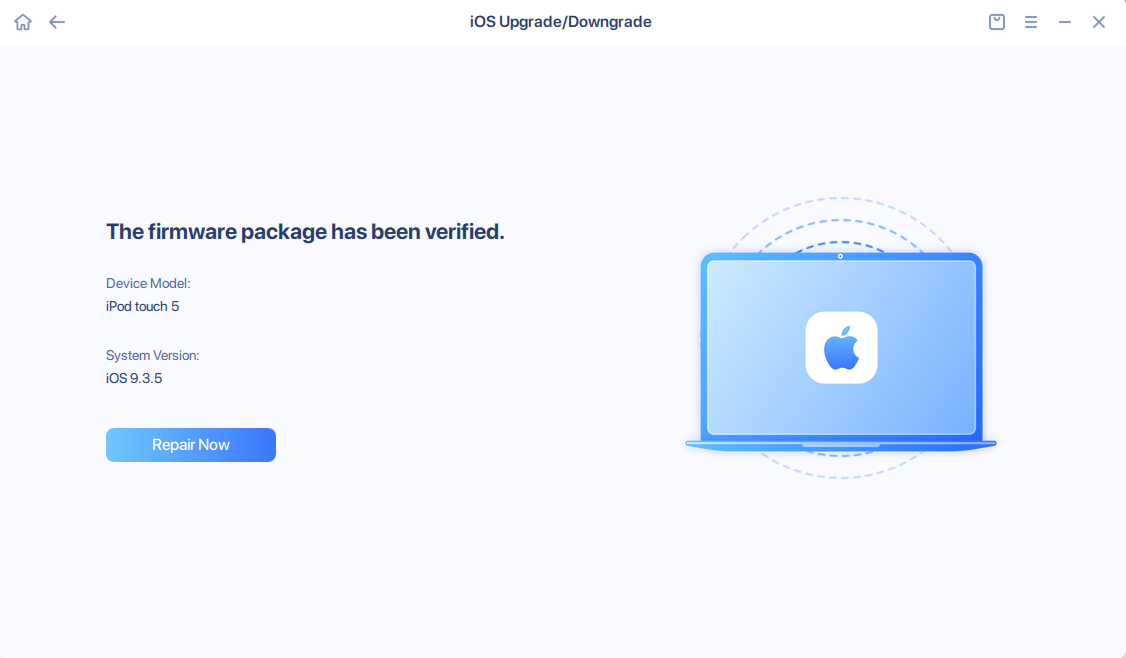
The steps for iOS/iPadOS Downgrade are similar.
Note:
1. When it comes to upgrading or downgrading iOS/iPadOS, it's important to note that Apple only allows users to install certain versions. For instance, if you have an iPhone 14 and wish to downgrade to iOS 15, you won't be able to do so as Apple has disabled the verification for iOS 15 firmware package on iPhone 14 devices. Therefore, achieving your downgrade objective won't be possible.
2. When upgrading iOS/iPadOS, you need not worry about losing any data. However, if you decide to downgrade, you should be aware that this action will result in data loss, regardless of whether it's from a beta version to an official version, or from a different version number.
Reset Device
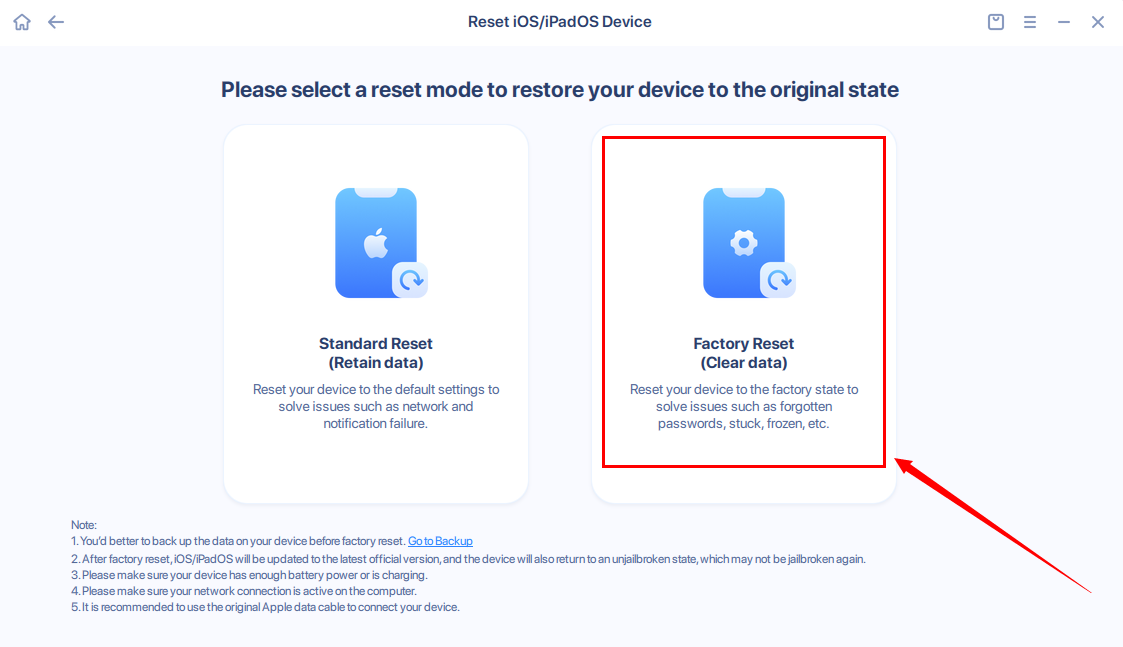
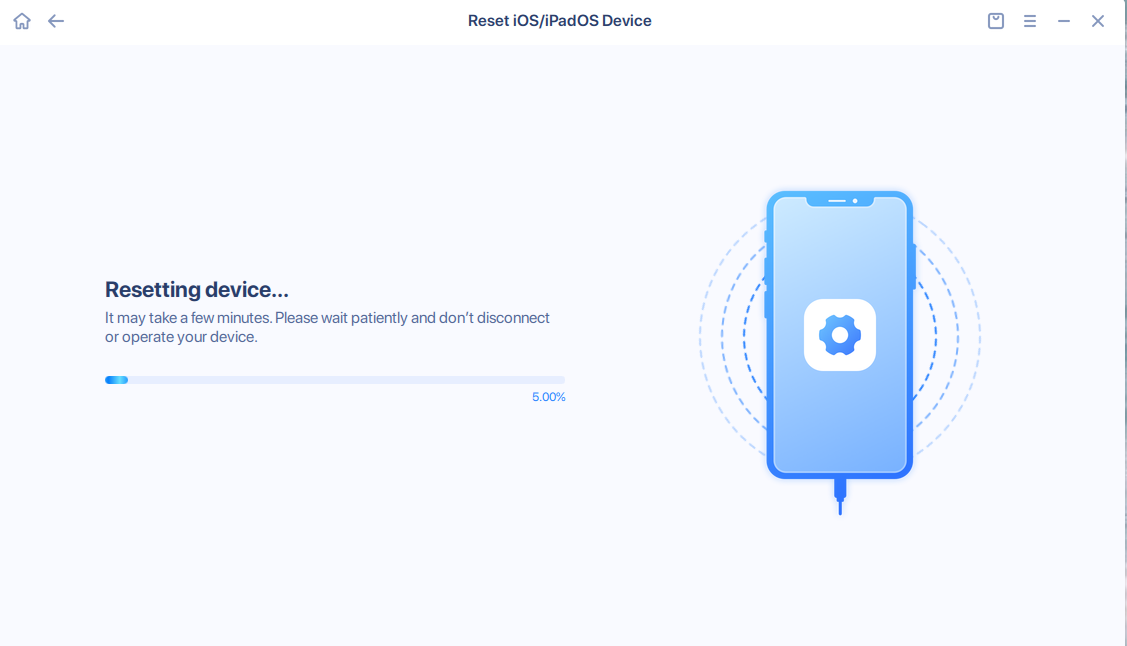
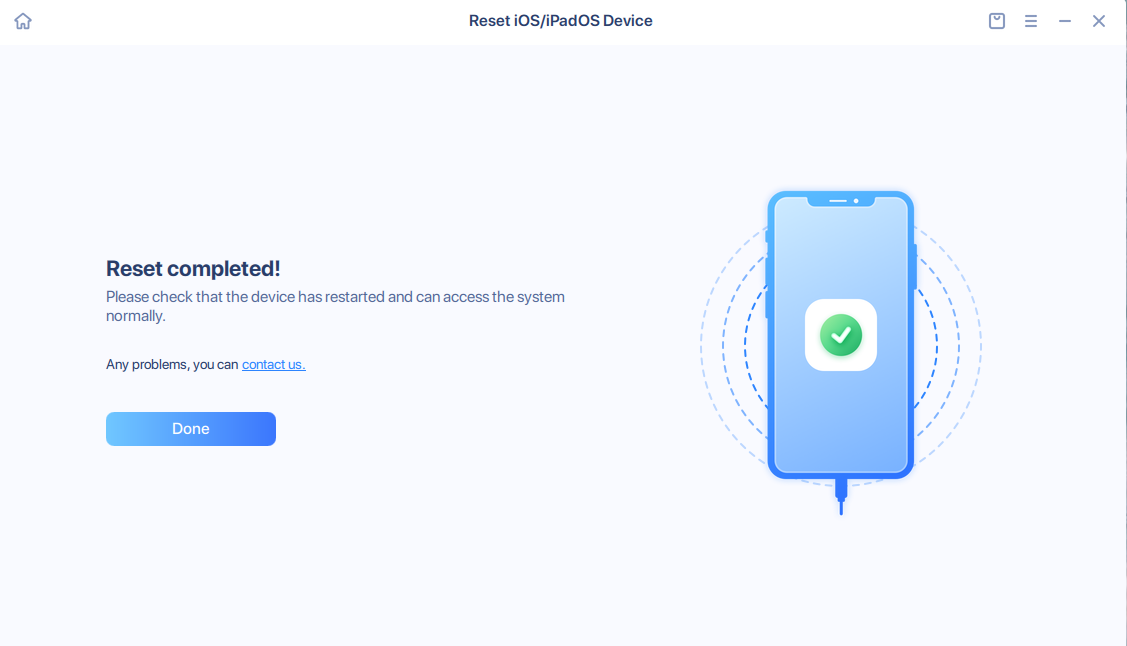
This function can aid you in resetting your device by providing step-by-step instructions when you have regular access to it. Alternatively, it can restore your device to its original factory settings by flashing the device, even if you have forgotten the password.
If you have the password for your device but are unsure how to reset it, Standard Reset provides free guidance to help you.
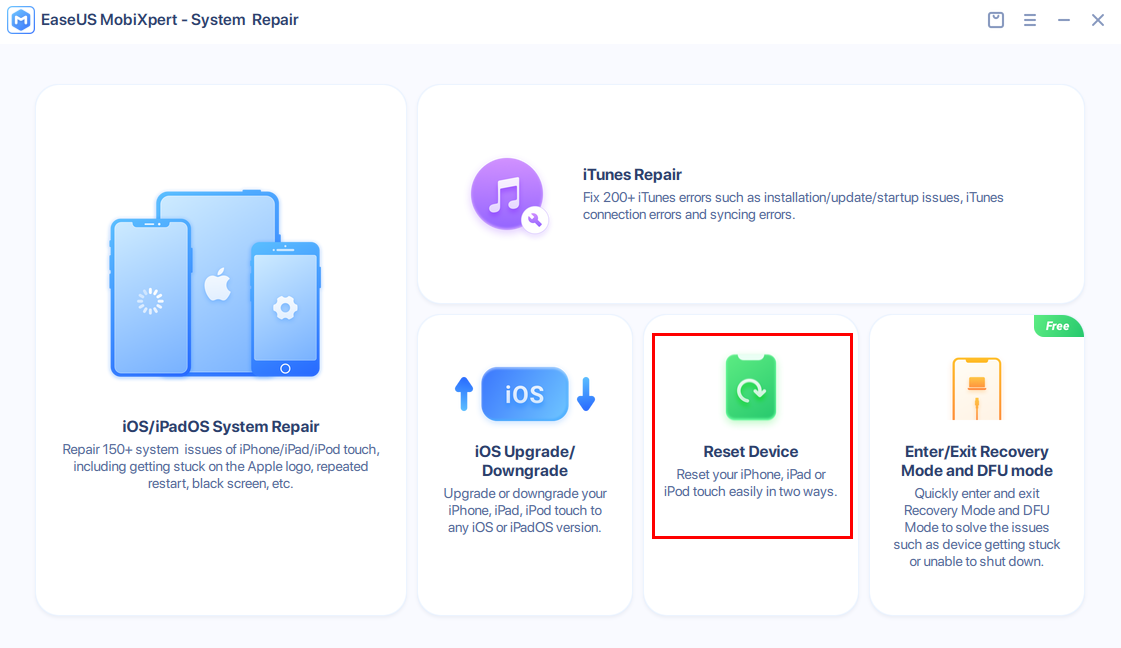
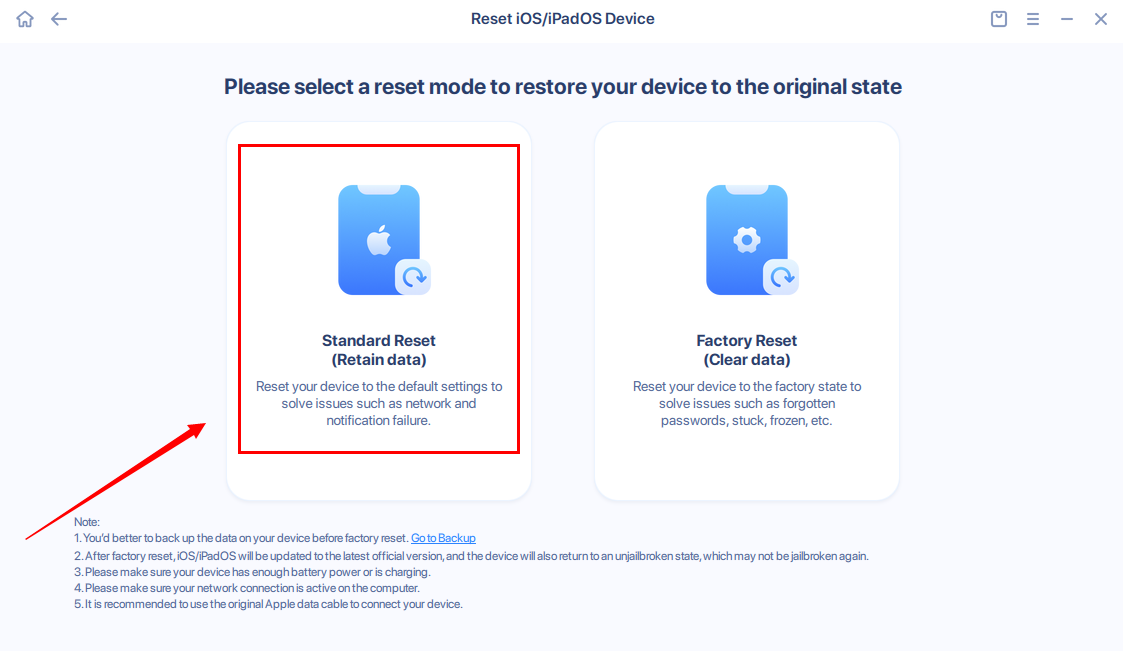
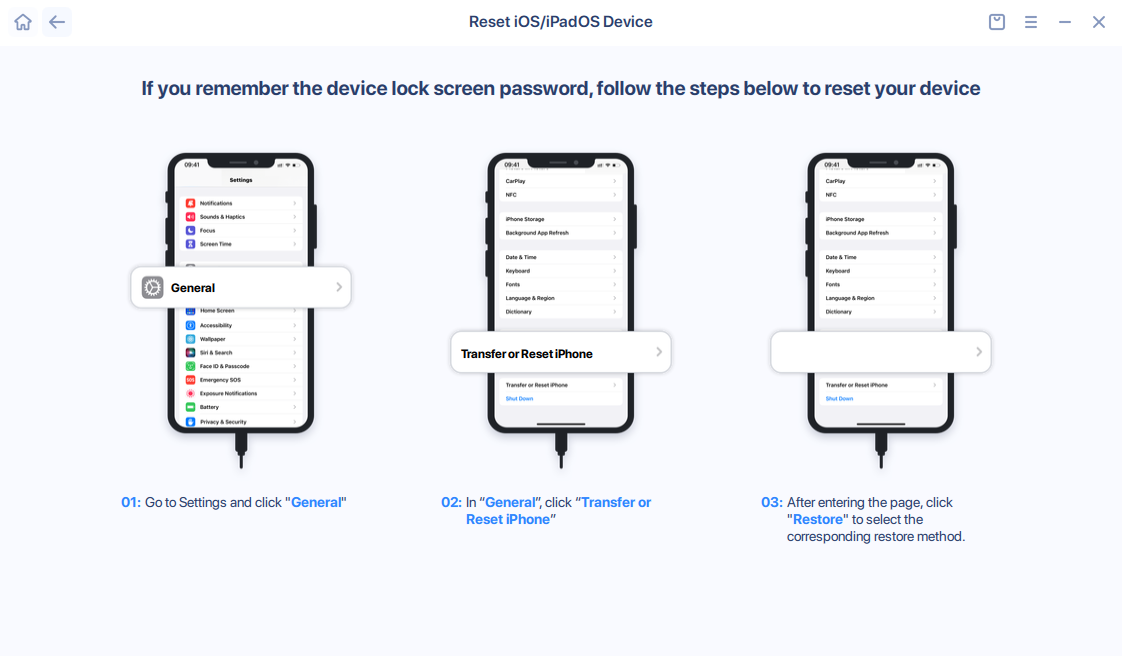
If you want to restore your device to its original factory settings without knowing the password, Factory Reset option can help you achieve this. However, please note that this process will erase all the data on your iOS device.
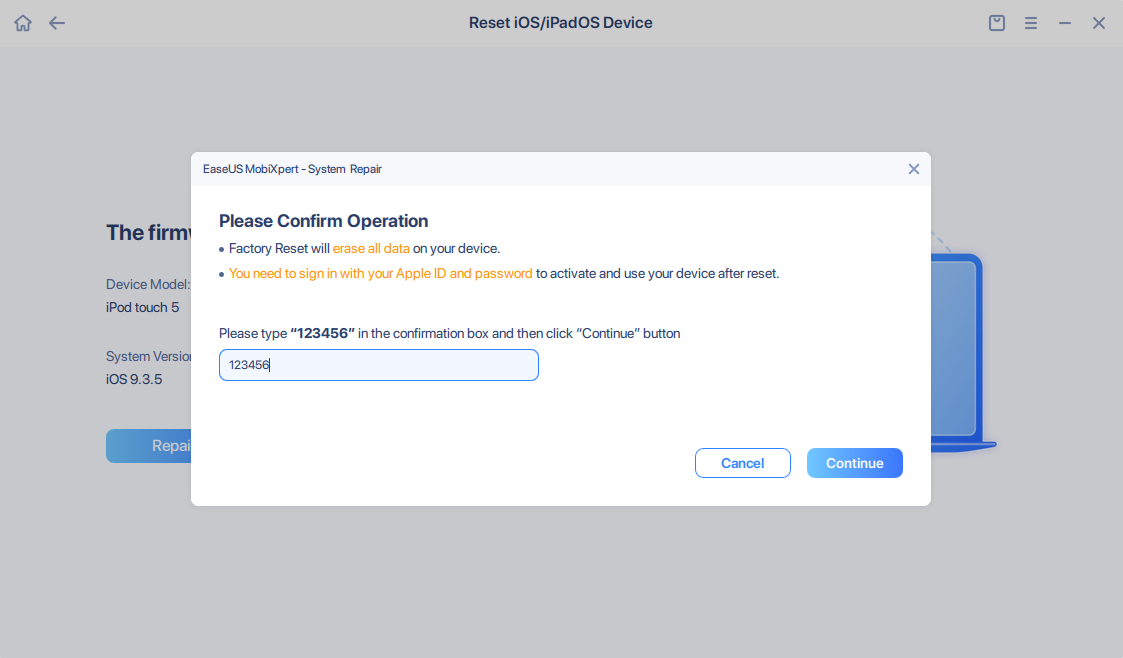
To proceed, you must first enter recovery mode or DFU mode. Next, download and verify the firmware package. To prevent any inadvertent mistakes, please ensure that you enter 123456 in the confirmation box. After doing so, click on Continue to move forward with the operation.
Enter/Exit Recovery Mode and DFU Mode
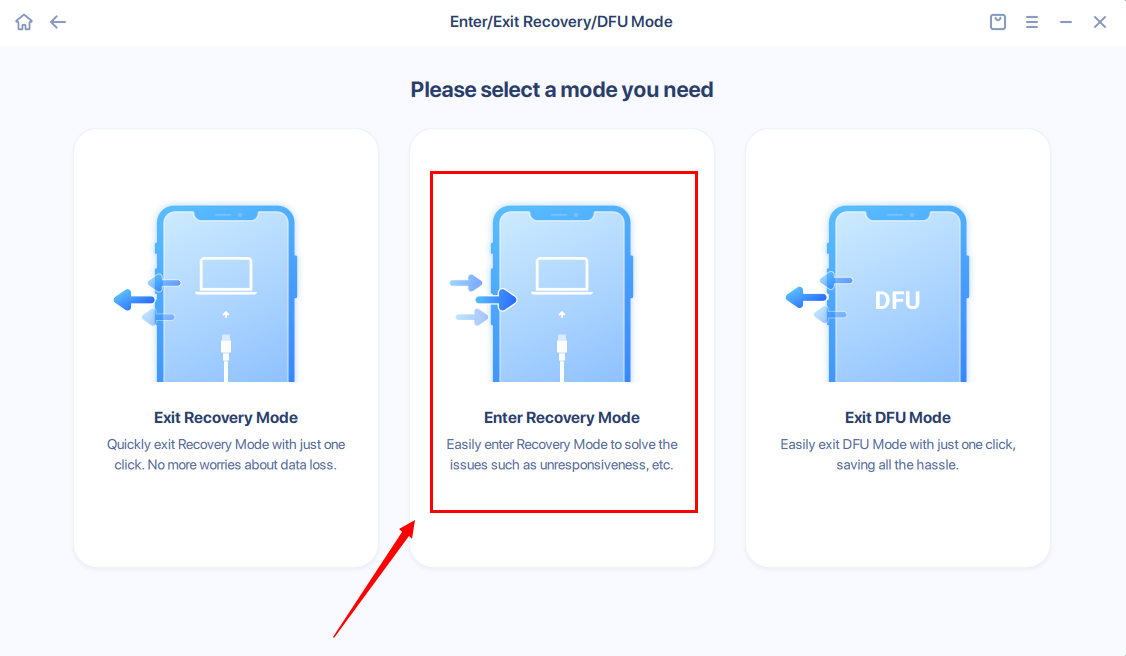
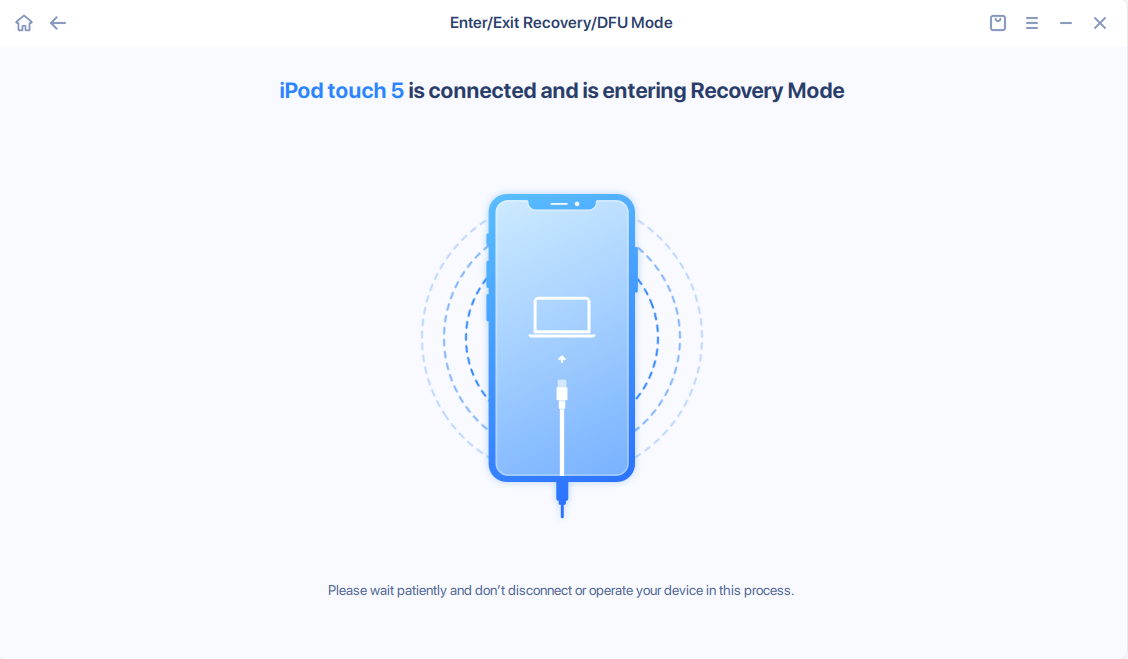
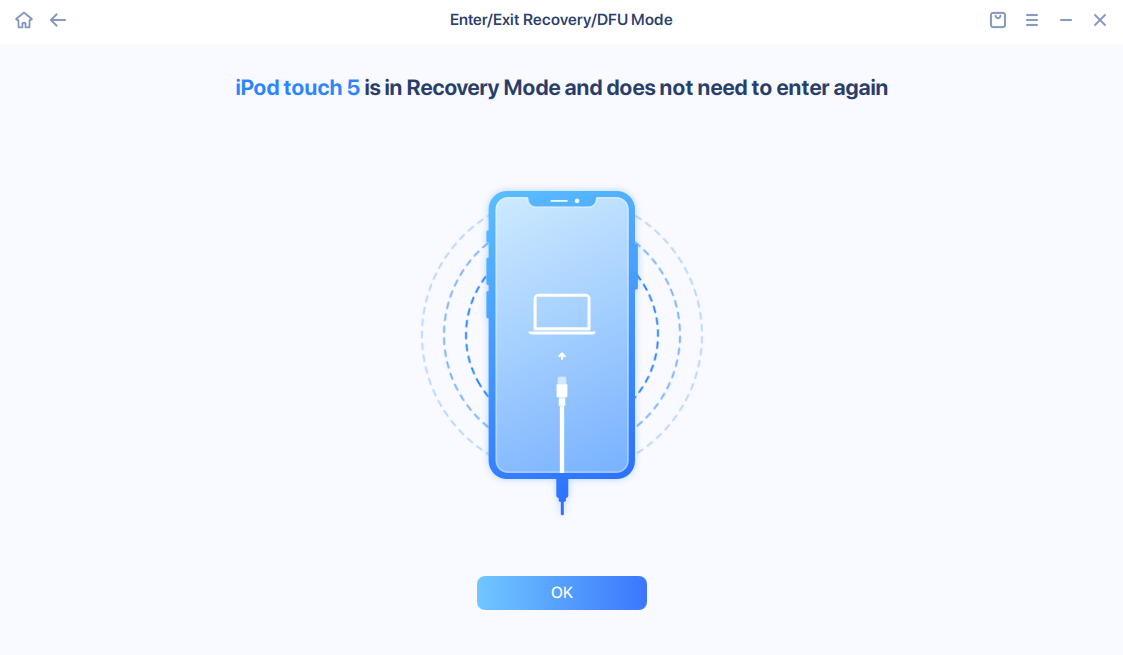
The device in either normal or recovery mode and can be connected without any issues. You can use the desktop software to issue necessary commands and toggle the mode status of the device, which will permit you to effortlessly and freely enter or exit the recovery mode.
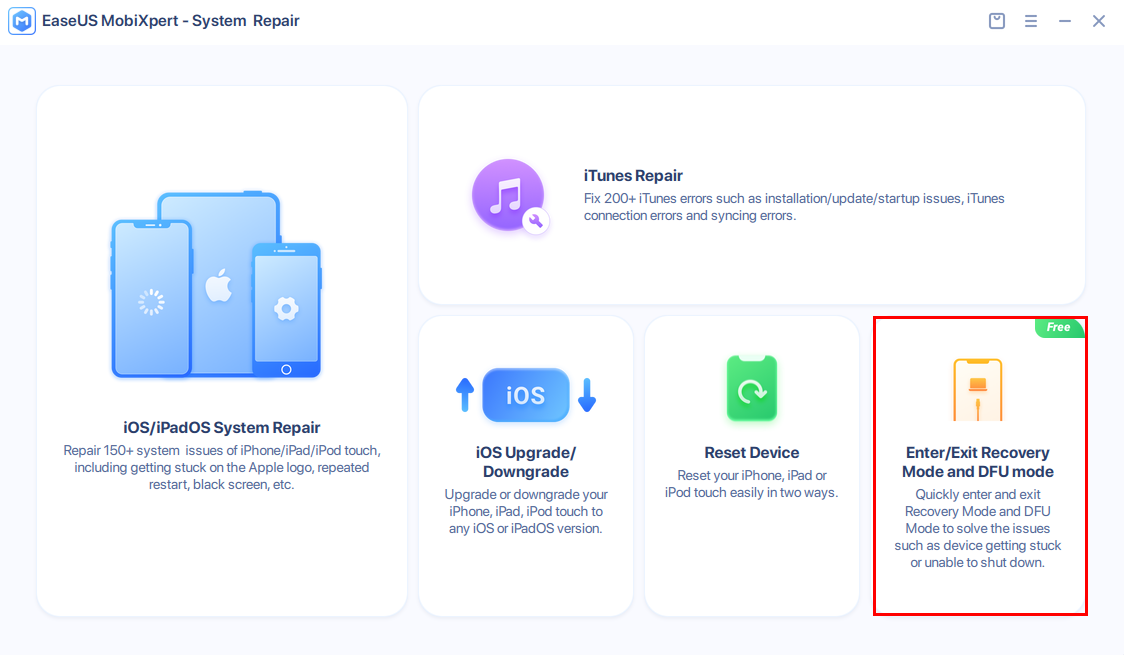
Taking Enter Recovery Mode for example. Choose the option on the screen and wait for the software to complete the task.
Note:
DFU mode, also known as Device Firmware Update mode, is a unique mode for devices such as iPhone and iPad. It is utilized to install, restore, or modify the iOS operating system firmware on the device. With DFU mode, users can restore their device to factory settings or update the iOS operating system, even if it is damaged or unbootable. This mode enables the device to be repaired, ensuring that it functions optimally.
Feedback
We invite your comments on how well EaseUS MobiXpert - System Repair performs, and we are also enthusiastic about replying to all your questions related to this product. Please feel free to contact us at helpdesk@easeus.com.
We also provide the online chat service and the Live Chat option can be located in the top navigation bar of EaseUS official website www.easeus.com.